Find a student in Circin Maestro
Open the roster for any class you teach, filter by class section and session year, and search by name to find a student on your phone.
Updated
Teacher
Staff
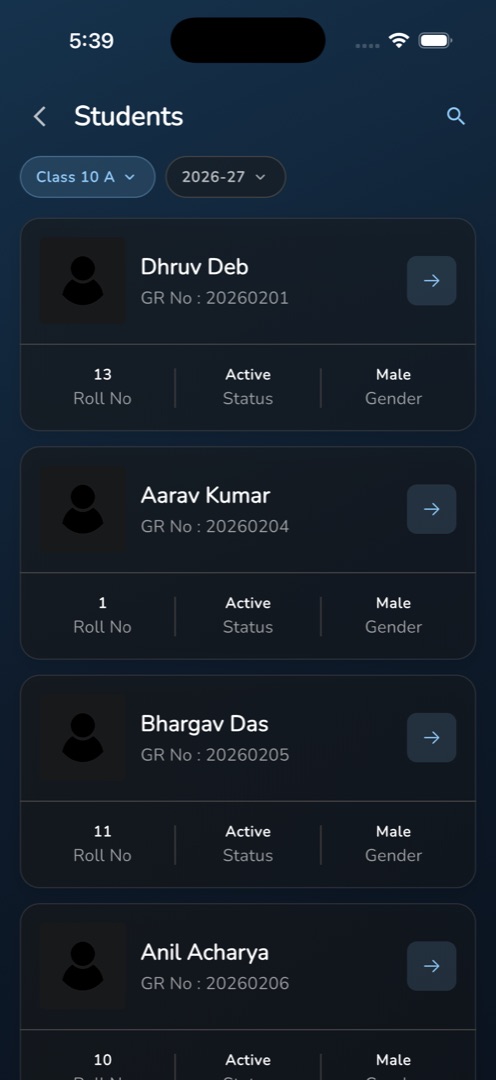
The Students screen is the roster in your pocket: one class section at a time, with roll number, admission number and status on every card.
How do I open the roster?
- Teachers: Manage → People & comms → View Students. Office staff: Home → Overview → Total Students.
- The screen loads classes and session years, then selects the first class section and the school's default session year and fetches that roster.
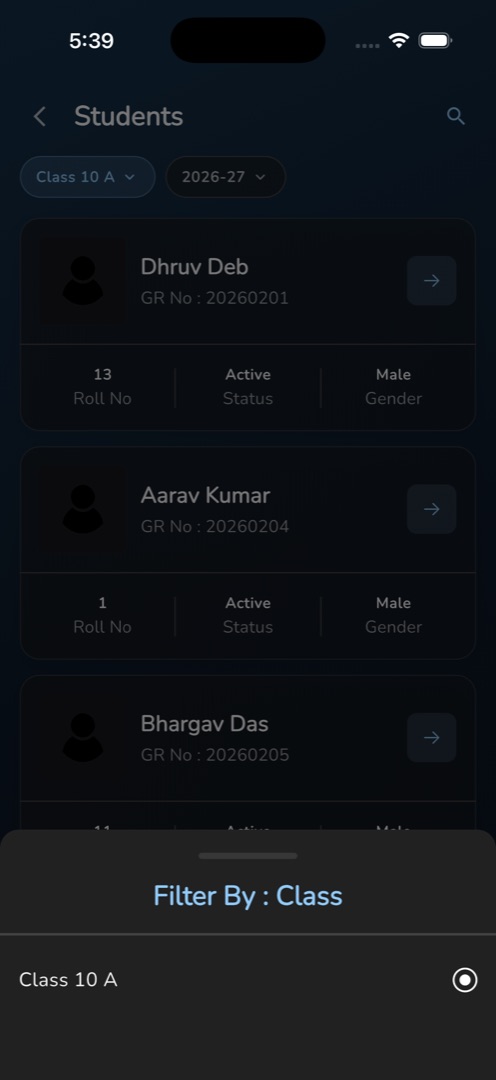
- Two pills sit under the header. Tap either to open Filter By : Class or Filter By : Session Year and pick a value; the list reloads on selection.
- Each student is a card: photo, full name, GR No : <admission number> underneath, and a footer with Roll No, Status and Gender.
- Tap the magnifier in the header to turn the title row into a search field and type a name. The search fires about half a second after you stop typing.
- Scroll to the bottom and the next page loads by itself.
Rules and gotchas
- Searching does not clear the class filter, so a student in another class will not be found. Switch the class pill first.
- Both filters must resolve before anything loads. Where the school has no session years the list area simply stays blank.
- A school with no classes shows No students found — the same message as an empty roster, so check the class pill before concluding the class is empty.
- Tap the back arrow inside the search bar to leave search; the unfiltered list is restored.
- A missing roll number or admission number shows as -.
- Access needs the Student Management module and the student-list permission.
Tap any card to open the student's profile.