Add lessons and topics in Circin Maestro
Build a subject's lessons and their topics from the Curriculum screen, apply them across sections in one go, and edit or delete what you created.
Updated
Teacher
Lessons and topics are what sessions, resources and quizzes are filed against, so they are worth building before the term starts. Circin Maestro creates a lesson and its topics together on one sheet.
How do I add a lesson?
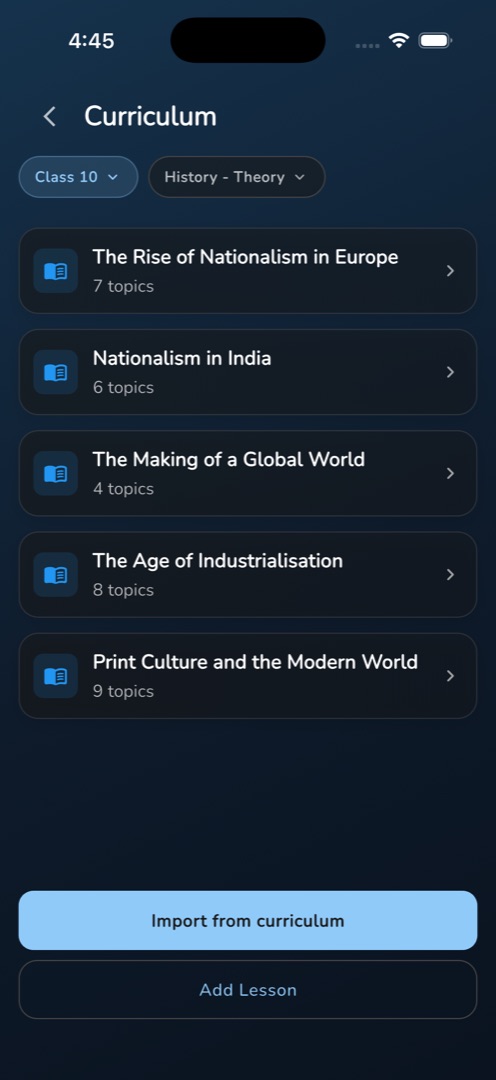
- On the Manage tab, open Curriculum (sub-label Lessons & topics).
- The two pills — Grade and Subject — start on your first grade and its first subject. Tap either to change them.
- Tap the outlined Add Lesson button at the bottom.
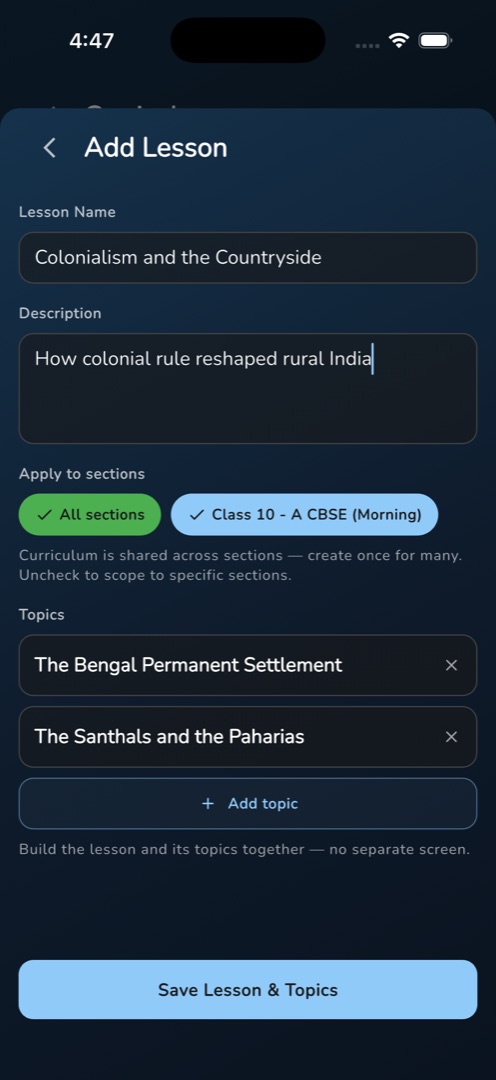
- Fill Lesson Name and, optionally, Description.
- Under Apply to sections, every section of the grade is selected by default, under the line Curriculum is shared across sections — create once for many. Uncheck to scope to specific sections. Tap chips to narrow it.
- Under Topics, tap Add topic, type the name and press the tick. Repeat for each topic; the ✕ on a row removes it.
- Tap Save Lesson & Topics. The snackbar reads Lesson created and the lesson appears in the list with its topic count.
How do I add a topic to an existing lesson?
Tap the lesson card to expand it, then tap + Add topic. The Create Topic screen opens with the lesson and subject already chosen. Fill Topic Name and Description, optionally attach files or links with Add Study Material, and tap Submit. After Topic Added Successfully! a dialog asks whether to build a quiz on the new topic: No keeps you on the form, Create opens the quiz builder pre-filled.
Rules and gotchas
- On the Create Topic screen the description is required — blank gives Please Enter Topic Description. The inline topics in the Add Lesson sheet have no description field at all.
- Editing uses the older forms, where both name and description are required. A lesson created without a description refuses to save until you type one.
- Edit Lesson and Delete sit on the expanded lesson card; the pencil on a topic row edits that topic. Sections, subject and lesson are locked while editing — to move a topic, delete and recreate it.
- There is no delete for a topic, and the delete dialog does not name what it is deleting.
- Leaving All sections on writes the lesson or topic across the whole grade.