Find your way around Circin Maestro
The four tabs in Circin Maestro — Home, Manage, Chat and Profile — what each one holds, and how Home differs for a teacher and for office staff.
Updated
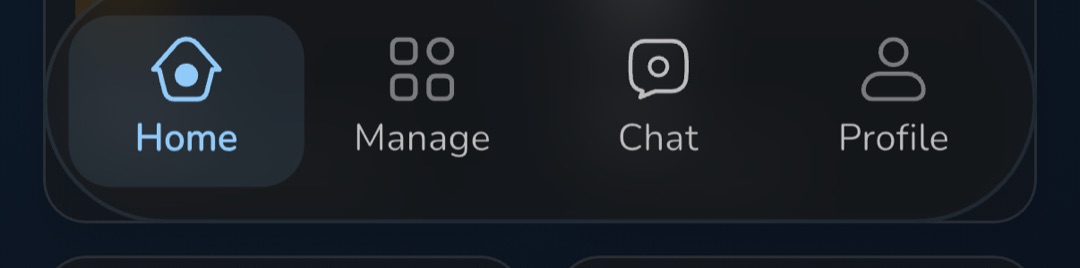
Circin Maestro opens on four tabs — Home, Manage, Chat and Profile — and every screen in the app hangs off one of them. What Home shows depends on whether your school records you as a teacher or as office staff.
What are the four tabs?
- Home — your day: what is happening now, what needs you, and the launchers you use most.
- Manage — the working surfaces. The header reads Manage with the line Manage your classes & content for a teacher, or View academic information for staff.
- Chat — conversations with students, parents and colleagues. See messaging in Circin Maestro.
- Profile — your account: details, password, theme, text size, leaves, payroll and Logout.
What does Home show me?
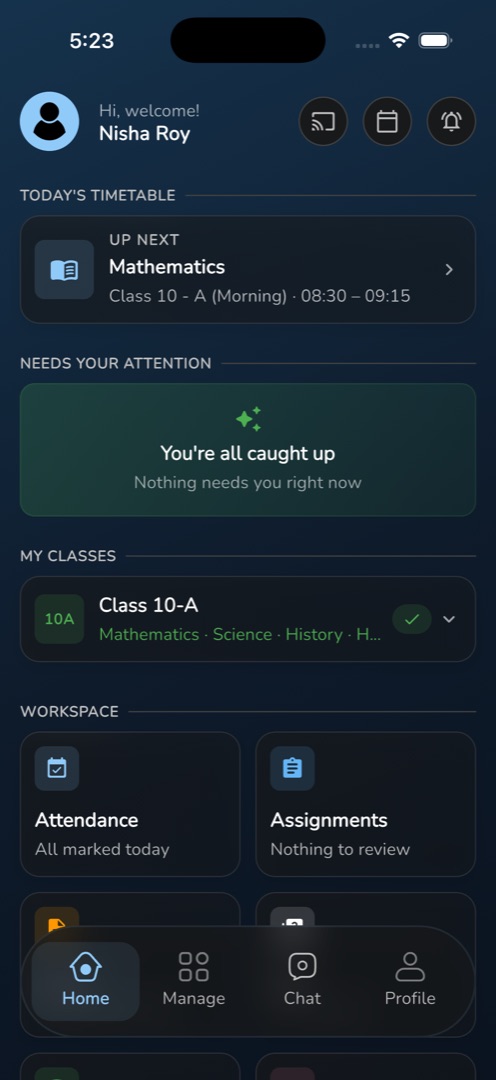
As a teacher: four stacked groups — Today's Timetable (one card for the NOW class with a Pair a board button, or the Up next class, or No class right now), Needs your attention (live bus trips and exams waiting to be graded; when nothing is urgent it reads You're all caught up), My classes, and Workspace — six launcher cards for Attendance, Assignments, Exams, Quiz, Transport and Announcement, with a More tools in Manage › row beneath them.
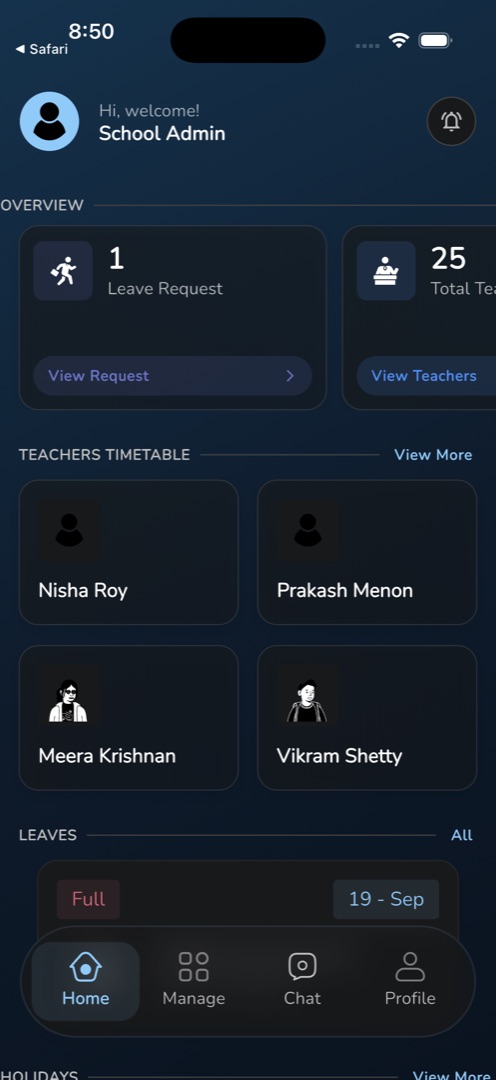
As office staff: Overview count tiles (Leave Request, Total Teachers, Total Students, Total Staffs), Teachers Timetable, Leaves (the who's-out roster, resting at Everyone is present today) and Holidays.
The top bar is the same for both: your photo, Hi, welcome! over your name, then circle buttons — teachers get a cast icon (pair a board) and a calendar icon (timetable), and everyone gets the bell for notifications.
Rules and gotchas
- Tiles are gated by your school's modules and your permissions. A tile you are not entitled to is absent, not greyed out — nothing explains why.
- On a screen wider than 600 px the bottom bar becomes a side rail with the same four destinations.
- The Workspace Attendance card always reads All marked today. It is a fixed resting line, not a live count.
- Teachers have no holiday list on Home; the only holiday view is the It's a holiday card on the attendance register.
- If permissions fail to load, the top-bar action row collapses to a single login icon that signs you out.
- Pressing back on Home shows Press back again to exit. and exits on a second press within two seconds.
- There is no school switcher. If you work at two schools, Maestro shows the one on your profile; only your admin can change it.
How do I sign out?
Open the Profile tab, scroll to the red-outlined Logout button and tap Yes in the Are you sure to logout? dialog. Signing out clears the cached school and user id, so a shared staff-room tablet does not carry one person's school into the next person's session.