Browse a subject's resources in Circin Maestro
Find every summary, mind map, flashcard set, recording and file a subject has produced, grouped by lesson and topic, from the Resources tab.
Updated
Teacher
The Resources tab answers "where is that summary I generated three weeks ago" without scrolling back through sessions. It collects the subject's material by type and groups each type by lesson and topic.
How do I find a resource?
- Open the class and subject from Home → My classes, then tap the Resources tab.
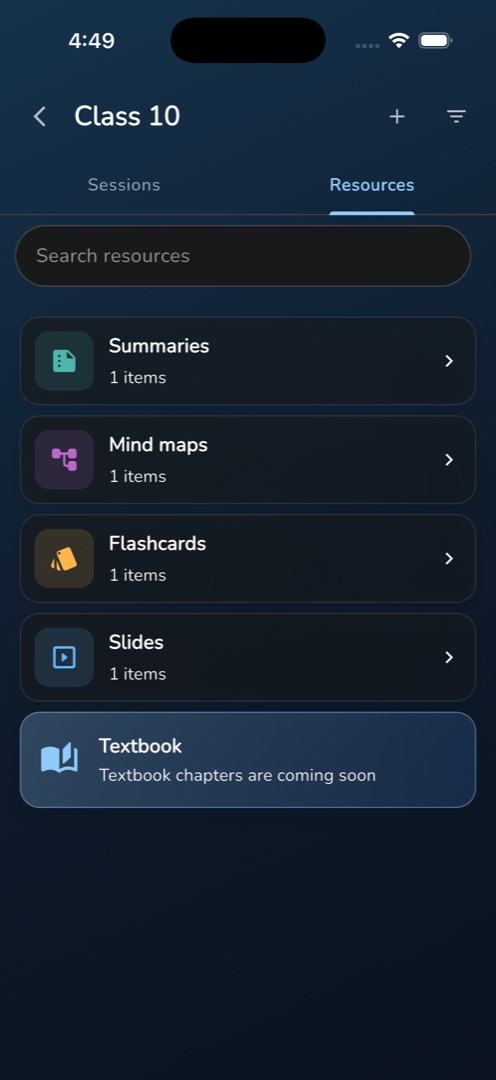
- A Search resources field sits at the top; under it, one card per material type that actually has content — Summaries, Mind maps, Flashcards, Slides, Recordings, Files & links — each with an N items caption.
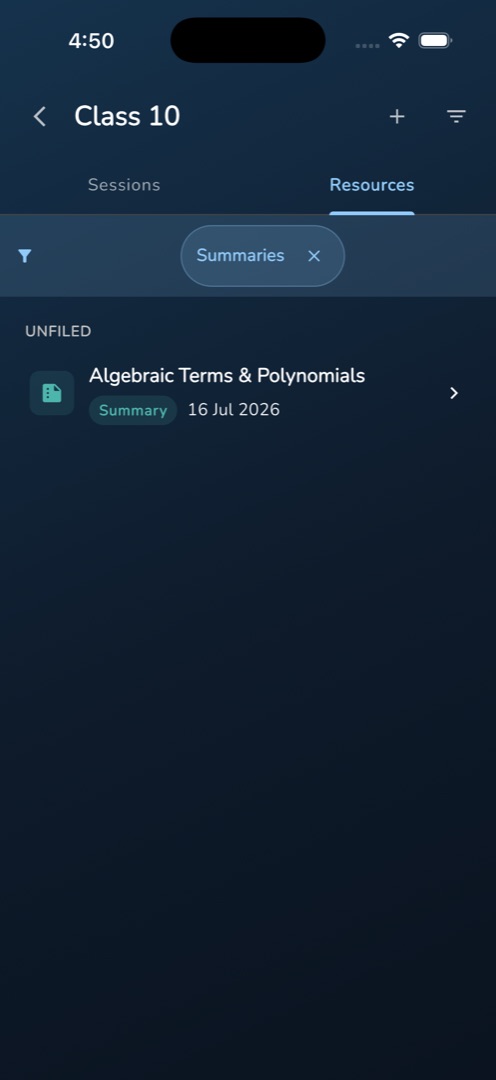
- Tap a type card. A tinted strip appears with a removable chip naming the type, and the items are grouped under headers such as PROBABILITY • SAMPLE SPACE. Untagged material collects under UNFILED at the bottom.
- Each row shows the material's real title, a type chip and the session date. Tap it to open the same viewer the session uses.
- Tap the chip's ✕, or press back, to return to the type list.
Rules and gotchas
- A Textbook card always sits last, reading Textbook chapters are coming soon. It does nothing when tapped.
- The funnel filter in the header narrows this tab too, by date range and by lesson or topic. Changing it drops you back to the type list rather than leaving you on an empty drill-in.
- Grouping is only as good as the tagging: material from a session with no lesson linked lands in UNFILED. See Link a lesson and topic to a session.
- Recordings open in another app, and only http and https links are honoured — a malformed one does nothing.
- An empty result reads No materials for this topic yet.