Approve or reject a leave request in Circin Maestro
Clear the pending leave queue from your phone — read the dates, days and reason, then approve or reject each request in Circin Maestro.
Updated
Staff
Also on Admin Panel: Staff leave
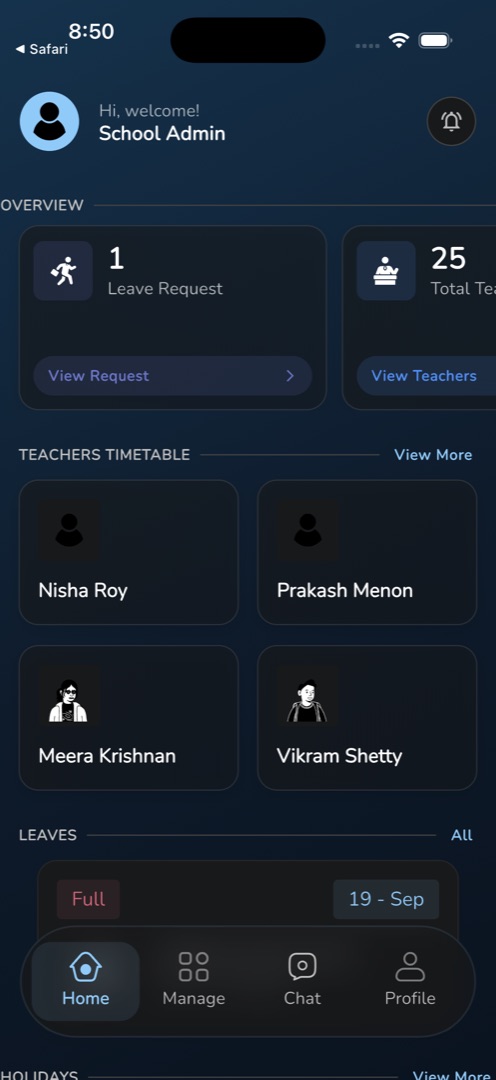
If your role can approve leave, the staff Home tab carries a Leave Request tile whose number is the size of the queue. Everything you need to decide is on the card.
How do I decide a request?
- On the Home tab's Overview row, tap the Leave Request tile — its action link reads View Request.
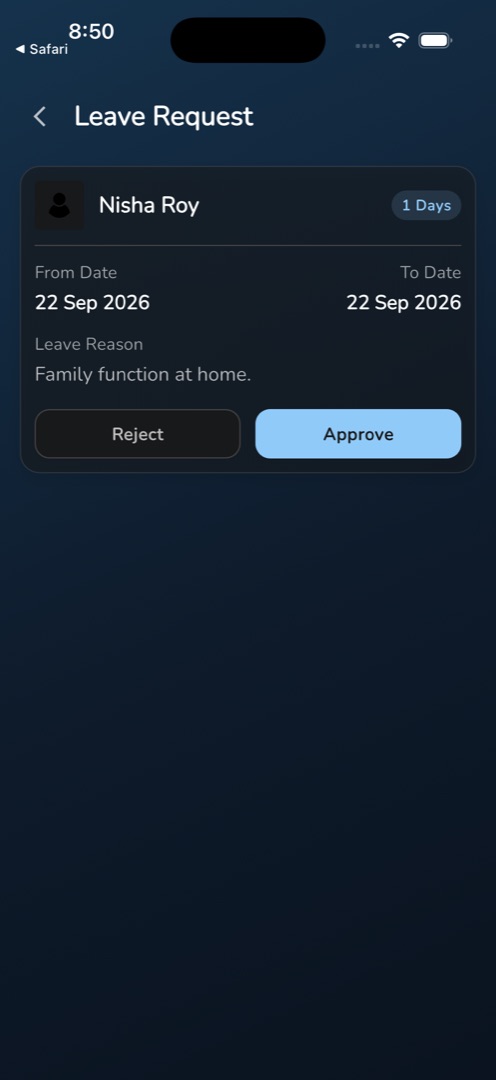
- The Leave Request screen lists every outstanding request. Each card shows the applicant's photo and name, a chip reading N Days, then From Date and To Date side by side, and Leave Reason underneath.
- Tap Approve or Reject at the bottom of the card.
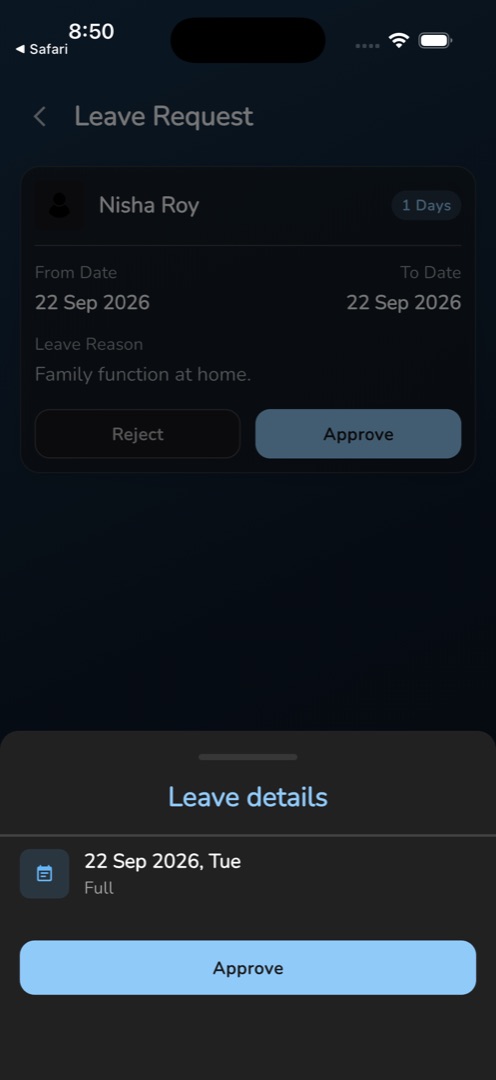
- The Leave details sheet opens: one row per leave day with the date and whether it is a full or half day, an Attachments button when the request carries files, and a confirm button labelled to match what you tapped.
- Tap the confirm button. The sheet cannot be swiped away while the decision is being saved.
- On success the sheet closes on its own and the list reloads without that request. On failure the sheet stays open with the error so you can retry.
Rules and gotchas
- Decisions are final in the app. Nothing reopens or reverses an approved or rejected request; it leaves this list and the applicant sees the new status on their My Leave screen. Reversals are admin-panel work.
- The tile only exists if your school has the staff-leave module and your role holds the approve-leave permission. Without either, the tile is simply absent from Overview — there is no message.
- The screen has no status filter and no search, so it only ever shows what is still pending.
- A push notification about leave opens this screen directly.
- A request with no day rows shows 1 Days on its chip. Read the From and To dates rather than the chip.
- An empty queue reads No leave requests found.
The staff member's side of the same request is Apply for leave in Circin Maestro.