Request school transport in Circin Maestro
Ask for a seat on a school bus from Circin Maestro — choose your pickup point, shift and plan, then track the request until the school approves it.
Updated
Teacher
Staff
Also on Admin Panel: Transport requests Circin: Request school transport in Circin
Teachers and staff can ride the school buses too. Circin Maestro raises the request; the school office approves it, and approval enrols you straight away.
How do I request a seat?
- On the Home tab, in the Workspace group, tap Transport.
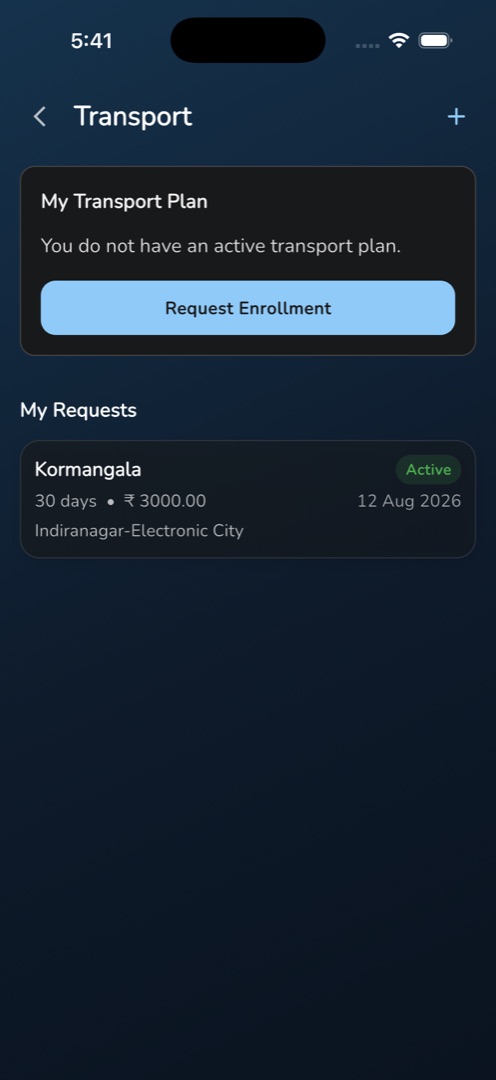
- With no plan yet, a card headed My Transport Plan reads You do not have an active transport plan. with a Request Enrollment button.
- Tap Request Enrollment (or the + at the top right — its tooltip says the same).
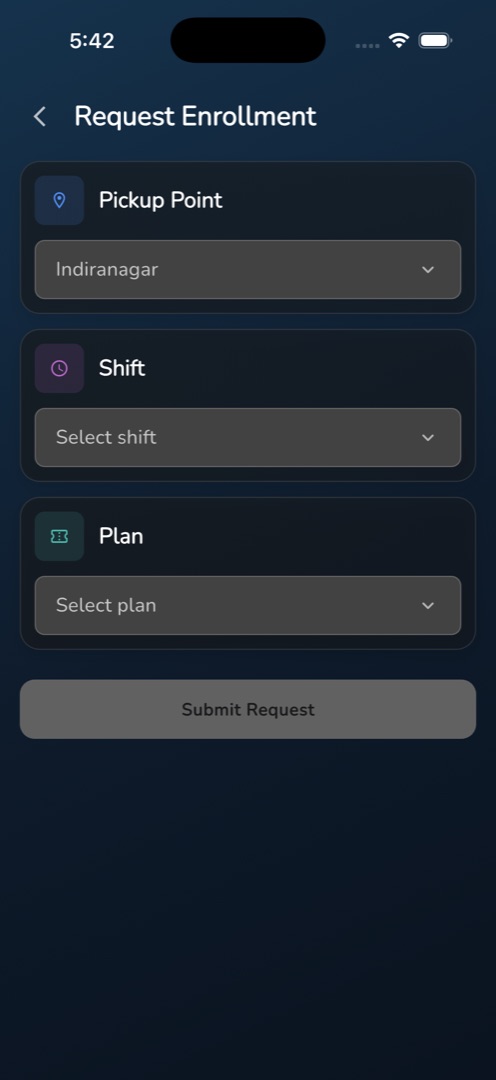
- Tap the Pickup Point field, which reads Select pickup point, and choose your stop.
- Shift and Plan become tappable once a pickup point is set. Tap Shift and pick one.
- Tap Plan and pick a duration and price; the choice shows as days • amount.
- Submit Request turns active once all three are set. Tap it.
- The screen closes with Request submitted — admin will confirm shortly.
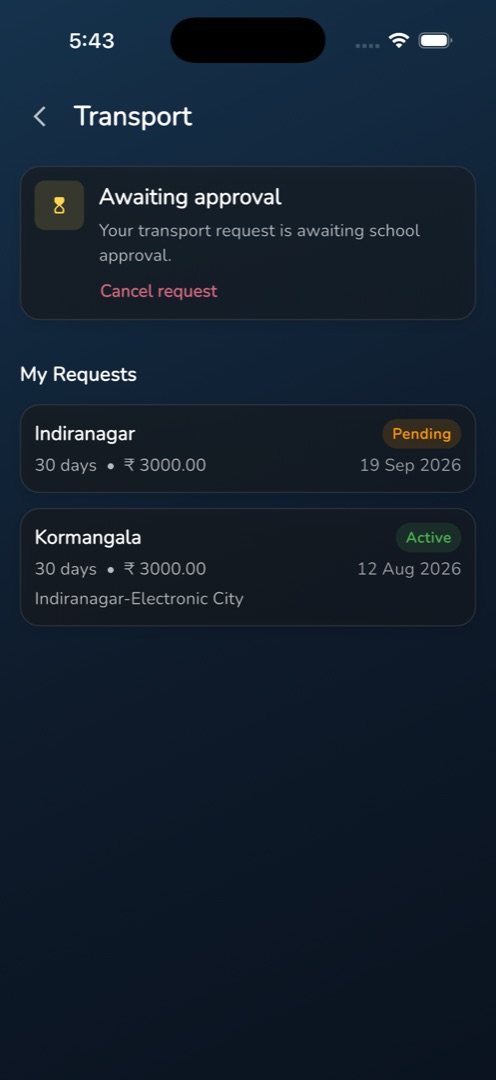
- Back on Transport, an amber Awaiting approval banner appears with Your transport request is awaiting school approval. and a red Cancel request link. The request also lists under My Requests with a Pending chip.
Rules and gotchas
- Changing the pickup point resets Shift and Plan, because both depend on the stop.
- One live request at a time. While yours is pending or approved, the + and the Request Enrollment button both disappear.
- To withdraw, tap Cancel request. A sheet asks Cancel this request? / Your transport request will be withdrawn. You can request again anytime. Confirm there.
- There is deliberately no "request approved" banner. When the office approves, you are enrolled and the plan card takes over the screen — that is your confirmation.
- If the school declines, a red Request declined banner appears with the admin's reason where one was given, and the request button comes back.
- If your school has not set transport up you get Your school has not configured transport. Please contact the admin. and no fields at all.
- The three picker sheets are titled Filter By : Pickup Point, Filter By : Shift and Filter By : Plan. They are form fields, not filters — the prefix is a wording slip in the app.
Once you are enrolled, track the bus from the same screen. Your office approves these requests in the admin panel under transport requests.