Look up a class or a colleague's timetable in Circin Maestro
Office staff can read any class section's week, and any teacher's week, from the Manage tab — including who teaches each period.
Updated
Office staff can read the school's timetables from the phone: a class section's week with the teacher named on every period, and any teacher's own week.
How do I open a class's timetable?
- Go to the Manage tab and find the Admin group.
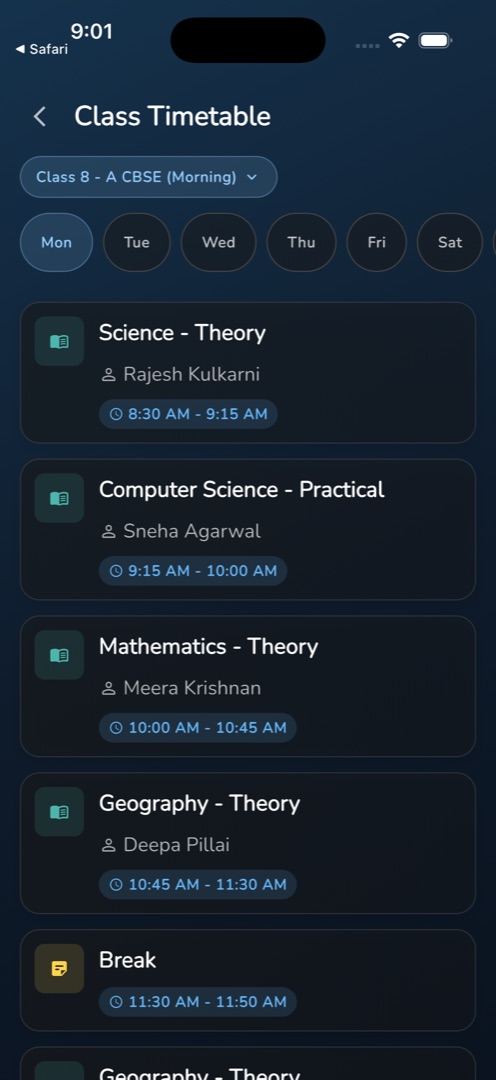
- Tap Class Timetable. The screen loads the class list and selects the first class section for you.
- Tap the class pill to open Filter By : Class and choose another class section. The timetable refetches.
- Under the pill, a day strip runs Mon through Sun — it scrolls sideways, so Sunday sits off the right edge. Mon is pre-selected, not today — tap the day you want.
- Each period card shows the subject with its type, the subject teacher's name next to a person glyph, and a blue chip with the start and end times. A break shows an amber note instead of a subject, with no teacher line.
How do I open a teacher's timetable?
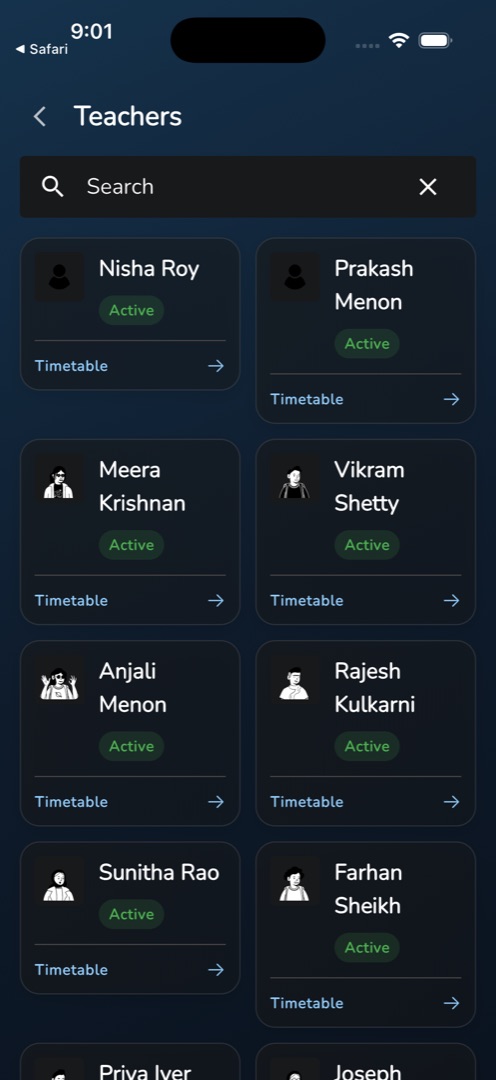
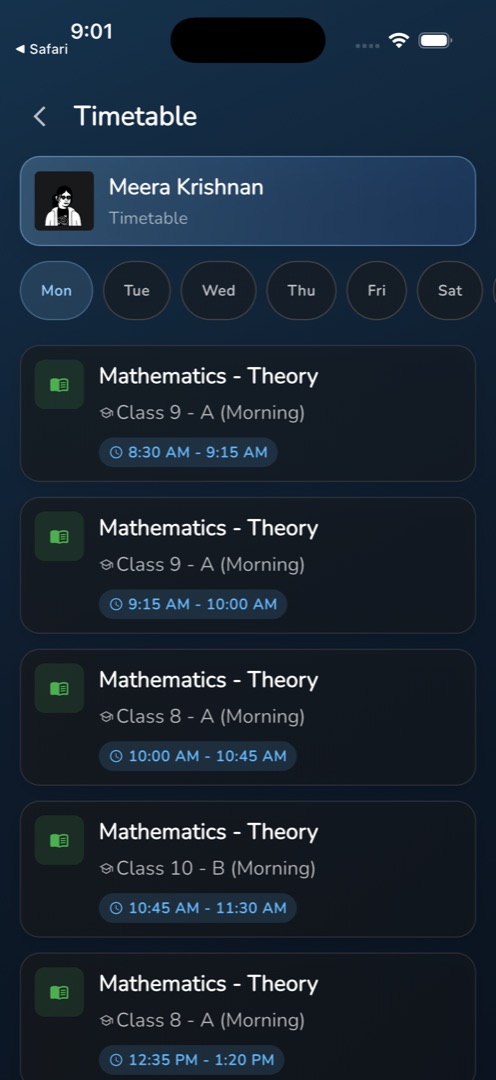
Tap Teachers Timetable in the same Admin group (or View More on the Home Teachers Timetable group). Teachers appear two to a row, each card carrying their photo, name, an Active or Inactive chip and a footer link reading Timetable. Type in the Search box to narrow the list — it fires about a second after you stop typing — and tap a card. Their week opens with the same Monday-first day strip, each period showing the subject, the class section it is taught to, and the time.
Rules and gotchas
- Both screens are read-only. Circin Maestro has no timetable editor at all — build and change timetables in the admin panel, see Create timetable, then reopen the screen here.
- Clearing the search box by hand does not reload the list. Use the ✕.
- Empty at any level reads No class timetable found, No teachers found or No time table found.
- A missing teacher or subject renders as -.
- Both tiles need the Timetable module enabled and the timetable-list permission; without them the tile is absent from Manage, not greyed out.