Find an offline exam in Circin Maestro
See how many exams are waiting to be graded, filter the exam list by class and session year, and read an exam's timetable, totals and passing marks.
Updated
Circin Maestro tells you on Home how much grading is outstanding, and the Exams screen is where you pick the exam to act on. Exams themselves are created in the admin panel; the app browses them and routes you into grading or results.
How do I see what needs grading?
On Home, the Exams card in the Workspace group reads {count} to grade with an amber badge when at least one exam is completed but not published, and Nothing to review otherwise. Tapping it opens the whole list. To go straight into one exam, use the Needs your attention group instead: there is one card per gradable exam, titled Grade: {exam name}, with a Grade button that opens marks entry on that exam's first subject.
How do I find a particular exam?
- Open Exams — from the Workspace card, or Manage → Exams.
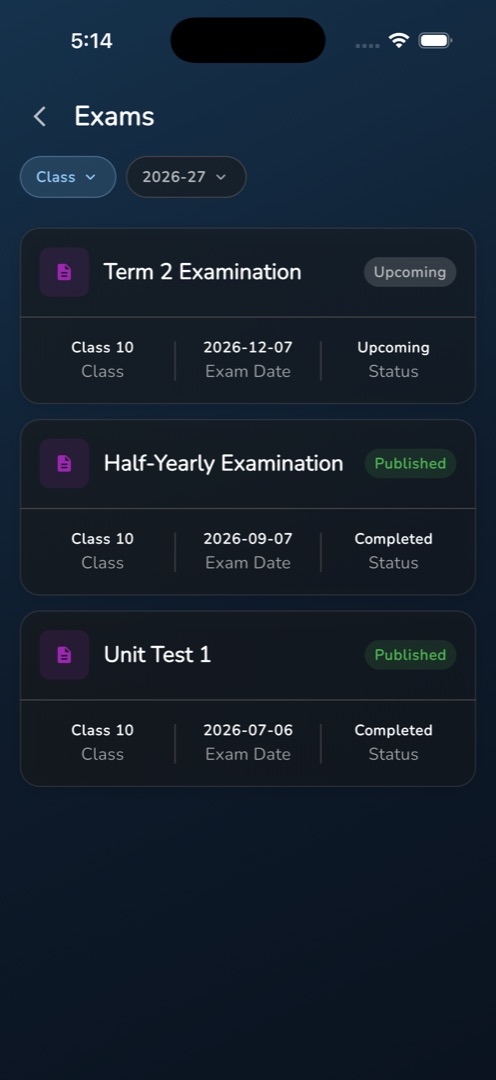
- Tap the Class pill to pick a class section, and the Session Year pill to change the year. The list reloads on each selection; the year starts on the school's default.
- Each card shows the exam name, a status chip and three columns: Class, Exam Date, Status.
- Tap the clock icon on a card to open the Exam timetable sheet: one row per subject with its date and times, and Total marks and Passing marks side by side.
- Tap the card itself to act on it. A Grading card opens marks entry; a Published card opens the student results.
Rules and gotchas
- Upcoming and Ongoing cards are not tappable, and tapping one says nothing. Only Grading and Published cards go anywhere.
- The chip and the Status column are different things: a completed exam shows the chip Grading and the status Completed at once.
- The clock icon appears only where the exam has at least one timetable slot. Without it there is no other way to see its schedule in the app.
- You cannot create, edit or delete an exam in Circin Maestro — see Manage exams in the admin panel.
- Teachers only see exams for their own classes. The staff tile also needs the exam-list permission.