Browse classes and their subject teachers in Circin Maestro
Office staff can list every class section on the phone and open any of them to see its subjects and the teacher assigned to each one.
Updated
Staff
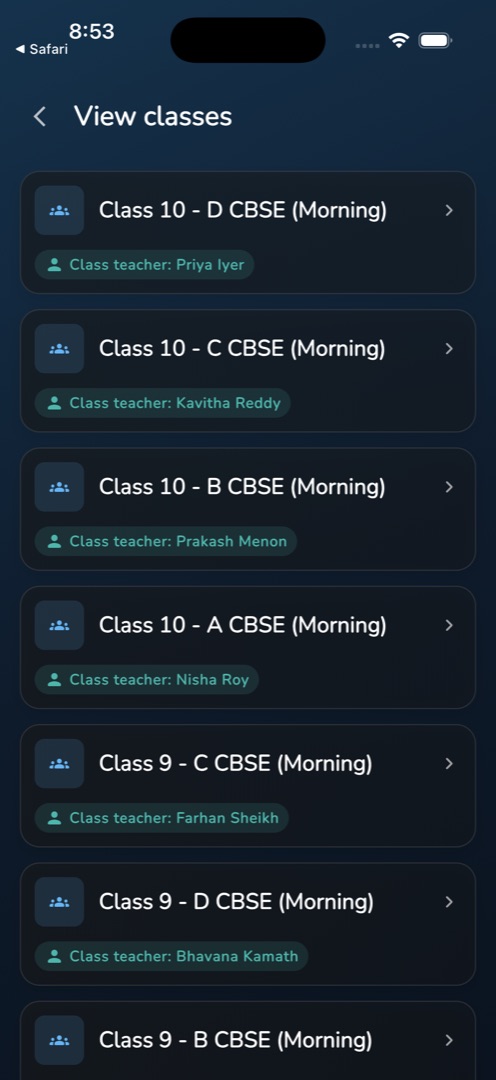
When a parent rings and asks who teaches their child's science, the answer is two taps away in Circin Maestro. The View classes screen lists every class section, and each one opens on its subject-by-subject teacher list.
How do I see who teaches what?
- Go to the Manage tab, Curriculum group, and tap View classes.
- The list loads every class section. Each card shows a group glyph, the class section's full name and, underneath, up to two chips: Class teacher: <names> in teal and Semester: <name> in purple. A chip is omitted where the school has not set that value.
- Tap a class card.
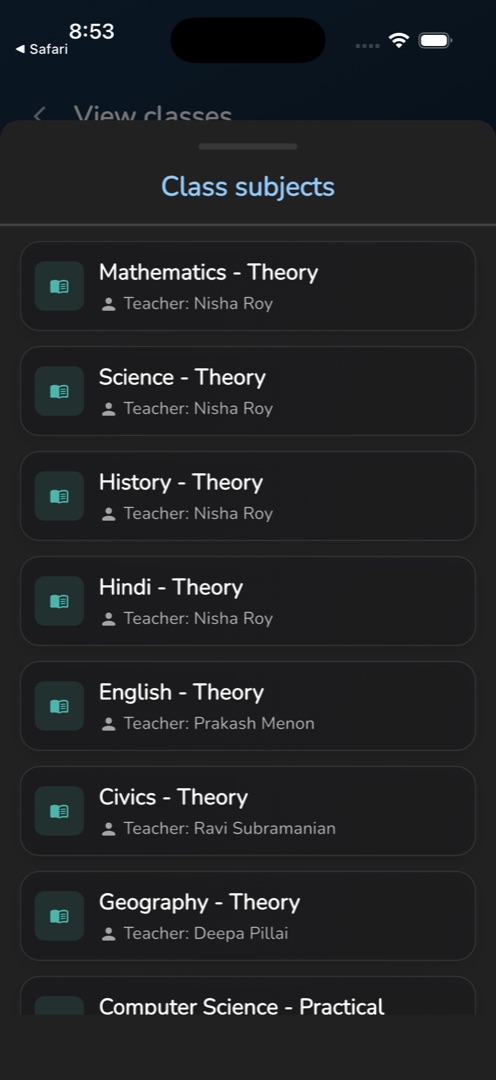
- A sheet titled Class subjects slides up listing every subject configured for that class section — the subject name with its type, and Teacher: <name> under it.
- Swipe the sheet down and tap another class to compare.
Rules and gotchas
- The screen is read-only. Assigning a class teacher or a subject teacher happens in the admin panel — see Class sections & teachers.
- A subject with nobody assigned shows Teacher: -.
- A class with no subject mappings shows No subjects found please add some subjects in the class section and assign to the teacher inside the sheet.
- There is no search, no filter and no paging here: the whole list renders at once.
- The tile needs the class-list permission. Without it, View classes is absent from Manage.
- Teachers do not use this screen. Their own classes live on Home — see Open your class and its subject.