Open your class and its subject in Circin Maestro
Reach any class you teach from the Home My classes group, and land on the subject screen with its Sessions and Resources tabs.
Updated
Teacher
Everything you do for a class in Circin Maestro — sessions, recordings, study materials, resources — starts from the My classes group on Home. There is no separate Teach tab.
How do I open a class?
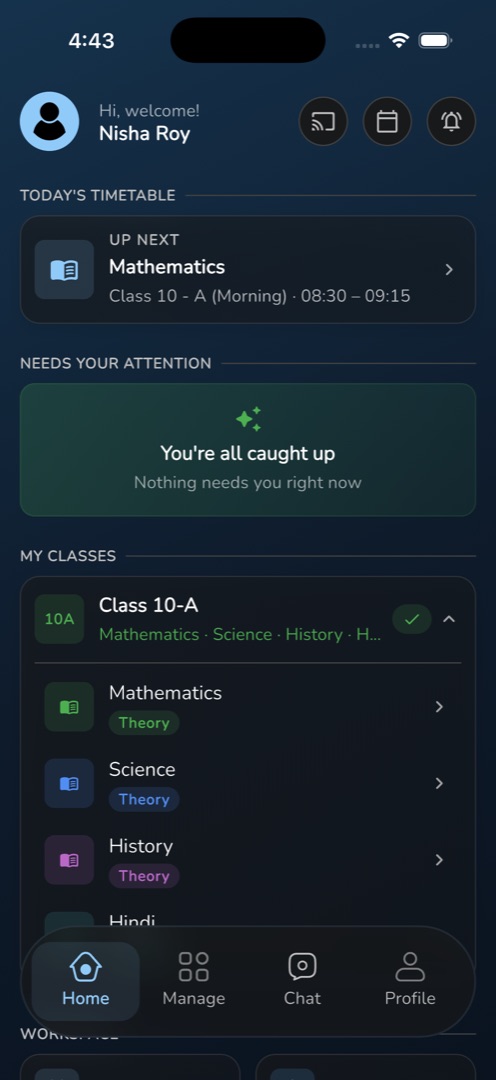
- On Home, scroll to My classes. Each class section is one roll-up card: the class name over the subjects you teach in it, with a tick when nothing needs you and a {count} to review line when work is waiting.
- Tap the card. A class with exactly one subject opens that subject straight away; a class with two or more expands into one row per subject, so tap the subject you want.
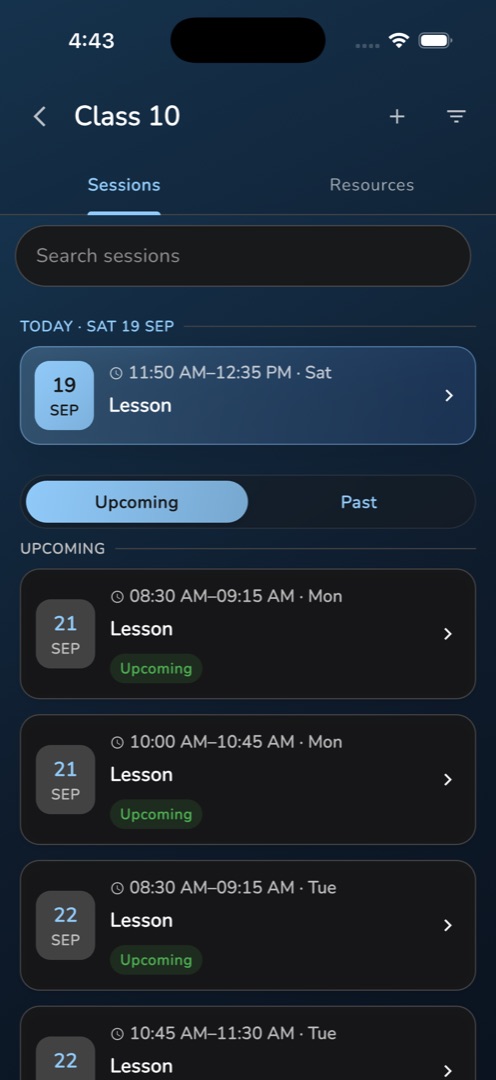
- The subject screen opens, titled with the class name. Two tabs sit under the title: Sessions, which is open by default, and Resources.
- Two actions sit on the right of the header: + to add a session, and a funnel to filter.
What are the two tabs for?
Sessions is the teaching timeline for this class and subject: today's class, then Upcoming and Past. See Find or create a teaching session. Resources collects everything the sessions produced — summaries, mind maps, flashcards, recordings and files. See Browse a subject's resources.
Rules and gotchas
- The class and subject list comes from your cached profile, not a fetch, so it updates as soon as an admin changes your assignments and still renders with no connection.
- A class with no subjects does nothing when tapped. An empty group reads Classes appear here once assigned.
- Tapping the subject screen's title clears the whole active filter — useful when a filter is hiding what you expected to see.