Change the theme, language and text size in Circin Maestro
Switch Circin Maestro between light and dark, change the app language, and make text larger or bolder from the Profile tab.
Updated
Teacher
Class Teacher
Staff
Circin Maestro's appearance is set per device from the Profile tab, under Preferences and Accessibility. Every change applies the moment you tap it — none of these screens has a Save button.
How do I switch theme or language?
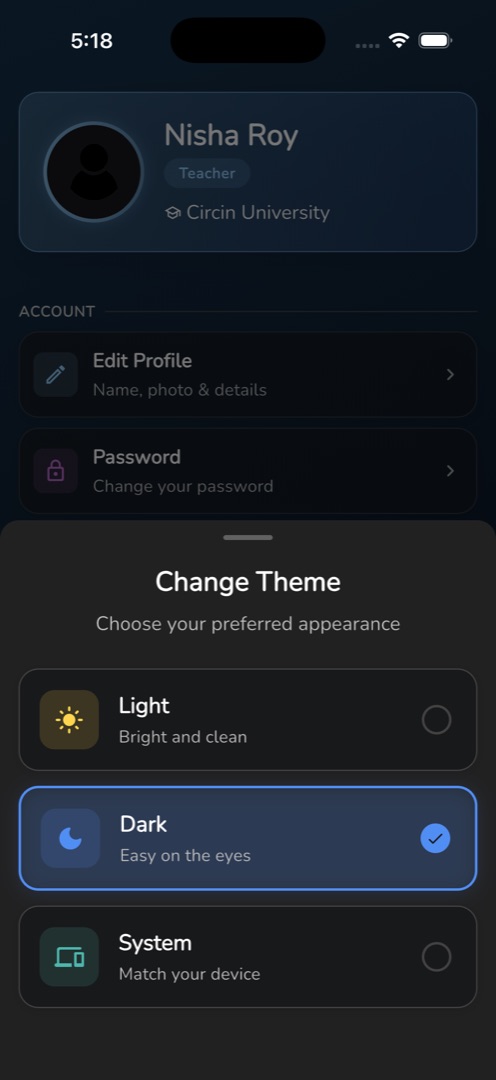
- Tap the Profile tab, then Change Theme under Preferences.
- A sheet titled Change Theme offers three cards — Light / Bright and clean, Dark / Easy on the eyes, System / Match your device. The current one carries a coloured border and a tick.
- Tap one. It applies at once and the sheet closes.
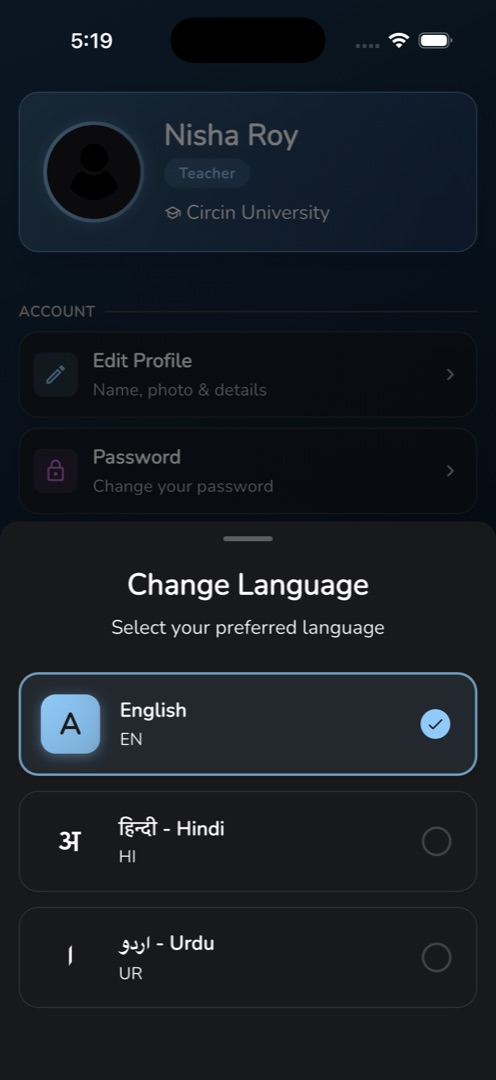
- For language, tap Change Language on the same group. The Change Language sheet lists each supported language with its own name and code; tap one to apply it.
How do I make text bigger or bolder?
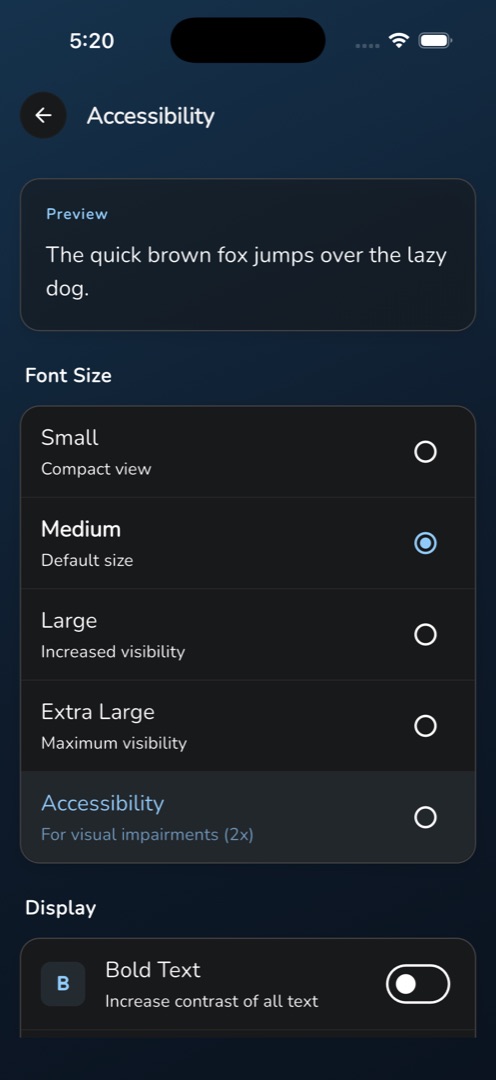
- Tap the Profile tab, then Display & Text under Accessibility. The screen header reads Accessibility.
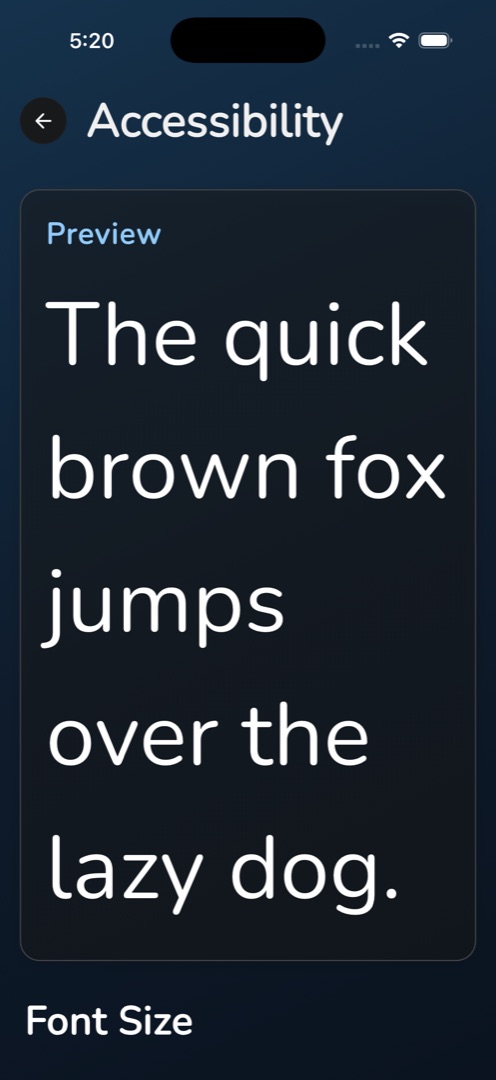
- The Preview card at the top renders The quick brown fox jumps over the lazy dog. at your current settings — watch it as you change things.
- Under Font Size, tap one of five rows: Small / Compact view, Medium / Default size, Large / Increased visibility, Extra Large / Maximum visibility, or Accessibility / For visual impairments (2x).
- Under Display, use the two switches — Bold Text / Increase contrast of all text and Show Gradients / Enable colorful backgrounds.
- Tap the back arrow when the preview looks right.
Rules and gotchas
- Nothing here confirms, saves or resets. Your choices persist on this device only — sign in on another phone and you start at the defaults again.
- The Display & Text body stays blank until settings have loaded, which on a slow start looks like an empty screen rather than a spinner.
- The Accessibility size is a 2× scale and will wrap or clip text on some screens. Step back to Extra Large if a screen becomes unusable.
- Several strings stay English whatever language you pick — the three theme subtitles, Choose your preferred appearance, and everything on the Display & Text screen except its two headings.