Create a quiz in Circin Maestro
Build a quiz in three screens: pick at least five questions, choose the students, then name it, set a date and a duration, and submit.
Updated
Teacher
Staff
Also on Admin Panel: Online exams
A quiz in Circin Maestro is assigned to named students rather than to a whole class, and it is built in a three-screen wizard. There is no form before it: tapping Create Quiz lands you on question selection.
How do I build the quiz?
- Start from Manage → Create Quiz, from the Quiz card on Home, or from Create Quiz on a topic in the curriculum.
- Select Questions — the Category and Subcategory pills work as in the question bank. Tick each question you want; selected ones hop into a group at the top headed N selected. Use the eye icon to check the correct answer before committing, and the green Add Questions button to write a missing question on the spot — it is added to your selection automatically. Tap Next.
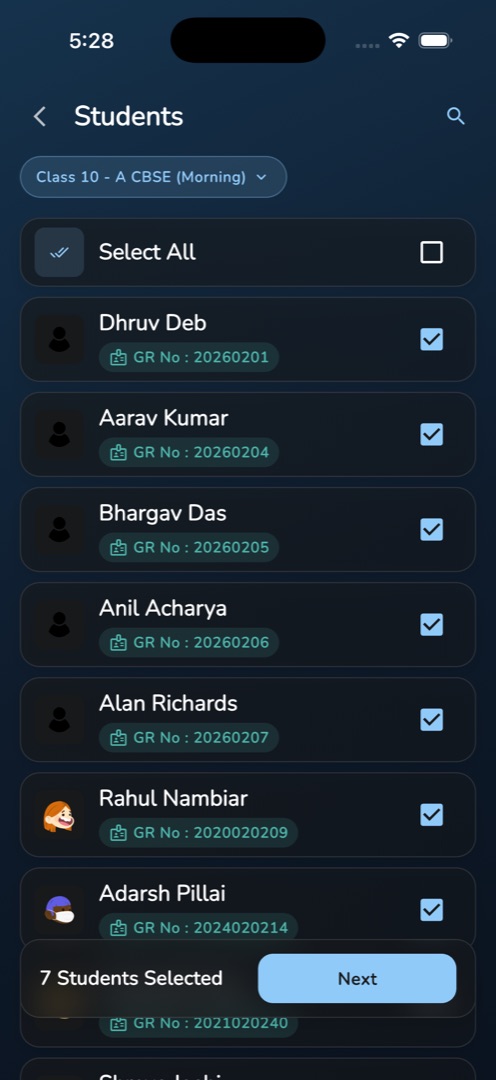
- Students — a Class pill loads a class section's roster. Tap rows, or the Select All chip, to choose. The bottom bar counts them: 12 Students Selected. Changing the class keeps your existing picks, so one quiz can span sections. Tap Next.
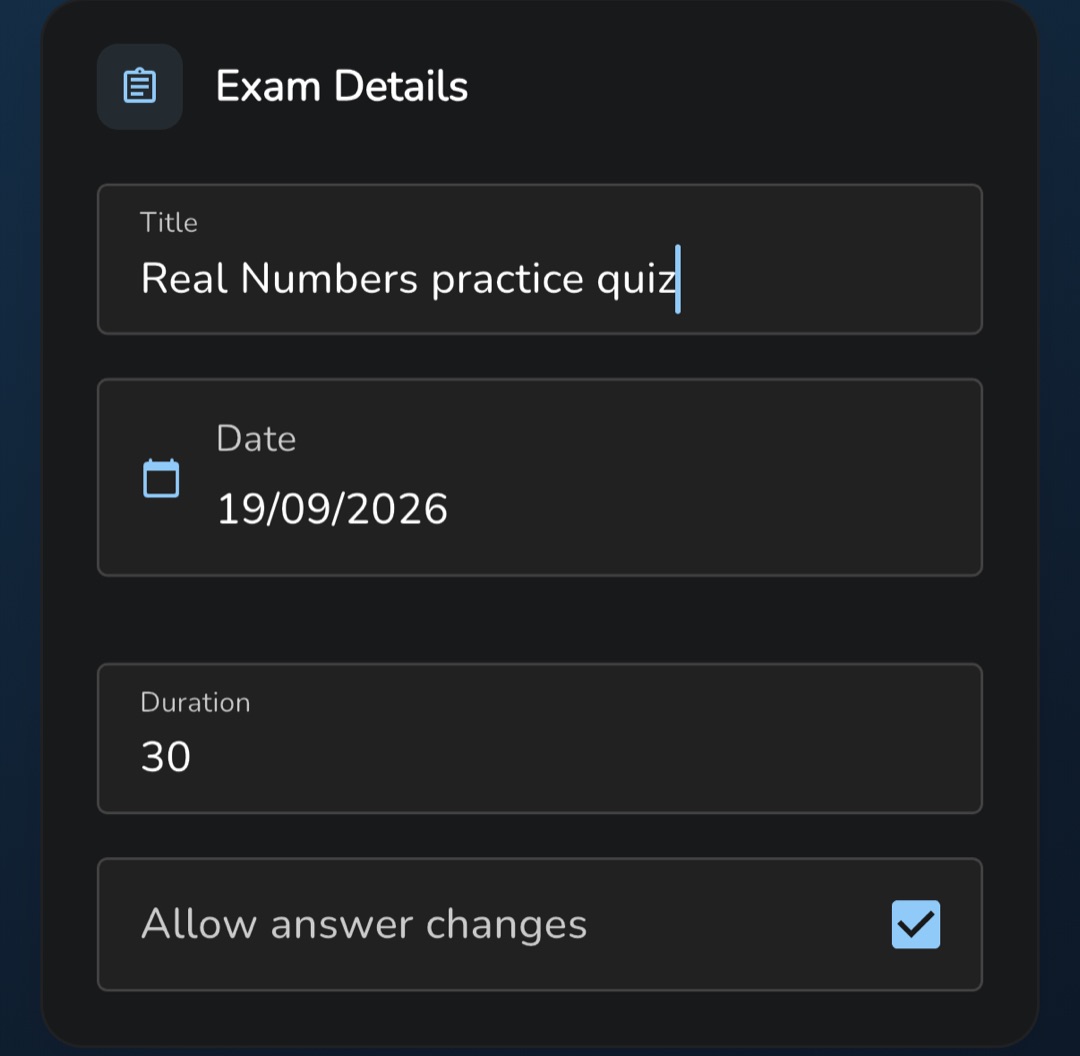
- Final Submission — fill Title, tap Date to pick the day, type a Duration in minutes, and tick Allow answer changes if students may revisit answers during the attempt.
- Check the read-only Selected Questions (N) and Selected Students (N) cards, then tap Submit. The snackbar reads Quiz created successfully and you land on Manage Quizzes.
Rules and gotchas
- Five questions is the minimum: fewer gives Please select at least 5 questions. There is no maximum.
- Coming in from a topic, the search bar opens pre-filled with the topic's description, so the bank looks nearly empty until you clear it — and every student in the pre-selected class is already ticked.
- Select All only covers students already loaded. In a large class, scroll to the bottom first.
- Duration must be between 1 and 180 minutes, and the date cannot be in the past or beyond the end of the session year.
- Selections are lost if you back out of the question screen; the back arrow within the wizard keeps them.
- Marks per question do not exist in the app — totals are computed for you.
- The quiz cannot be edited or deleted afterwards. See Review a quiz and its results.