Online exams
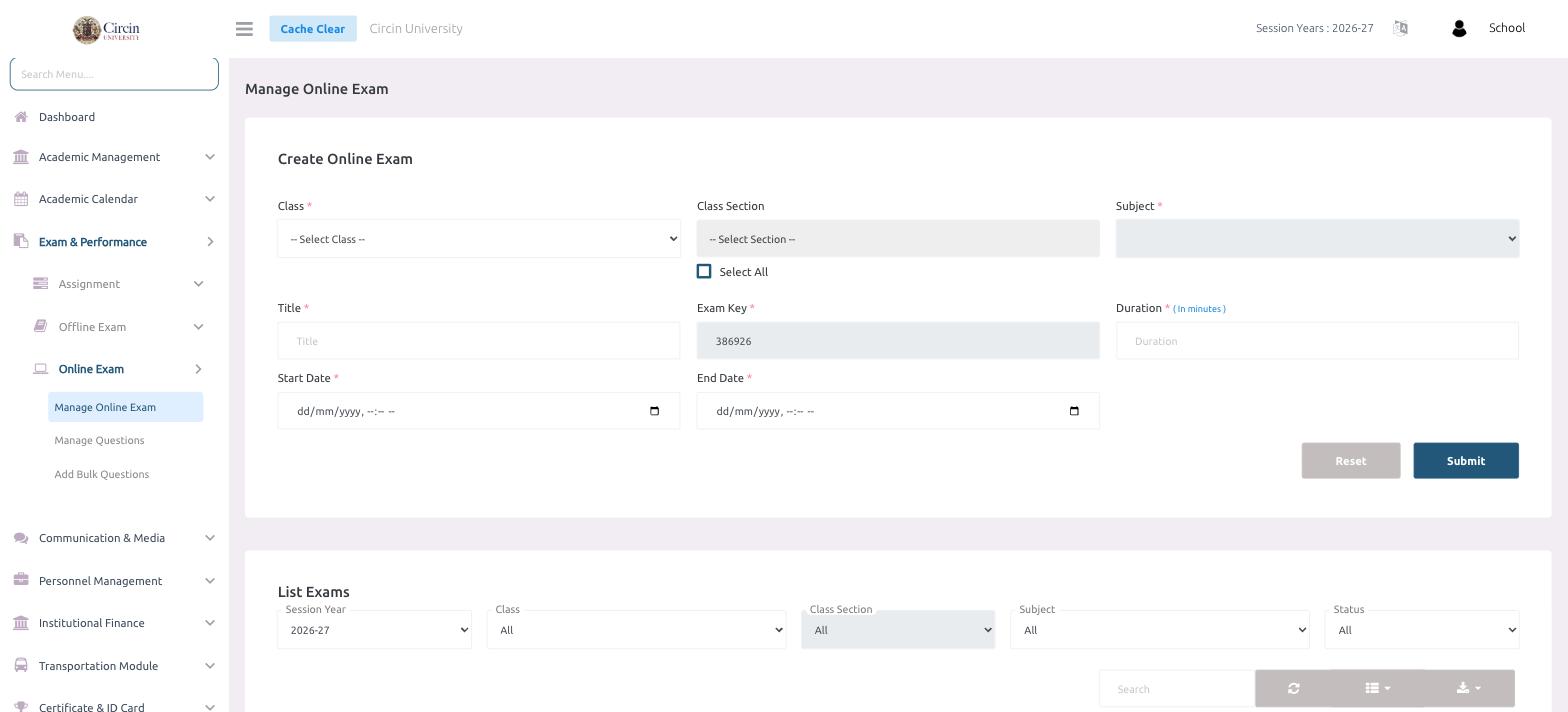
Create an online exam in Circin — pick the class, section, and subjects, set a title, exam key, duration, and start and end dates, then submit.
Updated
School Admin
Setting up an online exam in Circin means choosing which class and subjects it covers and when it runs. You give it a title, confirm the auto-generated exam key, set a duration in minutes, pick start and end dates, and submit — then it appears in the exam list below.
How do I create an online exam?
- In the left menu, open Exam & Performance → Online Exam → Manage Online Exam.
- Under Create Online Exam, choose the Class, then the Class Section.
- Choose the Subject, or tick Select All to include every subject.
- Enter a Title for the exam.
- Confirm the Exam Key — Circin pre-fills one (for example, 386926) that students use to enter the exam.
- Set the Duration in minutes.
- Pick the Start Date and End Date (each takes a date and time).
- Click Submit, or Reset to clear the form.
How do I find an online exam I created?
Scroll to List Exams and filter by Session Year, Class, Class Section, Subject, or Status, or use the Search box.
Tips
- Add the questions students will answer under Manage Questions, or import them with Add Bulk Questions, before the exam window opens.