Assignment submissions
Review student assignment submissions in Circin: filter by class section and subject, open each student's files, and record points and feedback.
Updated
Also on Circin Maestro: Review assignment submissions in Circin Maestro
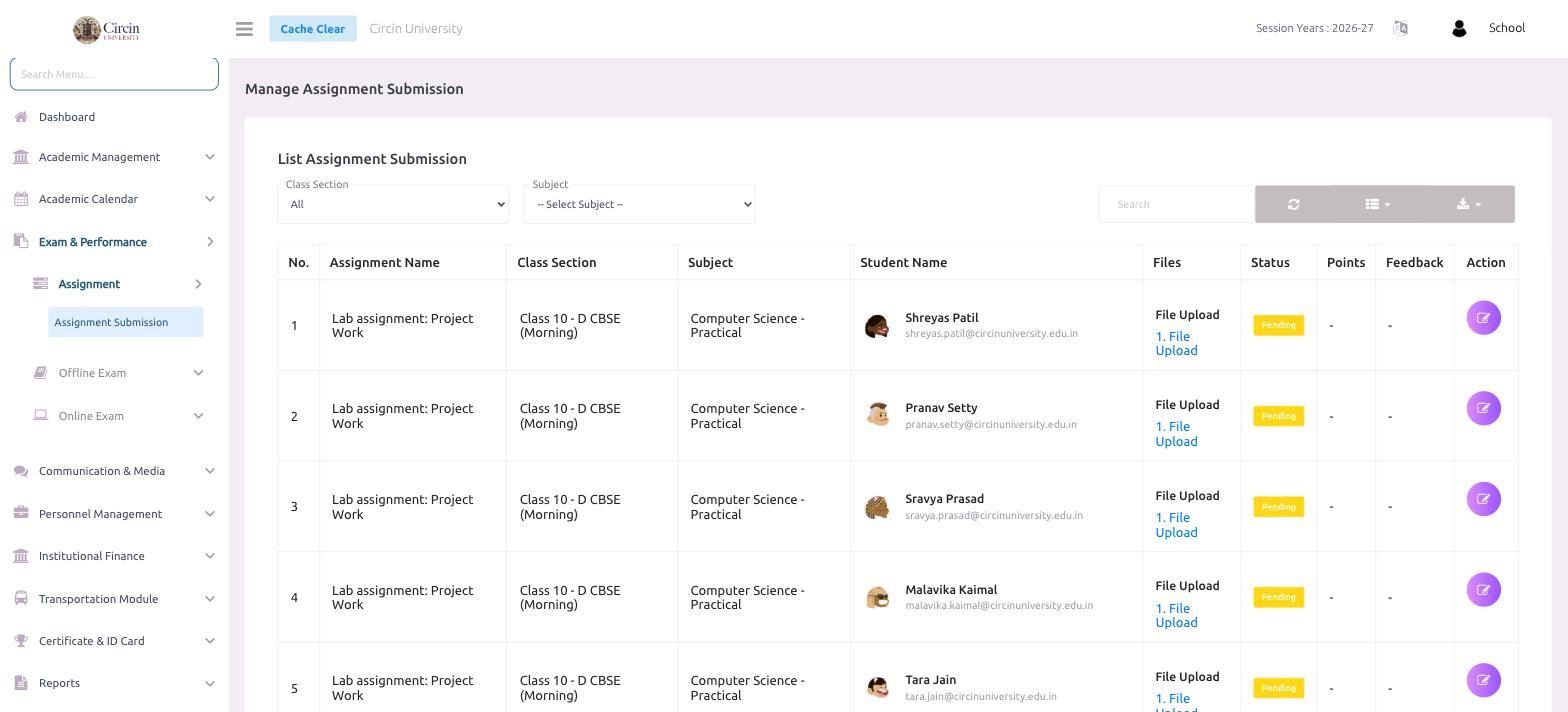
The Assignment Submission page lists every student's response to your assignments in one table. You can filter by class section and subject, open each student's uploaded files, see whether their work is still Pending, and record Points and Feedback from the Action button.
How do I review assignment submissions?
- In the left menu, open Exam & Performance → Assignment → Assignment Submission.
- Under List Assignment Submission, use the Class Section dropdown to narrow to a class (or leave it on All).
- Choose a Subject from the -- Select Subject -- dropdown to focus on one subject.
- Find the student's row and open their file under Files — for example, the File Upload link — to see what they submitted.
- Click the Action button on that row to grade the submission and record points and feedback.
What do the columns mean?
Each row shows the No., Assignment Name (such as Lab assignment: Project Work), Class Section, Subject, and Student Name with the student's email. The Files column holds the student's uploaded work, Status shows whether the submission is Pending or reviewed, and Points and Feedback show what you have recorded — a dash (-) means nothing has been entered yet. The Action button opens the submission to grade it.
Tips
- Use the Search box to find a submission by student name or assignment.
- The toolbar icons on the right let you refresh the list, change the column view and export the submissions.