Review assignment submissions in Circin Maestro
See who has handed in, filter by status, open a student's files, and accept or reject their work with points and feedback.
Updated
Teacher
Class Teacher
Each assignment card counts what has come in, and one tap gets you the list. Accepting or rejecting a submission is what sends the student their result.
How do I see who has handed in?
- On Manage Assignment, find the assignment. Its footer reads {count} of {total} submitted with View submissions.
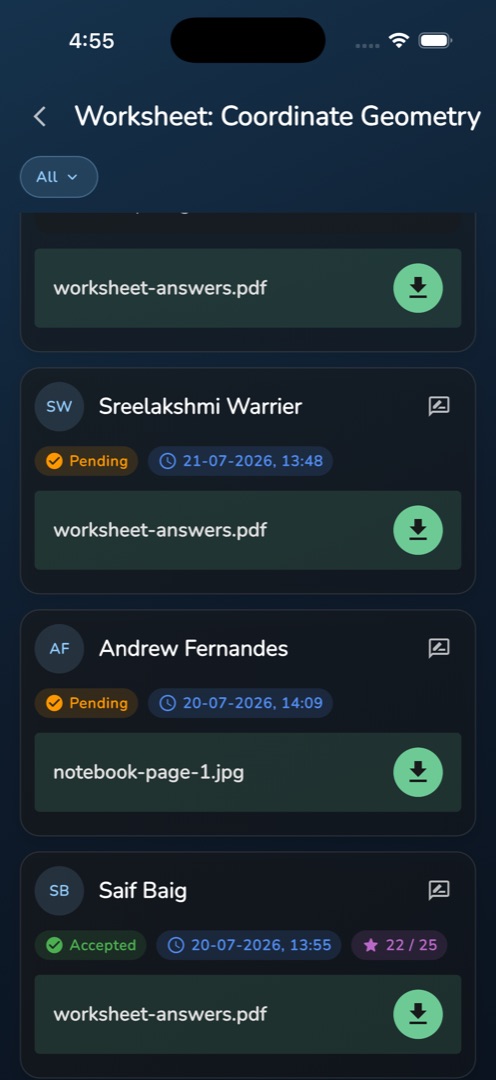
- Tap View submissions. The header shows the assignment's own name.
- The status pill starts at All. Tap it for Pending, Accepted, Rejected or Re-Submitted.
- Each card shows the student's name, a status chip, when they submitted, their points once graded, any feedback you left, and their files — tap a file to open it.
How do I accept or reject one?
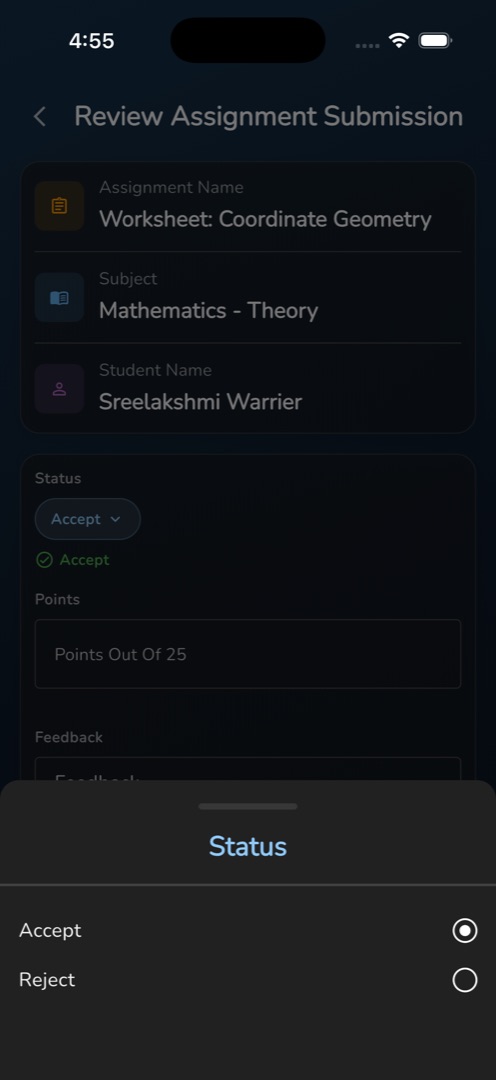
- Tap the review icon in a submission's header. Review Assignment Submission opens, with the assignment, subject and student shown read-only at the top.
- Tap the Status pill and choose Accept or Reject.
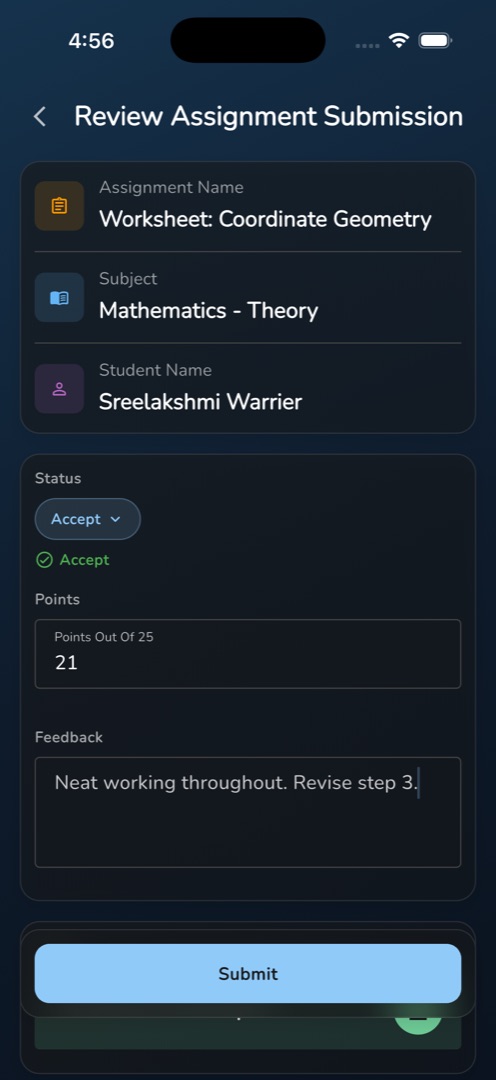
- With Accept chosen on a pointed assignment, a field appears labelled Points Out Of <total> — type the mark.
- Type into Feedback, which is required either way.
- Tap Submit. The snackbar reads Assignment Review Added Successfully and the card updates in the list behind it.
Rules and gotchas
- A pending submission opens on Accept, so rejecting is a deliberate switch — check the pill before submitting.
- Feedback is mandatory for both decisions: blank gives Please Enter Feedback.
- Points above the assignment total give Cannot Give More Points Than Total, and a rejection sends zero whatever is typed.
- Rejecting only lets the student try again where the assignment was created with Resubmission Allowed and a non-zero extra-days value. See Set an assignment.
- The status filter is applied on the device to the whole list, and the screen has no pull-to-refresh: go back and re-enter to reload.
- The same submissions are reviewable in the admin panel — see Assignment submissions.