Set or change your Circin Maestro password
Circin Maestro shows one of two password screens depending on how you sign in — a reset email if you already have a password, or two fields to set one.
Updated
Teacher
Class Teacher
Staff
Profile → Password shows one of two screens, decided when it opens by how your account signs in today. Neither of them asks for your current password.
I already sign in with a password
- Tap the Profile tab, then Password under Account.
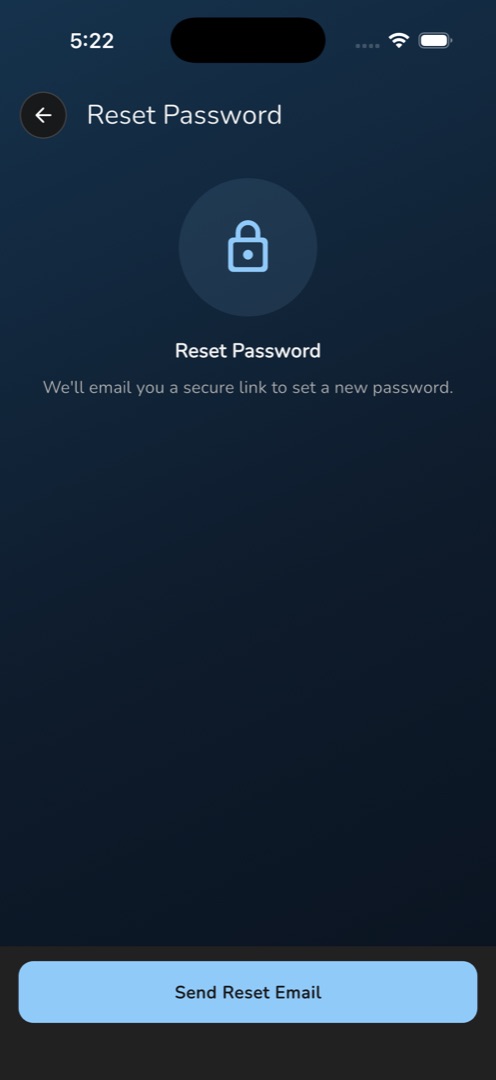
- The screen reads Reset Password / We'll email you a secure link to set a new password. — a padlock illustration and no input fields.
- Tap Send Reset Email at the bottom.
- A message confirms Reset email sent. Check your inbox. and you stay on the screen.
- Open the email and finish there.
I sign in with Google, Apple or a magic link
- Open Profile → Password. The screen reads Set a Password / Choose a password so you can sign in with email when needed.
- Type the same password into New password and Confirm password — each has its own eye toggle.
- Tap Set Password. The screen closes and confirms Password set successfully.
From then on you can sign in with your email address and this password, as well as the method you already use.
Rules and gotchas
- Minimum length is 8 characters; shorter shows Password must be at least 8 characters.
- Two different values give New password and confirm password are not match.
- Empty fields give Please enter new password and Please enter conform password — the second is a typo in the app, not in this page.
- If Firebase decides your sign-in is too old, a red card appears reading Session too old / Sign out and sign in again, then try once more. Both fields go read-only and the main button stops responding until you use its Sign Out button and come back.
- Other messages you may see: No email is associated with this account and You are not signed in.
- There is no "current password" field anywhere on either screen.