See who is on leave in Circin Maestro
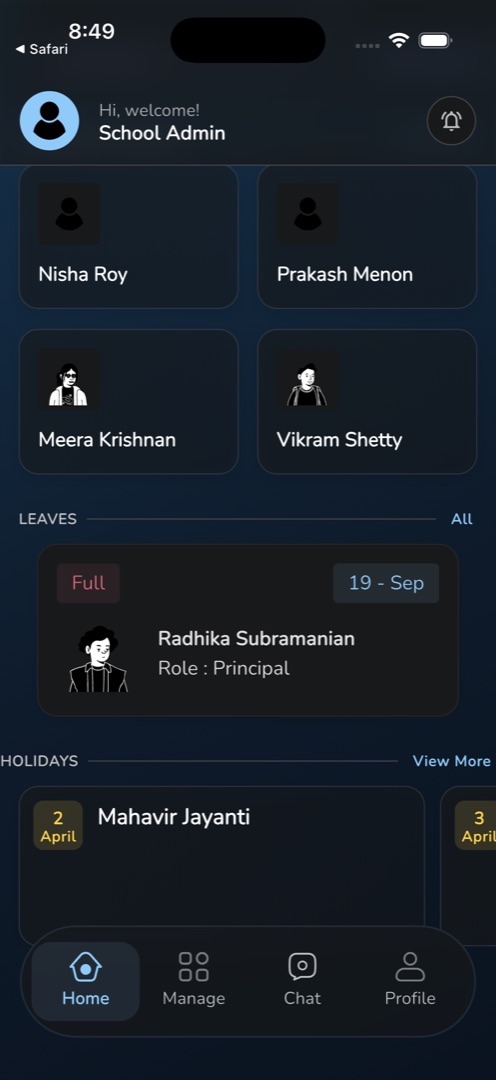
Check who is away today, tomorrow or in the days ahead from the Leaves section on the Circin Maestro Home tab.
Updated
Staff
The Leaves section on the office staff Home tab answers one question before the first bell: who is not in today, and who will not be in tomorrow.
How do I see the full list?
- On the staff Home tab, find the Leaves section. It previews at most today's first two absences, and reads Everyone is present today when nobody is out.
- Tap All at the end of the section.
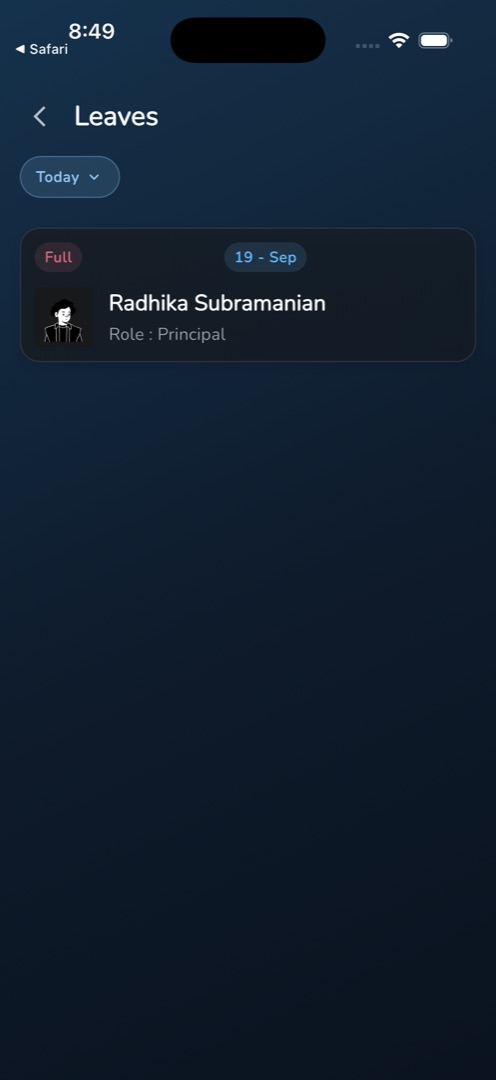
- The Leaves screen opens on Today.
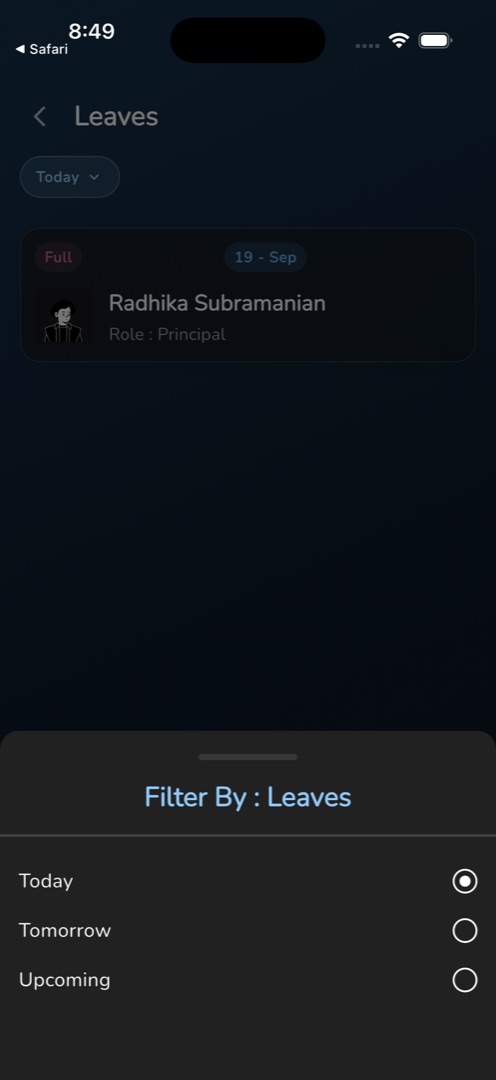
- Tap the filter pill to open a sheet with Today, Tomorrow and Upcoming. Picking one reloads the list.
- Each person is a card: a red chip with the leave type as the school recorded it (Full, First Half), a blue chip with the date, then the photo, the full name, and Role : with their role underneath.
Rules and gotchas
- This is a read-only roster, not an approval queue. Deciding requests happens on the Leave Request screen.
- If your school has not bought the staff-leave module, the link does not navigate. You get the message Purchase staff leave managment to continue using this feature — the misspelling is in the app — and the Home card shows the same sentence.
- The three windows are all you get. There is no custom date range, no filter by person or role, and no search.
- Teacher Home has no Leaves section. A teacher's Home ends at the Workspace grid and More tools in Manage ›, so this roster is an office-staff surface only.
- The two-line preview on Home comes from the Home data load, so it only refreshes when you pull down on Home — not when you reload this screen.
- An empty window reads No leaves data found.