Review a quiz and its results in Circin Maestro
Filter your quizzes by status or date, read a quiz's questions and average score, and open each student's marks, correct answers and violations.
Updated
Manage Quizzes is where a quiz is read back: who attempted it, what they scored, and which questions they got right. Nothing here changes the quiz — the app has no edit, delete or publish action for quizzes.
How do I find a quiz?
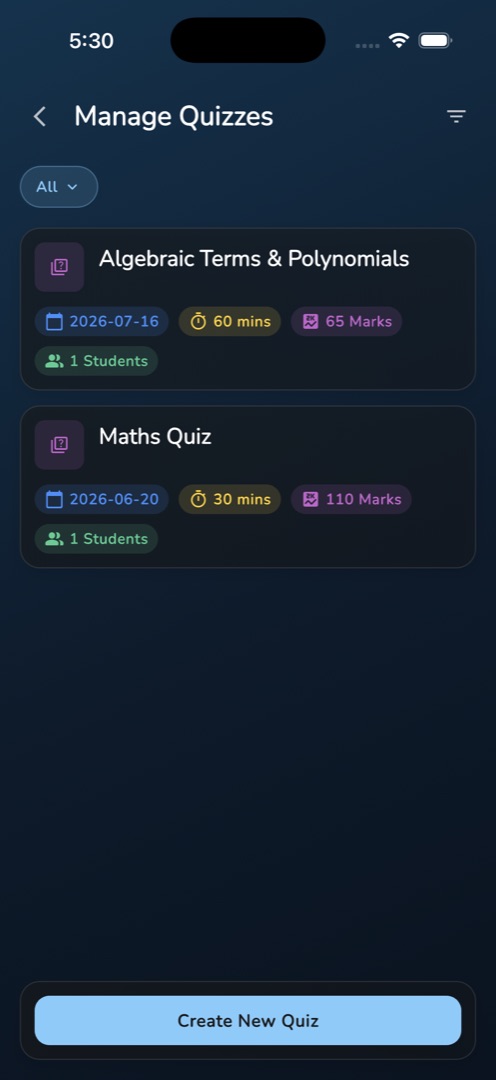
- Open Manage → Manage Quizzes, or tap the Quiz card in the Workspace group on Home. That card carries a LIVE badge and {count} new when a published quiz is running.
- A status pill starts at All. Tap it and choose Active, Ongoing or Finished; the list re-filters instantly.
- Tap the filter icon for Filter by Date, with Select Specific Date, Start Date and End Date, then Apply Filters. Applying a date resets the status pill to All.
- Each card shows the title, a Draft badge if it was never published, and four chips: the date, the duration in minutes, the marks and the number of students.
How do I read the results?
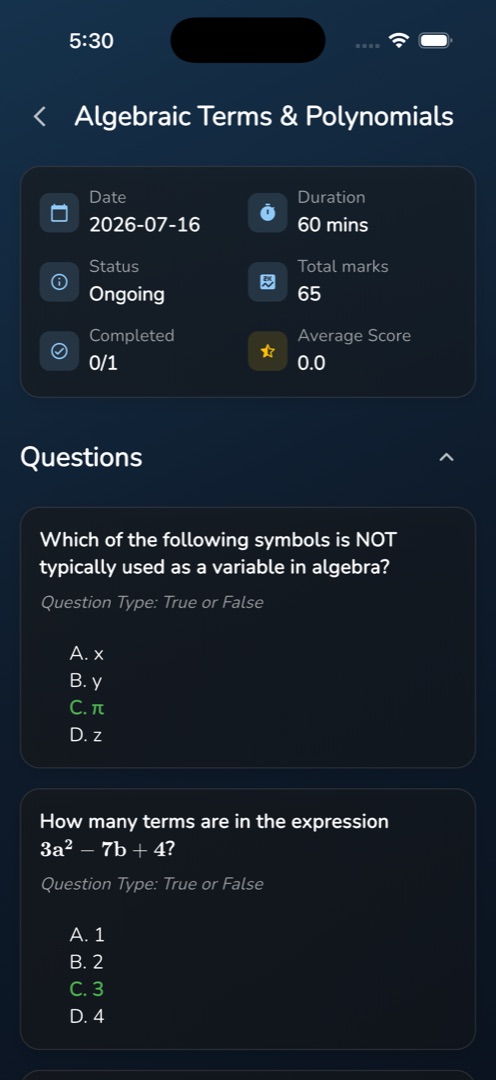
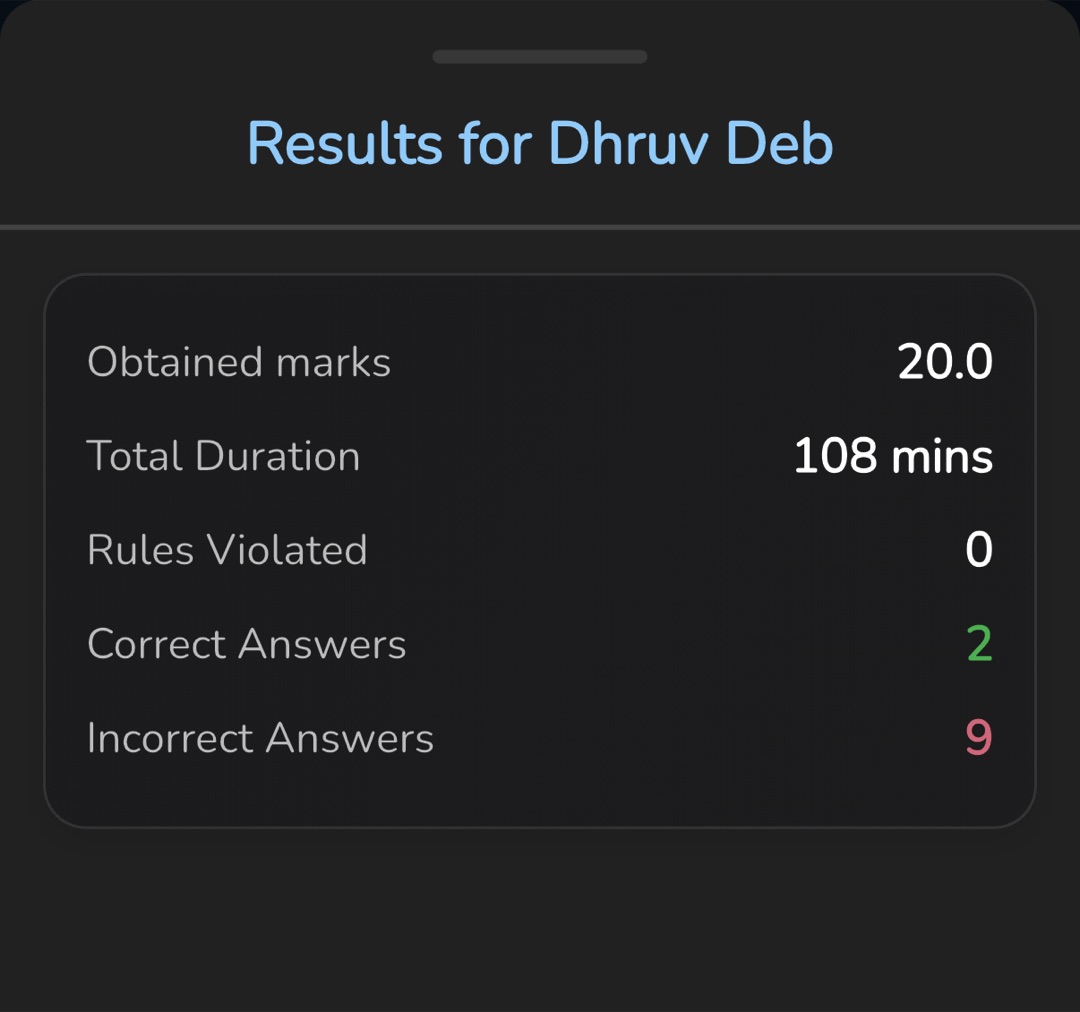
Tap a quiz card. A summary card shows six tiles — Date, Duration, Status, Total marks, Completed as attempted over assigned, and Average Score. Under Questions, every question is listed with its options and the correct one in bold green; the chevron collapses the list. Under Student Results, a pill filters by class section, and each student card shows their status and their marks, coloured red under 40%, amber under 75% and green above. Tap a student who has finished for a sheet headed Results for <name>, listing Obtained marks, Total Duration, Rules Violated, Correct Answers and Incorrect Answers.
Rules and gotchas
- The Question Type: line on this screen is inverted: it labels multiple-choice questions True or False and true/false questions Multiple Choice. Read the options, not the label.
- Only students marked Completed or Submitted open a results sheet. Not Started and In Progress rows show no marks.
- A quiz cannot be published or unpublished from the app, so the Draft badge is information, not an action.
- The LIVE badge on Home means published and ongoing. An ongoing but unpublished quiz carries no badge.
- An empty list still reads No exams found.
- A teaching session's quiz card offers Link now, which opens this same list in pick-a-quiz mode with a Select Quiz button.