Open a session's summary and materials in Circin Maestro
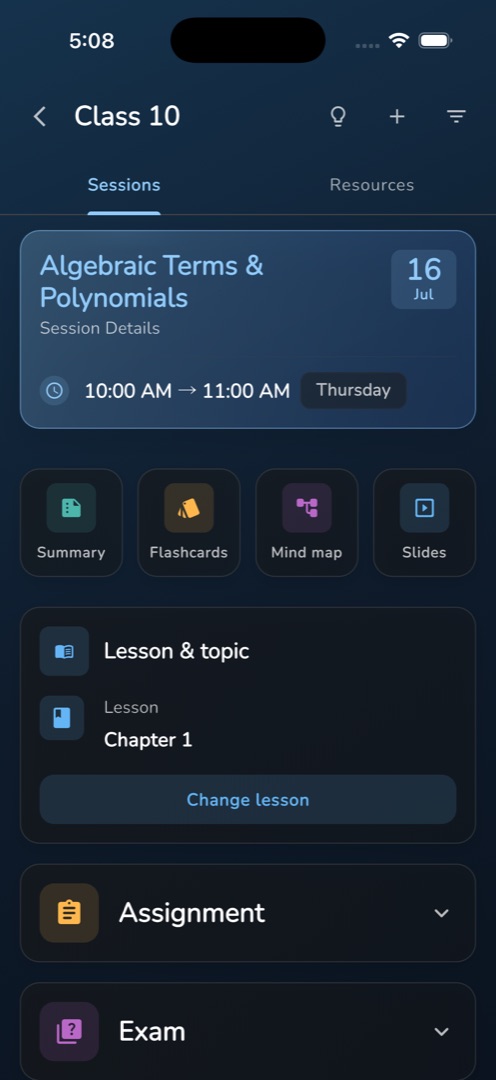
Read back what a session produced — the summary, flashcards and mind map — from the tiles under the session header.
Updated
Teacher
Published material stays with its session, so the fastest way back to last Tuesday's summary is the session itself.
How do I read a session's summary?
- Open the session from the Sessions tab. Directly under the header sits a row of tiles: Summary, Flashcards and Mind map.
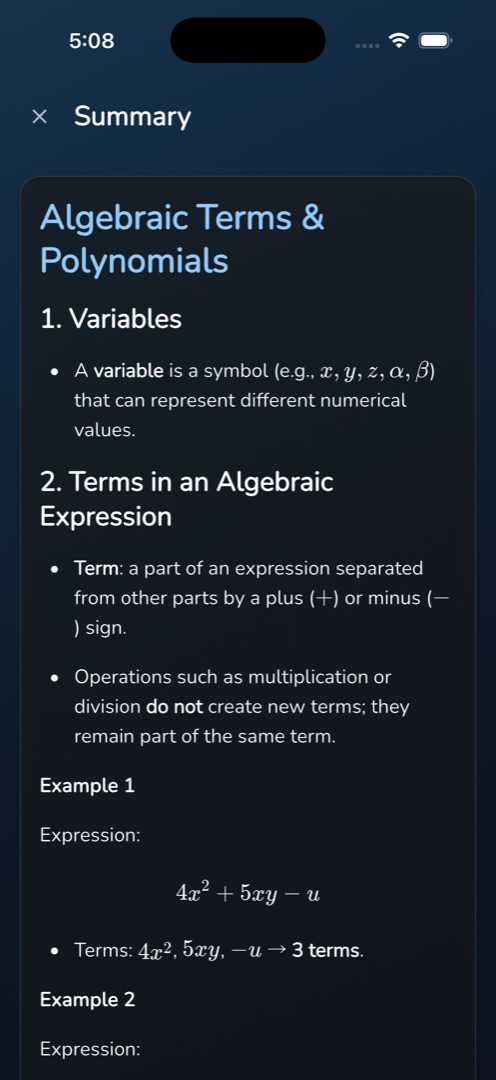
- Tap Summary. A full screen opens headed Summary, rendering the material as formatted text — headings, lists, tables and equations — which you can select and copy.
- Tap ✕ to return to the session.
- Flashcards and Mind map open their own viewers the same way.
Rules and gotchas
- A dimmed tile means that material was never generated for this session. Tapping it opens a sheet titled <Material> not available explaining that it has not been generated yet, with a single Dismiss — see Generate study materials.
- The tiles reflect what the session actually holds, so they are also the quickest check on whether a generation finished.
- Equations are rendered slightly larger than the body text so they can be read from a phone.
- A published quiz is not in these tiles. It sits on the session's own exam card, and its results are read in Review a quiz.
- To find material across the whole subject rather than one session, use the Resources tab.