Update your profile in Circin Maestro
Change your name, photo, date of birth and address in Circin Maestro, and link or remove the mobile number on your account.
Updated
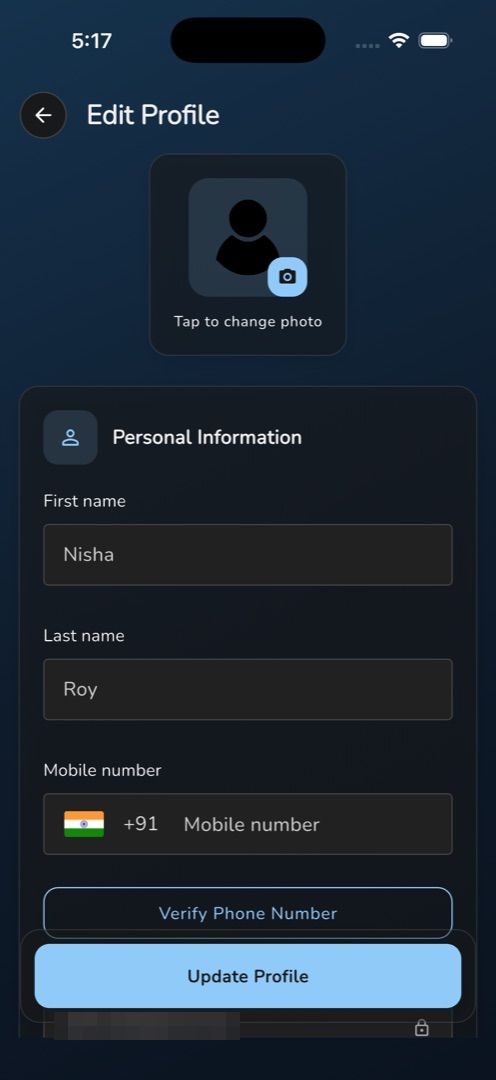
Your name, photo and personal details live on one form in Circin Maestro: Profile → Edit Profile. It opens pre-filled with what the school holds, and saving writes straight back to your school record.
How do I change my details?
- Tap the Profile tab, then Edit Profile under Account.
- The form opens pre-filled. Until your profile loads you get a spinner instead of the fields, so you cannot save blanks over your real data.
- To change your picture, tap the camera badge on the avatar (or Tap to change photo) and pick an image.
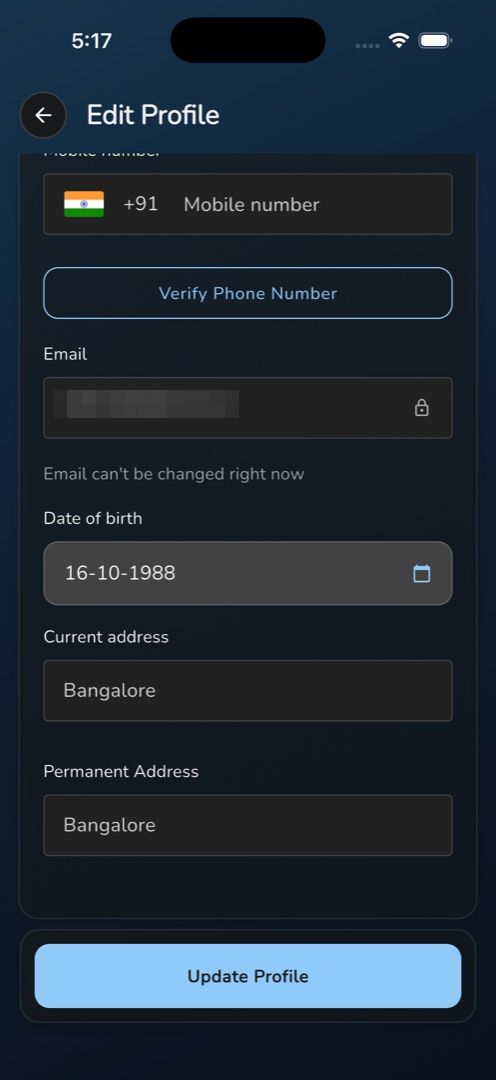
- Under Personal Information, edit First name and Last name. Email is padlocked with the note Email can't be changed right now — ask your admin if it is wrong.
- Tap the Date of birth row and pick a date in the calendar.
- Teachers get two more fields — Current address and Permanent Address. Staff do not see these.
- Tap Update Profile in the bottom bar. The screen closes and your new values show on the Profile tab.
How do I add or remove my mobile number?
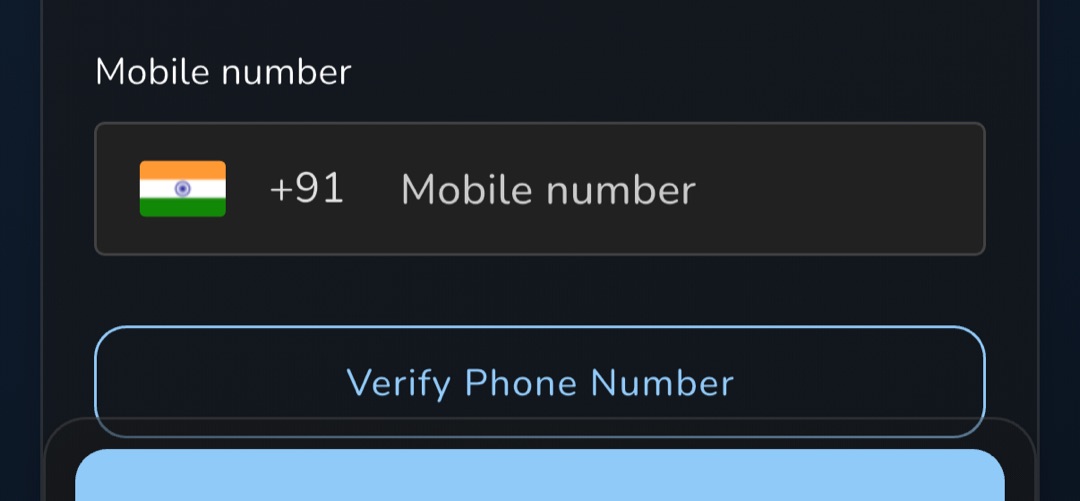
The Mobile number section sits on the same form. An unlinked number shows an empty field with a country-dial-code prefix defaulting to +91; type digits only (leading zeros are stripped, 15 characters maximum) and tap Verify Phone Number. Circin sends an SMS code, the Enter OTP screen opens, and Verify OTP finishes with Account linked successfully.
A linked number shows read-only with a red Delink Phone button. There is no confirmation dialog — one tap removes it.
Before you try this: SMS verification is currently blocked on the live Circin service, so the code will not arrive however valid your number is. Ask your school admin to set the number on your record instead until this is switched back on.
Rules and gotchas
- First name, last name, email and date of birth are all required — any one empty gives Please enter your details.
- There is no gender control here, even though a gender is stored; whatever was loaded is re-sent unchanged.
- The date of birth shows as
dd-MM-yyyywhen loaded but asyyyy-MM-ddonce you pick a new one, so the format changes after you edit it. - You cannot leave the screen while the save spinner is running. Saved values appear at once and are reconciled a few seconds later, so a brief flicker is normal.
- The Enter OTP screen has no resend button. Go back and start again if the code never arrives.