Look up a staff member in Circin Maestro
Find any staff member from the Circin Maestro Home tab, see their roles and joining date, and call or email them in one tap.
Updated
Staff
The Total Staffs tile on the staff Home tab is also the staff directory: every colleague, their roles, and a way to reach them.
How do I find someone?
- On the Home tab, in the Overview row, tap the Total Staffs tile — its link reads View Staffs.
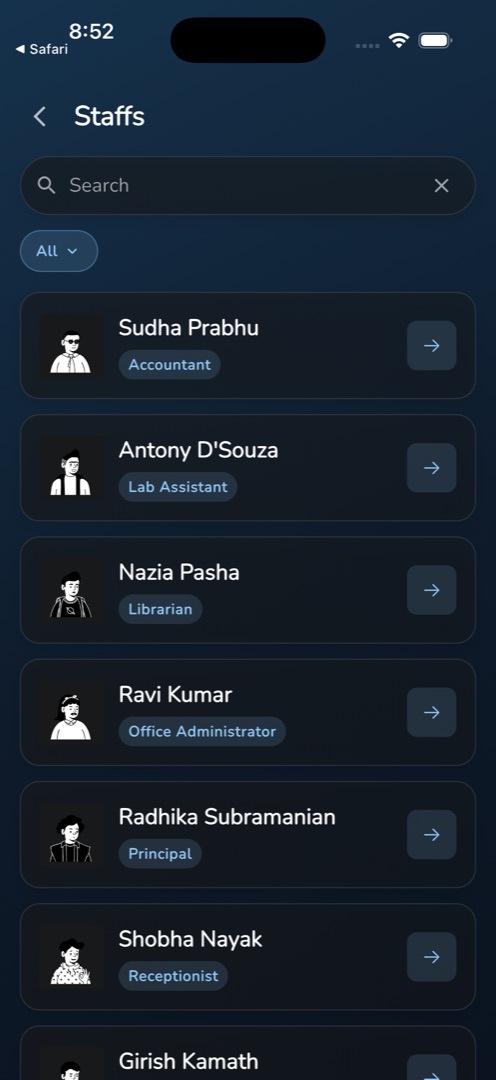
- The Staffs list opens, one card per person with their photo, name, a tinted chip listing their role or roles, and an arrow.
- Type a name into the Search field at the top. The search fires about 0.7 seconds after you stop typing.
- To narrow by status, tap the pill under the search box — it starts at All — and choose from Filter By : Status between All, Active and Inactive. The list refetches.
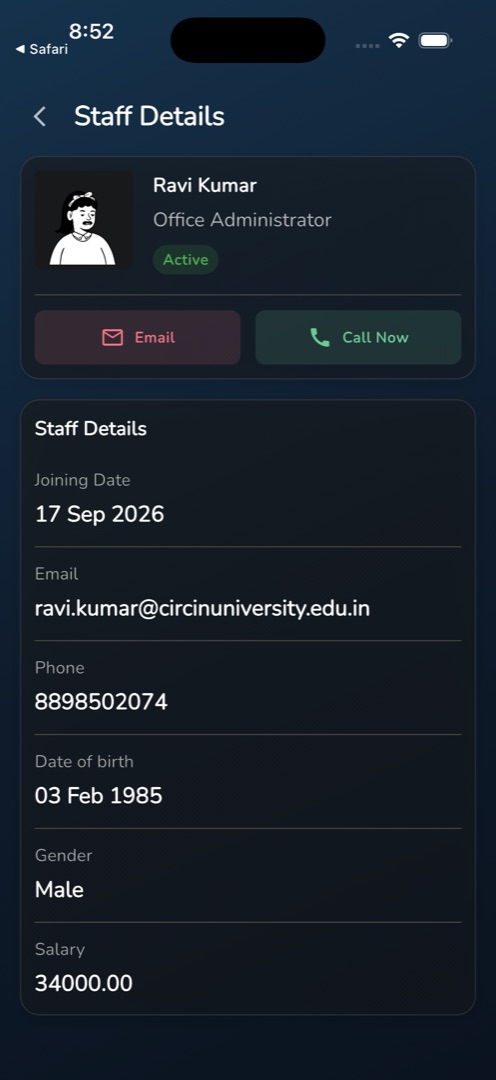
- Tap a card to open Staff Details: photo, name, the role written out and an Active or Inactive chip, then Email and Call Now buttons, then a Staff Details card with Joining Date, Email, Phone, Date of birth, Gender and Salary.
Rules and gotchas
- This is a staff-only surface. Teachers do not have the Overview row, so they cannot reach the directory at all.
- The tile needs the staff-list permission. Without it the tile is absent, and if none of the four Overview tiles are permitted the whole row disappears.
- Email and Call Now are dimmed and do nothing when the record has no address or number.
- Missing values print as - — including Salary, which is blank rather than zero when it has not been set.
- Everything here is read-only. Creating or editing a staff record is admin-panel work; see Manage staff.
- Neither the list nor the search pages — a very large school will scroll a long way.
Looking for a teacher rather than office staff? See Look up a teacher in Circin Maestro.