Staff
Add a staff member in Circin with their role, contact details, salary, joining date and status, plus any allowances and deductions.
Updated
School Admin
Adding a staff member in Circin means picking their role, entering their contact and salary details, and setting their status. You can also attach allowances and deductions that feed into payroll.
How do I add a staff member?
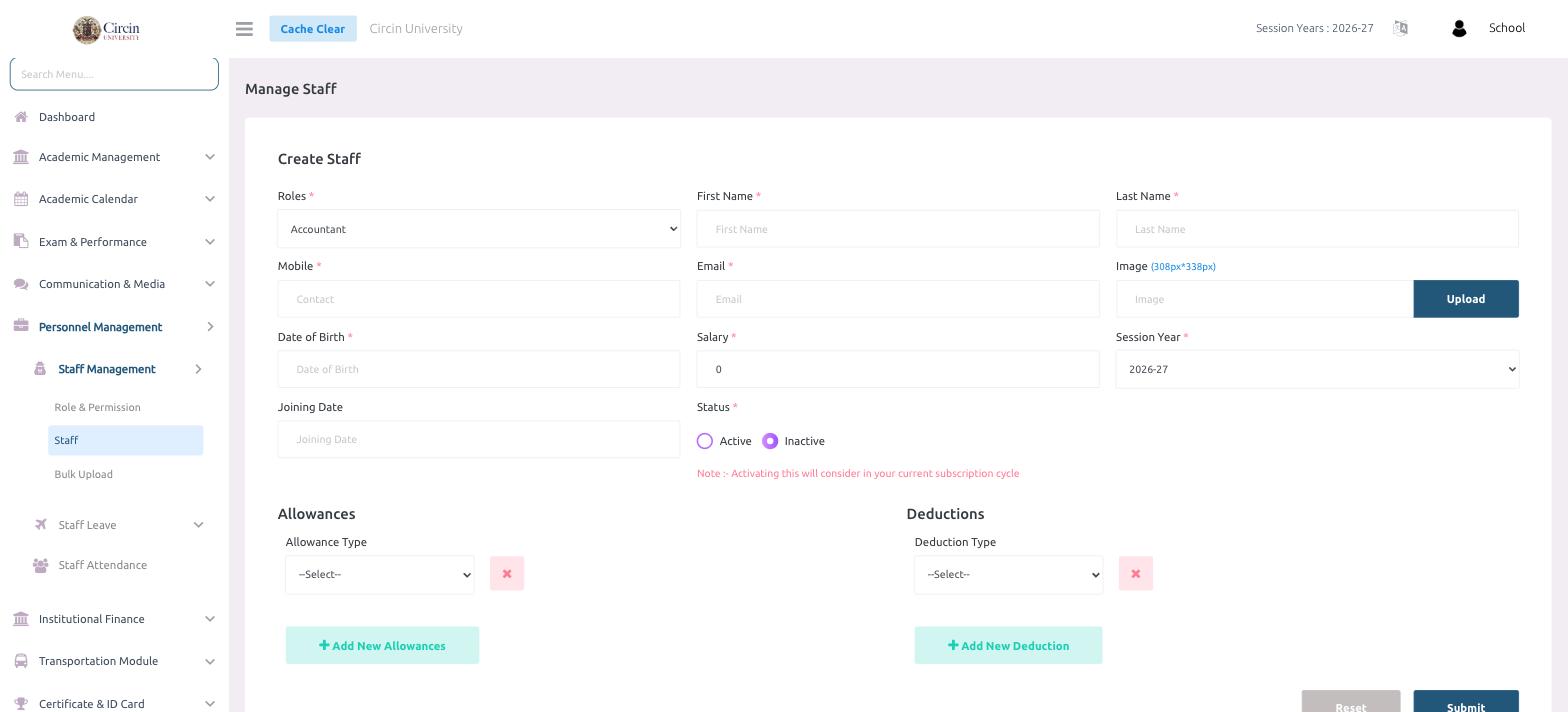
- In the left menu, open Personnel Management → Staff Management → Staff. This opens the Manage Staff page.
- In the Create Staff panel, choose the Roles, then enter First Name, Last Name, Mobile, and Email.
- Optionally add a photo under Image (recommended 308px * 338px) with Upload.
- Fill in Date of Birth, Salary, the Session Year (for example, 2026-27), and the Joining Date.
- Set the Status to Active or Inactive. Note that activating a staff member counts toward your current subscription cycle.
How do I add allowances and deductions?
At the bottom of the form, use the Allowances and Deductions sections. Pick an Allowance Type or Deduction Type from its dropdown, and click Add New Allowances or Add New Deduction to add more lines. When everything is filled in, click Submit. Reset clears the form.
Tips
- Marking a staff member Active consumes a seat in your subscription cycle — keep former staff Inactive.
- Allowances and deductions entered here are used when you run payroll.