Leave report
See a staff member's month-by-month leave balance in Circin — allocated leave, casual leave and leave-without-pay used, and what remains.
Updated
School Admin
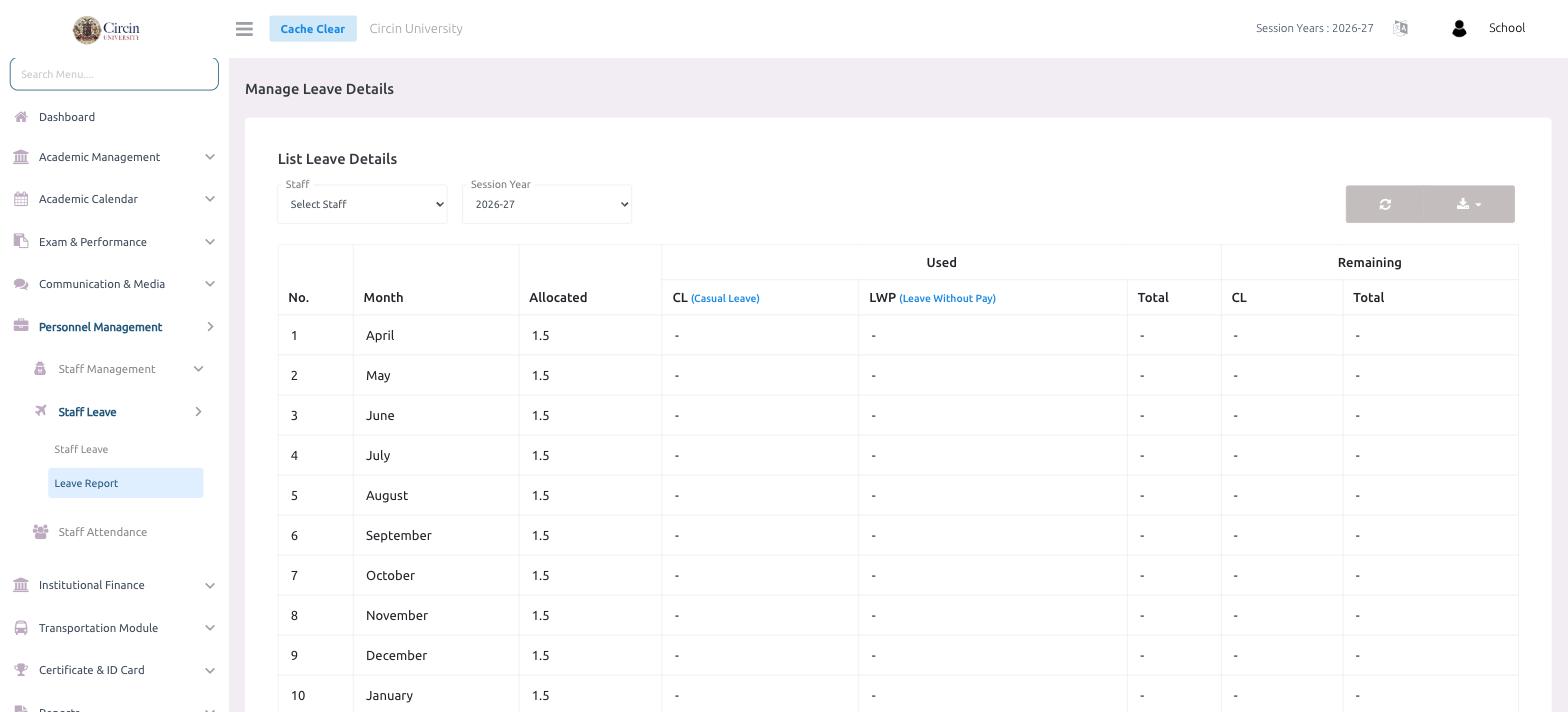
The leave report shows a single staff member's leave balance across the year, month by month. For each month you see how much leave was allocated, how much was used (casual leave and leave-without-pay), and how much remains.
How do I open the leave report?
- In the left menu, open Personnel Management → Staff Leave → Leave Report. This opens the Manage Leave Details page.
- Pick a person from the Select Staff dropdown.
- Choose the Session Year (for example, 2026-27). The List Leave Details table fills in for that person.
How do I read the table?
Each row is a month with its Allocated balance. The Used columns split into CL (Casual Leave) and LWP (Leave Without Pay) with a Total, and the Remaining columns show the leftover CL and Total. A dash (-) means no leave was used that month.