Expense report
Open Reports then Expense Report to list every recorded expense, filter by category, vehicle or month, and export the totals.
Updated
School Admin
Staff
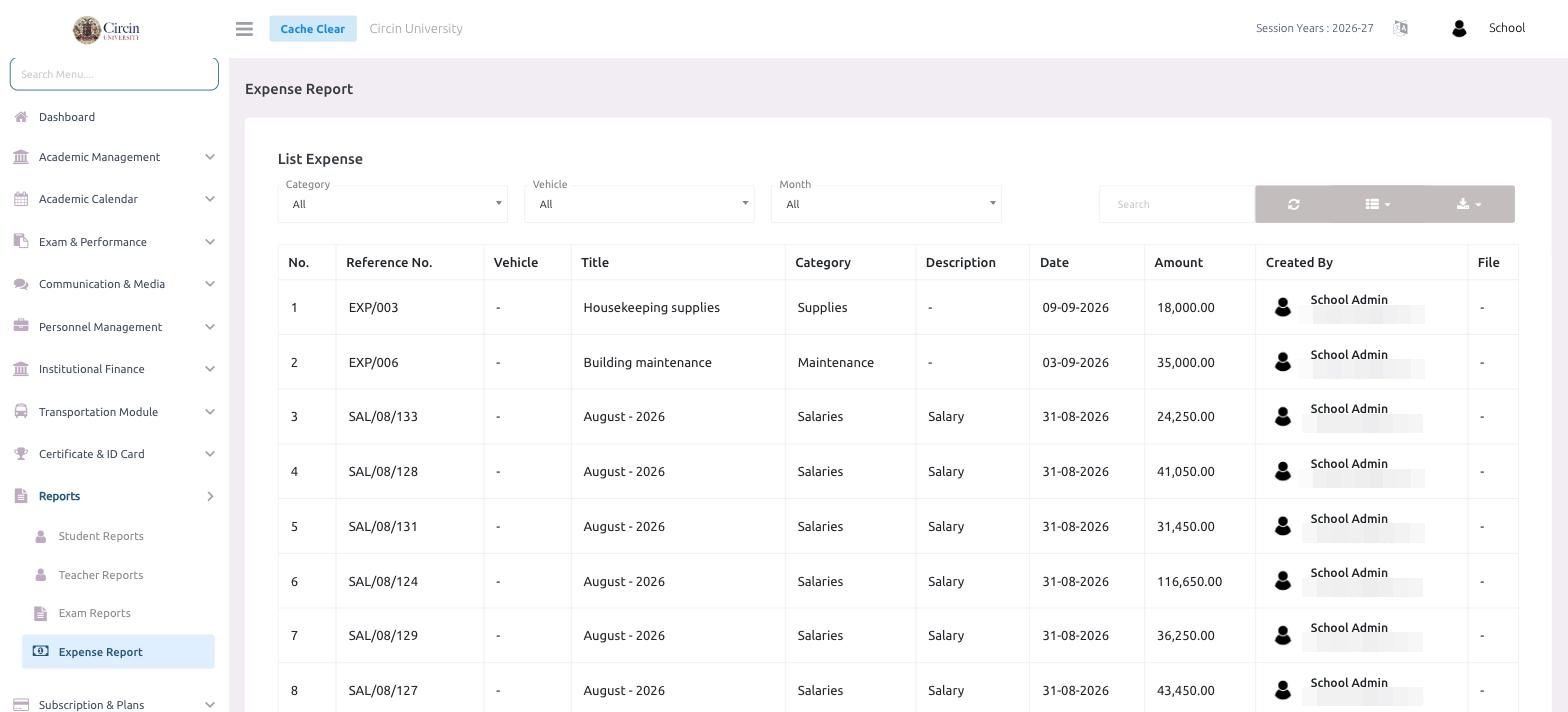
The Expense Report page lists every expense your school has recorded, with its reference number, category, date, amount and who created it — filterable by category, vehicle or month. Open it from Reports → Expense Report.
How do I view the expense report?
- In the left menu, open Reports, then click Expense Report. The page opens on Manage Expense → List Expense.
- The table shows No., Reference No., Vehicle, Title, Category, Description, Date, Amount, Created By and File.
- Narrow the list with the Category, Vehicle and Month dropdowns (each defaults to All).
What do the filters do?
- Category limits the report to one expense type, such as Salaries, Supplies or Maintenance.
- Vehicle shows only transport-linked expenses tied to a specific vehicle.
- Month restricts the list to a single month's entries.
Use the Search box for a specific reference number or title, and the download icon on the right to export the filtered report for accounting or audits.