Route vehicles
Assign a vehicle, driver and helper to a route in Circin, and set the pickup and drop trip start and end times, from the Route Vehicles page.
Updated
School Admin
Route Vehicles is where your fleet, staff and routes come together. Pick a Route, a Vehicle, a Driver and a Helper, then set the pickup and drop trip times so the assignment covers both legs of the day.
How do I assign a vehicle to a route?
- In the left menu, open Transportation Module → Route Vehicles.
- Under Create Route Vehicles, choose the Route from Select Route.
- Choose the Vehicle from Select Vehicle.
- Choose the Driver from Select Driver and the Helper from Select Helper.
- Set the Pickup Trip Start Time and Pickup Trip End Time for the morning leg.
- Set the Drop Trip Start Time and Drop Trip End Time for the return leg.
- Click Submit. Use Reset to clear the form.
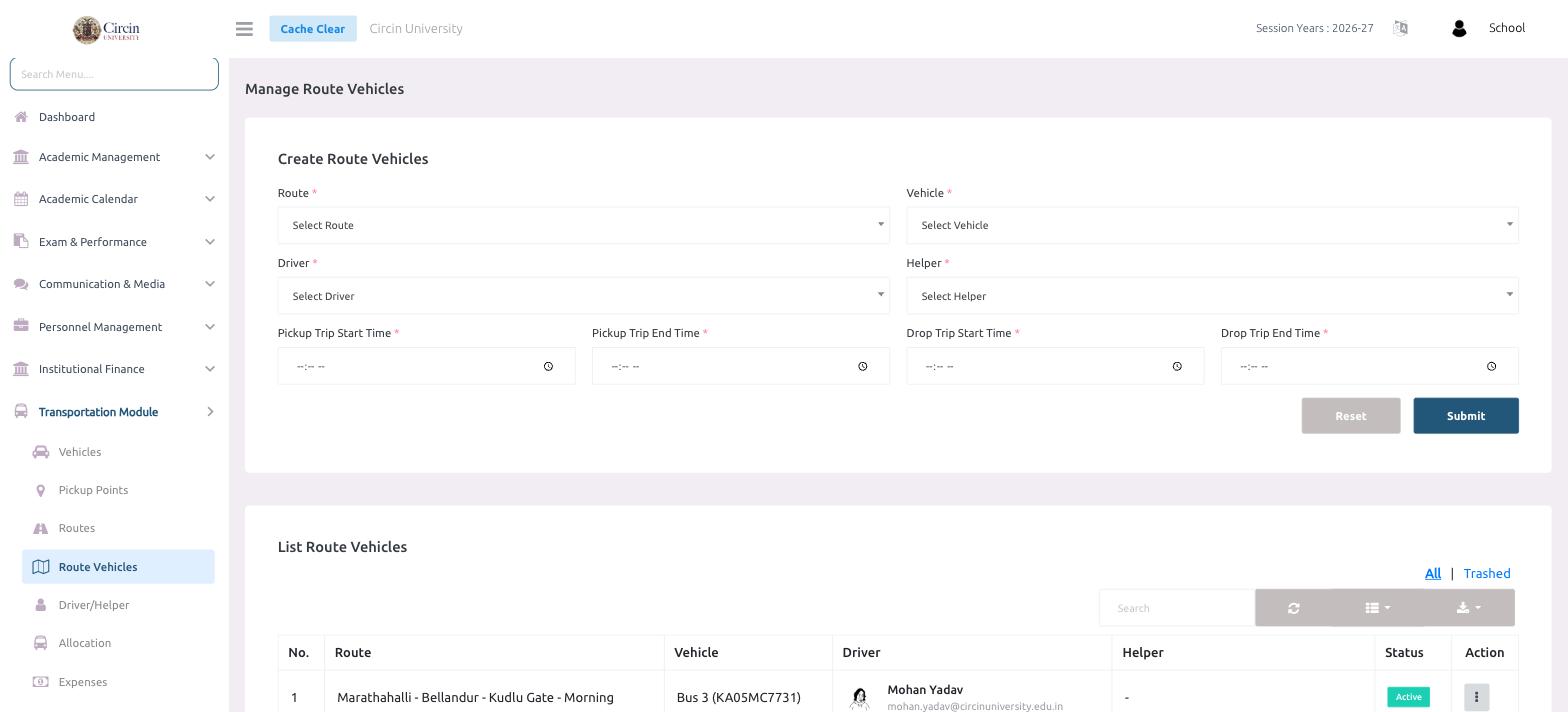
Where do I see all my assignments?
The List Route Vehicles table shows each assignment with columns for No., Route, Vehicle, Driver, Helper, Status and Action. Driver rows show the name and email (for example, Mohan Yadav), and a helper that hasn't been assigned shows as a dash. Switch between All and Trashed, search, or use the Action menu to edit an assignment.