Student report
Open Reports then Student Reports to list every student by class section and session year, then view, search or export the roster.
Updated
School Admin
Staff
The Student Reports page lists every enrolled student for a class section and session year in one table, so you can review, search or export the roster in a few clicks. Open it from Reports → Student Reports.
How do I view the student report?
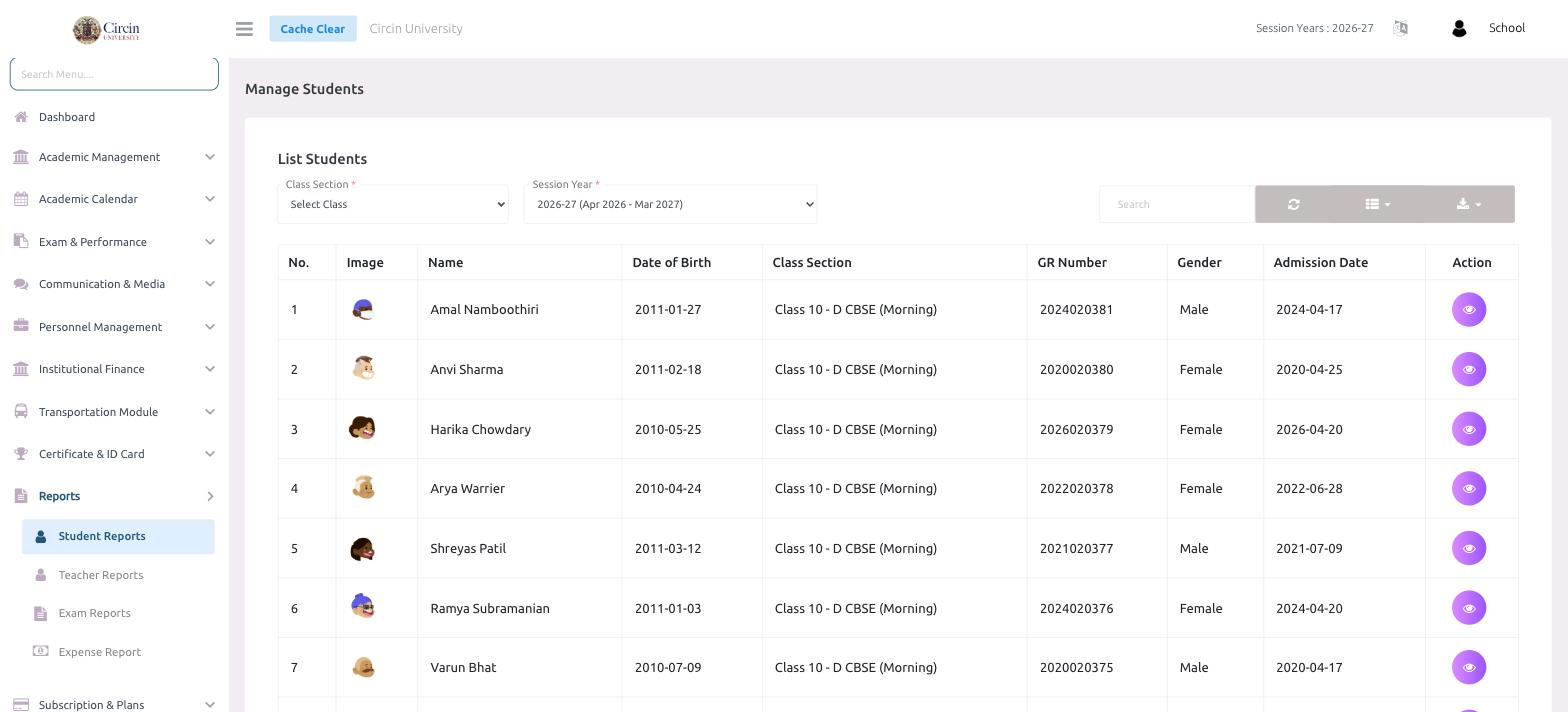
- In the left menu, open Reports, then click Student Reports. The page opens on Manage Students → List Students.
- Choose a Class Section from the dropdown (for example, Class 10 - D CBSE (Morning)).
- Choose the Session Year (for example, 2026-27 (Apr 2026 - Mar 2027)). Both fields are required before the list loads.
- The students appear in a table with No., Image, Name, Date of Birth, Class Section, GR Number, Gender and Admission Date.
- Click the eye icon in the Action column to open a student's full details.
Can I search or export the list?
Yes. Use the Search box above the table to filter by name or GR number. The column-picker and the download icon on the right let you choose which columns to show and export the roster (for example to Excel or PDF) for sharing or record-keeping.