Payroll settings
Set up allowances and deductions in Circin payroll — name each one and choose a fixed amount or a percentage before you run monthly payroll.
Updated
School Admin
Payroll Settings is where you define the allowances and deductions that Circin applies to staff payslips. Each one is a named amount, set as either a fixed value or a percentage.
How do I add an allowance or deduction?
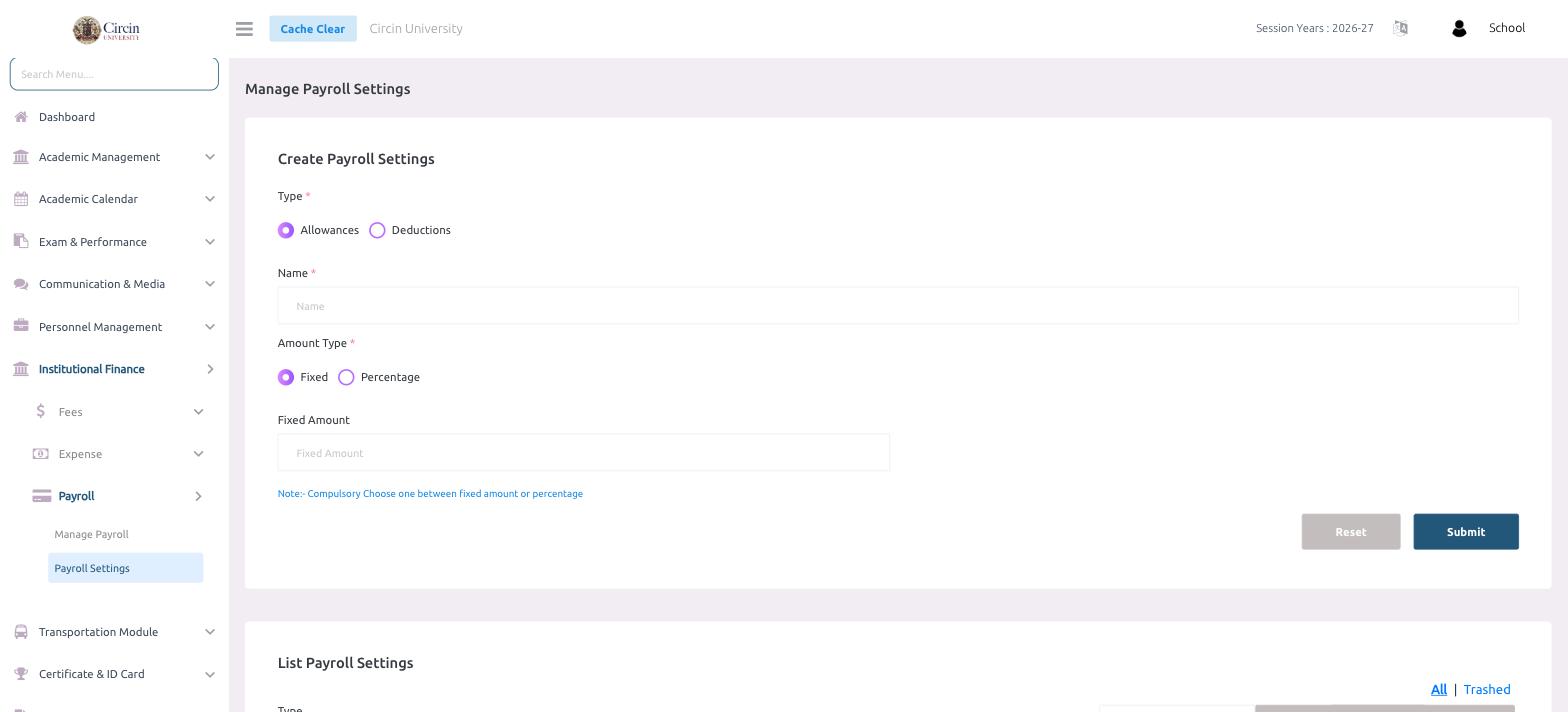
- In the left menu, open Institutional Finance → Payroll → Payroll Settings.
- Under Create Payroll Settings, choose the Type — Allowances or Deductions (required).
- Enter a Name (required, for example House Rent Allowance).
- Choose the Amount Type — Fixed or Percentage (required).
- Enter the value: a Fixed Amount if you chose Fixed, or the percentage if you chose Percentage. As the note states, you must choose one between fixed amount or percentage.
- Click Submit. Use Reset to clear the form.
Where do my settings appear?
Saved allowances and deductions are listed under List Payroll Settings, where you can switch between the All and Trashed tabs to review or restore entries.