Sliders
Upload banner slider images in Circin and target them to the app, web, student web, or all surfaces, with an optional tap-through link.
Updated
School Admin
Sliders are the banner images that rotate on the home screens of Circin. You upload an image, optionally give it a link to open when tapped, and choose which surface it appears on.
How do I add a slider?
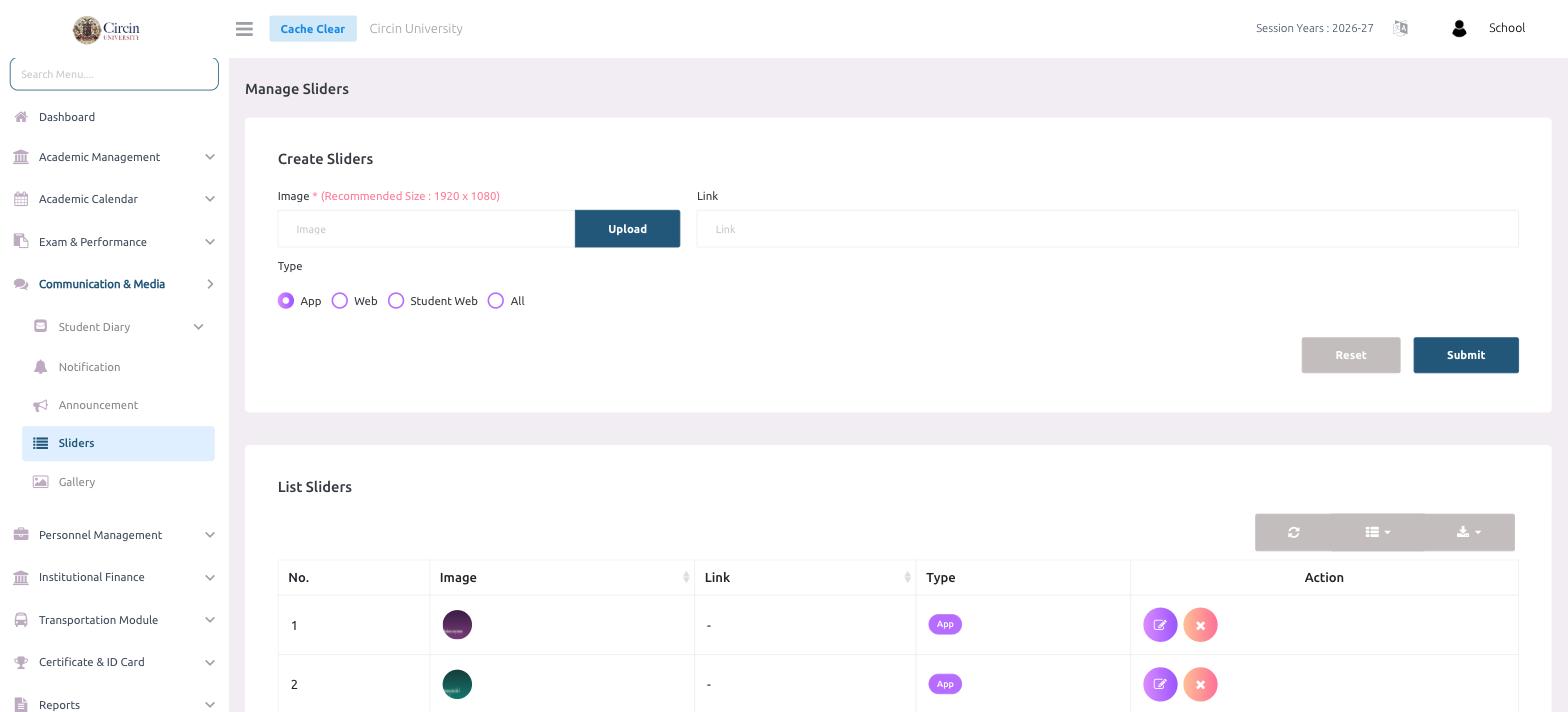
- In the left menu, open Communication & Media → Sliders. This opens the Manage Sliders page.
- In the Create Sliders panel, click Upload under Image to add your banner — the recommended size is 1920 x 1080.
- Optionally add a Link to open when someone taps the slider.
- Choose a Type — App, Web, Student Web, or All.
- Click Submit. Reset clears the form.
Where do I see my sliders?
The List Sliders table shows each slider by No., a preview under Image, its Link, and its Type badge. Use the edit and remove icons under Action to change or delete a slider.
Tips
- Use the 1920 x 1080 recommended size so banners stay crisp and don't crop awkwardly.
- Choose All to show one banner everywhere, or target a single surface with App, Web or Student Web.