Student details
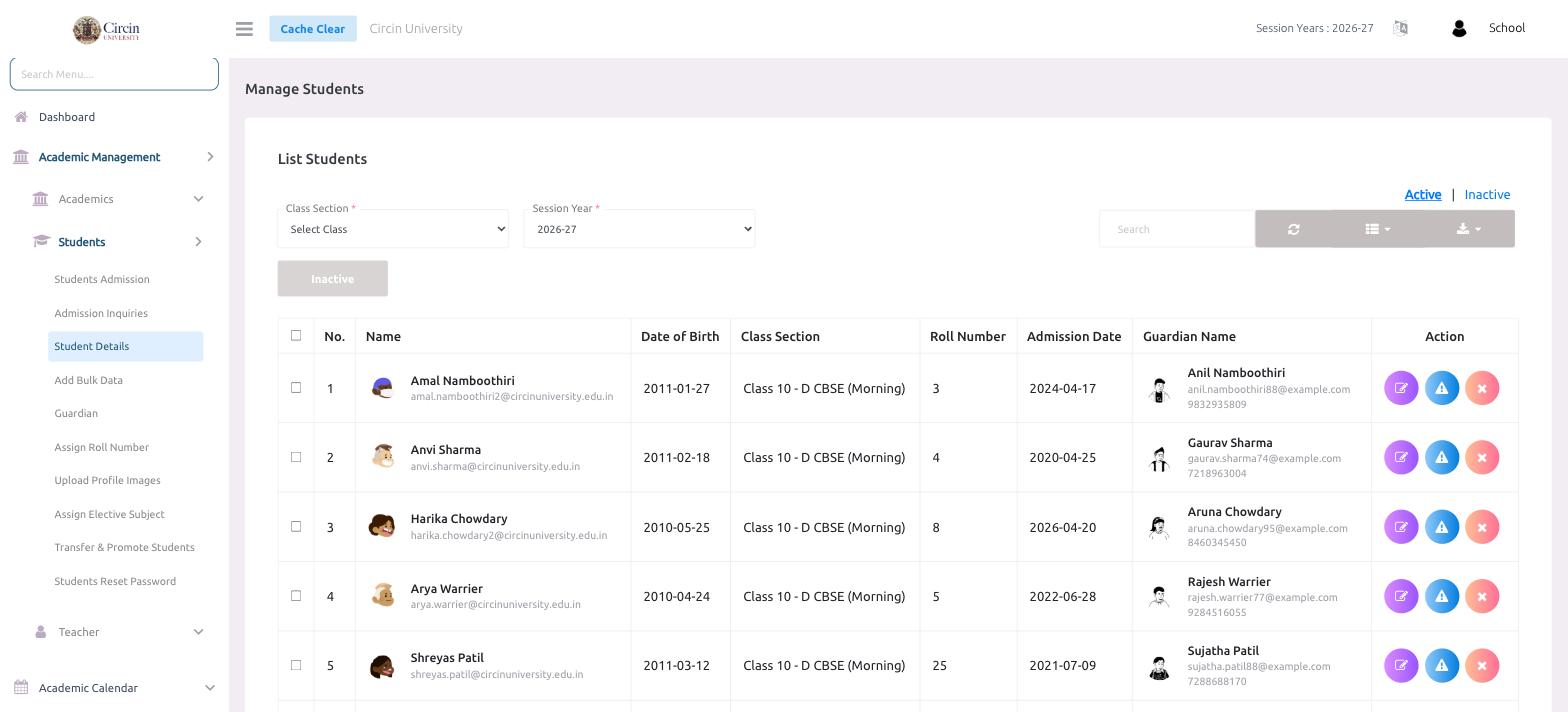
Browse, search, edit, and activate students in Circin from Student Details — filter by class section and session year, and switch between active and inactive.
Updated
Also on Circin Maestro: Open a student's profile in Circin Maestro
Student Details is the working list of every student in Circin. Filter by class section and session year, switch between Active and Inactive, and use the row actions to edit, promote, or remove a student.
How do I find a student?
- Open Academic Management → Students → Student Details. The List Students panel loads.
- Choose the Class Section and Session Year (defaults to
2026-27). - Use the Active / Inactive links at the top right to switch which students you see. Newly admitted or approved students appear under Inactive until you activate them.
- Type in the Search box to jump to a name.
What does the student list show?
Each row shows No., Name (with the student's email), Date of Birth, Class Section, Roll Number, Admission Date, and Guardian Name (with the guardian's email and mobile). The Action column lets you edit the student, and remove them.
How do I activate a student?
Filter to the Inactive view, find the student, and edit their record to set the status to Active. Activating a student counts them toward your current subscription cycle.