Backup & restore
Open Settings then Database Backup to generate a downloadable backup of your school data, or restore it by uploading a backup zip file.
Updated
School Admin
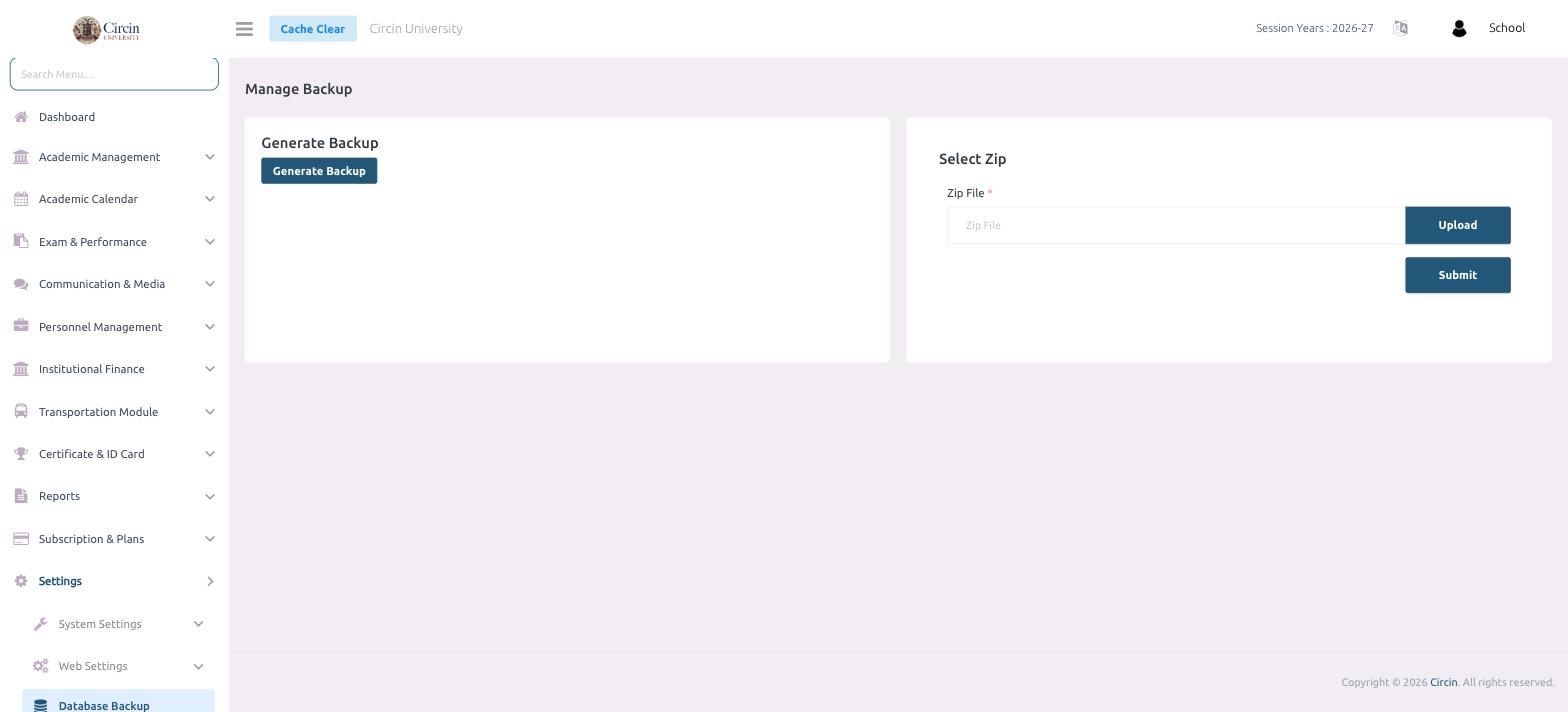
The Database Backup page lets you take a snapshot of your school's data and restore it later. Open it from Settings → Database Backup.
How do I generate a backup?
- In the left menu, open Settings, then click Database Backup. The page opens on Manage Backup.
- In the Generate Backup panel, click Generate Backup. Circin creates a backup of your school data that you can download and keep safe.
How do I restore from a backup?
- In the Select Zip panel, click Upload next to Zip File and choose a previously generated backup zip.
- Click Submit to restore your school from that file.
Tips
- Generate a fresh backup before any large change, such as promoting students or switching the session year.
- Keep the downloaded zip somewhere secure — it contains your school's data.