The admin dashboard
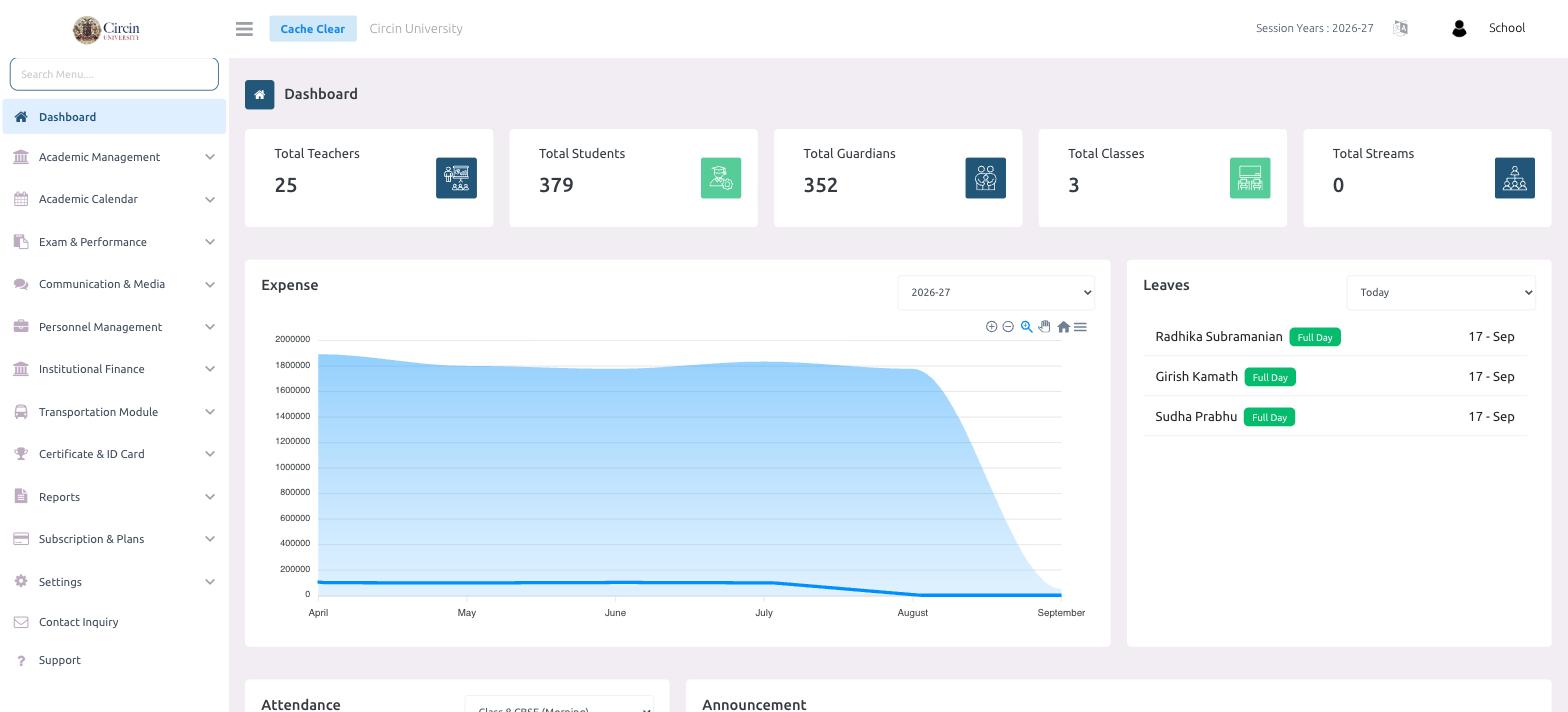
The Circin dashboard opens with live counts of teachers, students, guardians, classes and streams, plus expense, leave and attendance widgets.
Updated
Also on Circin Maestro: Sign in to Circin Maestro Circin: Sign in to Circin
The Dashboard is the first screen you see when you sign in to the Circin school-admin portal. It gives you an at-a-glance snapshot of your school — headline counts, spending, and who is on leave today — with the full feature menu down the left.
What is on the dashboard?
Across the top are five summary cards that update live for your school:
- Total Teachers
- Total Students
- Total Guardians
- Total Classes
- Total Streams
Below the cards, the Expense panel charts spending across the session, with a year selector (for example 2026-27) so you can switch sessions. The Leaves panel on the right lists staff who are on leave, filtered by a period dropdown (Today by default), each with a Full Day tag and the date. Scroll down for the Attendance and Announcement widgets.
How do I move around Circin?
The left sidebar is your main menu, grouped into modules — Academic Management, Academic Calendar, Exam & Performance, Communication & Media, Personnel Management, Institutional Finance, Transportation Module, Certificate & ID Card, Reports, Subscription & Plans, Settings, Contact Inquiry, and Support. Click any module to expand its sub-pages. Use the Search Menu… box at the top of the sidebar to jump straight to a page by name.
The top bar shows your school name (for example Circin University), the active Session Years, and a Cache Clear button if you ever need to refresh cached data.