Website content
Open Settings then Content to edit your public web page — theme colours, About Us, programs, gallery, contact and FAQs — from one tabbed screen.
Updated
School Admin
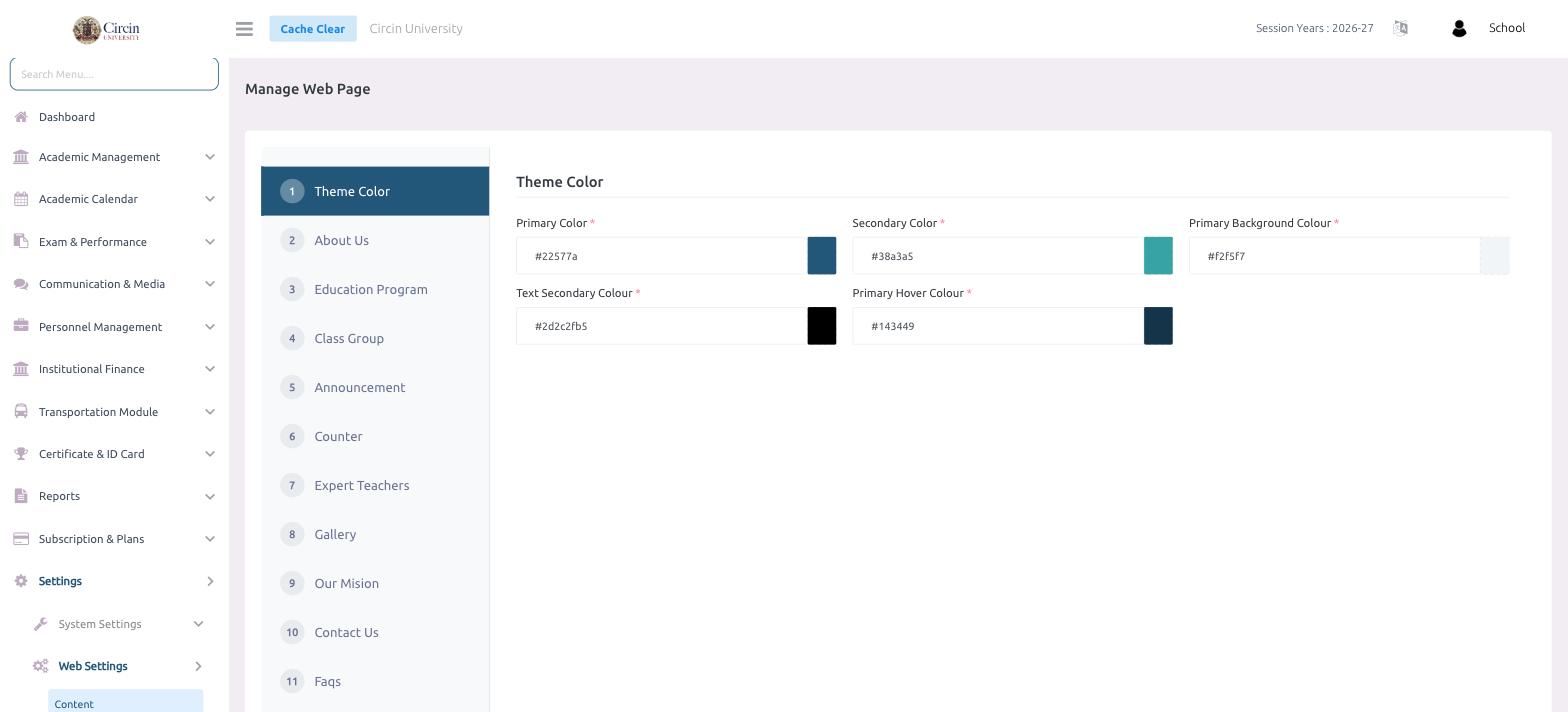
The Content page manages your school's public web page from one place — its theme colours and every section that appears on it. Open it from Settings → Web Settings → Content.
What can I edit here?
- In the left menu, open Settings → Web Settings → Content. The page opens on Manage Web Page.
- Pick a section from the numbered tabs on the left: Theme Color, About Us, Education Program, Class Group, Announcement, Counter, Expert Teachers, Gallery, Our Mision, Contact Us and Faqs.
- Each tab opens its own form on the right. On Theme Color, set the Primary Color, Secondary Color, Primary Background Colour, Text Secondary Colour and Primary Hover Colour — each with a hex value and a colour swatch.
- Save the tab to publish your changes to the public site.
Tips
- Work through the tabs one at a time — each is a separate section of the public page.
- Enter theme colours as hex codes (for example, #22577a); the swatch beside each field previews the colour.