Grades
Define the grade bands Circin uses to grade results — set a starting range, ending range, and grade label for each band, from A1 down to D.
Updated
School Admin
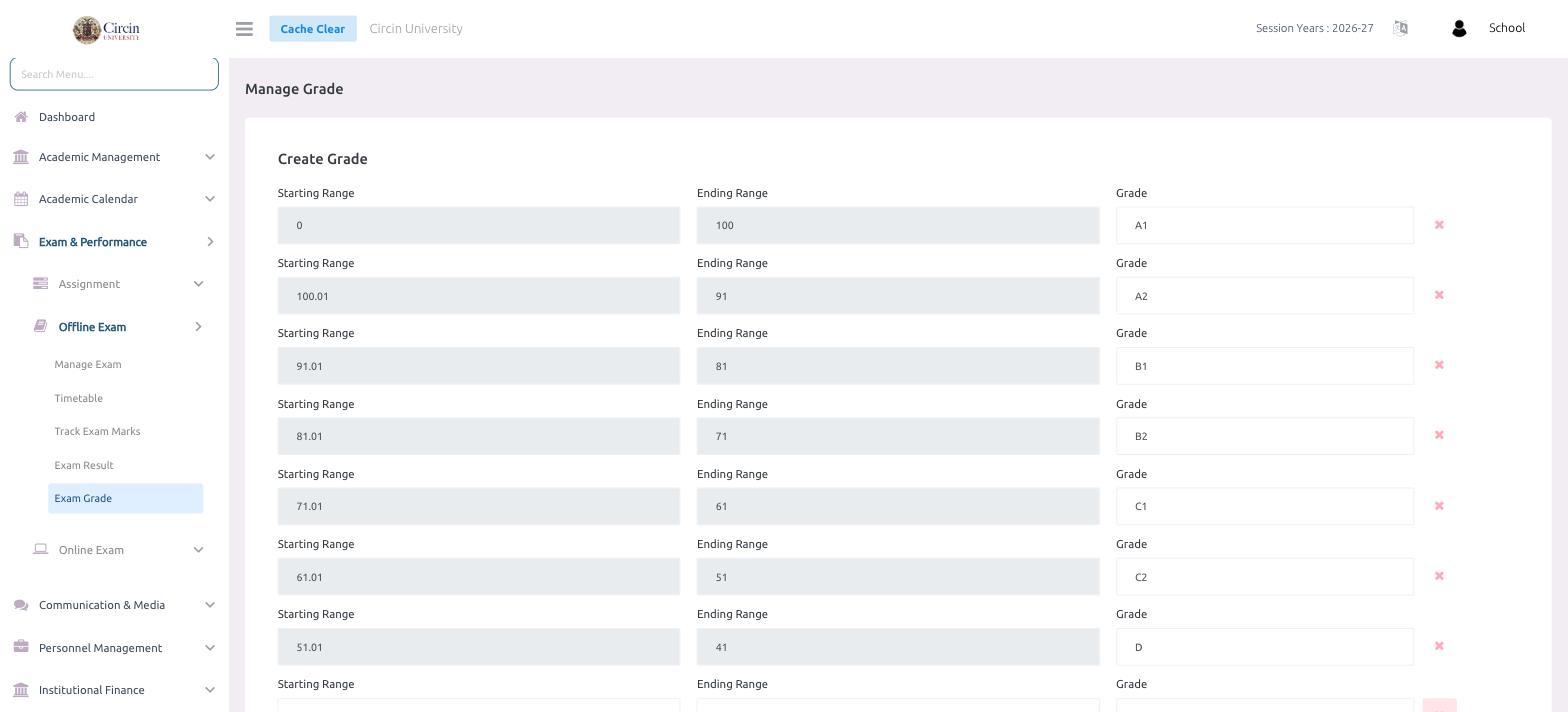
Exam grades in Circin are percentage bands: for each band you set a starting range, an ending range, and the grade label to award. Circin then uses these bands to turn a student's percentage into a grade on every exam result.
How do I create grade bands?
- In the left menu, open Exam & Performance → Offline Exam → Exam Grade.
- Under Create Grade, fill in each band's Starting Range, Ending Range, and Grade.
- Add a row for every grade you use — for example A1 for 0–100, A2, B1, B2, C1, C2, and D.
- Use the delete (✕) button beside a row to remove a band you no longer need.
Tips
- Make the bands continuous so every percentage falls into exactly one grade — in the seeded example the ranges step down (100.01–91 for A2, 91.01–81 for B1, and so on).
- The grade shown in Exam Result comes straight from these bands, so set them up before publishing results.