Transfer & promote
Move students between sections or advance them to the next session in Circin from Transfer & Promote Students — one panel for transfers, one for promotions.
Updated
School Admin
Staff
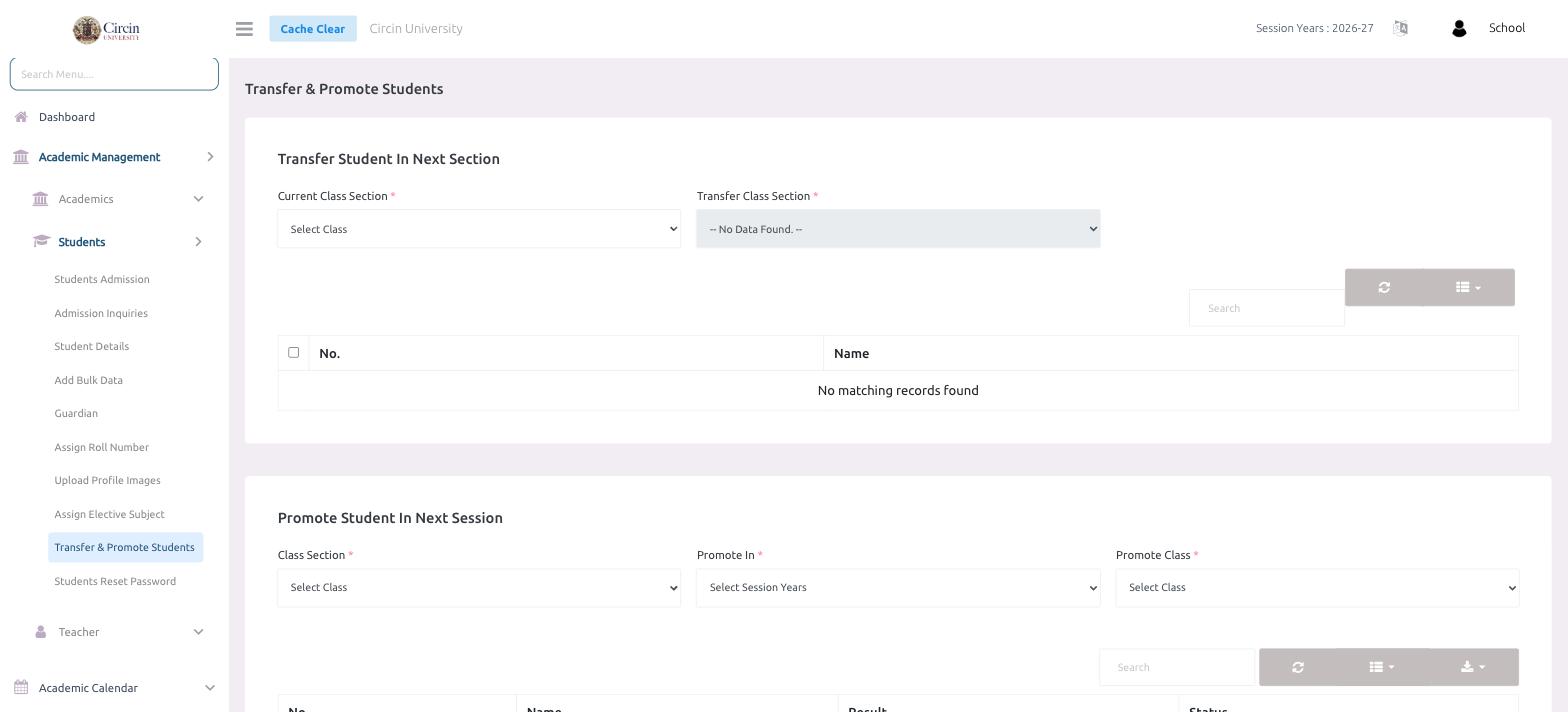
The Transfer & Promote Students page handles two jobs: moving students to another section within the same session, and promoting them into the next session's class. Each has its own panel.
How do I transfer a student to another section?
- Open Academic Management → Students → Transfer & Promote Students.
- In Transfer Student In Next Section, choose the Current Class Section to load its students.
- Choose the Transfer Class Section to move them into.
- Tick the students you want (use the header checkbox to select all, or the Search box to find one), then confirm the transfer.
How do I promote students to the next session?
In the Promote Student In Next Session panel:
- Choose the current Class Section.
- Set Promote In to the target Session Years.
- Choose the Promote Class the students should land in.
- Select the students and confirm to promote them.
Tip: Transfer changes a student's section within the current session; promotion advances them into a new session year. Pick the panel that matches what you're doing.