ID card settings
Design your student and staff ID cards in Circin — set colours, layout, profile image style, the fields to print, and the card size.
Updated
School Admin
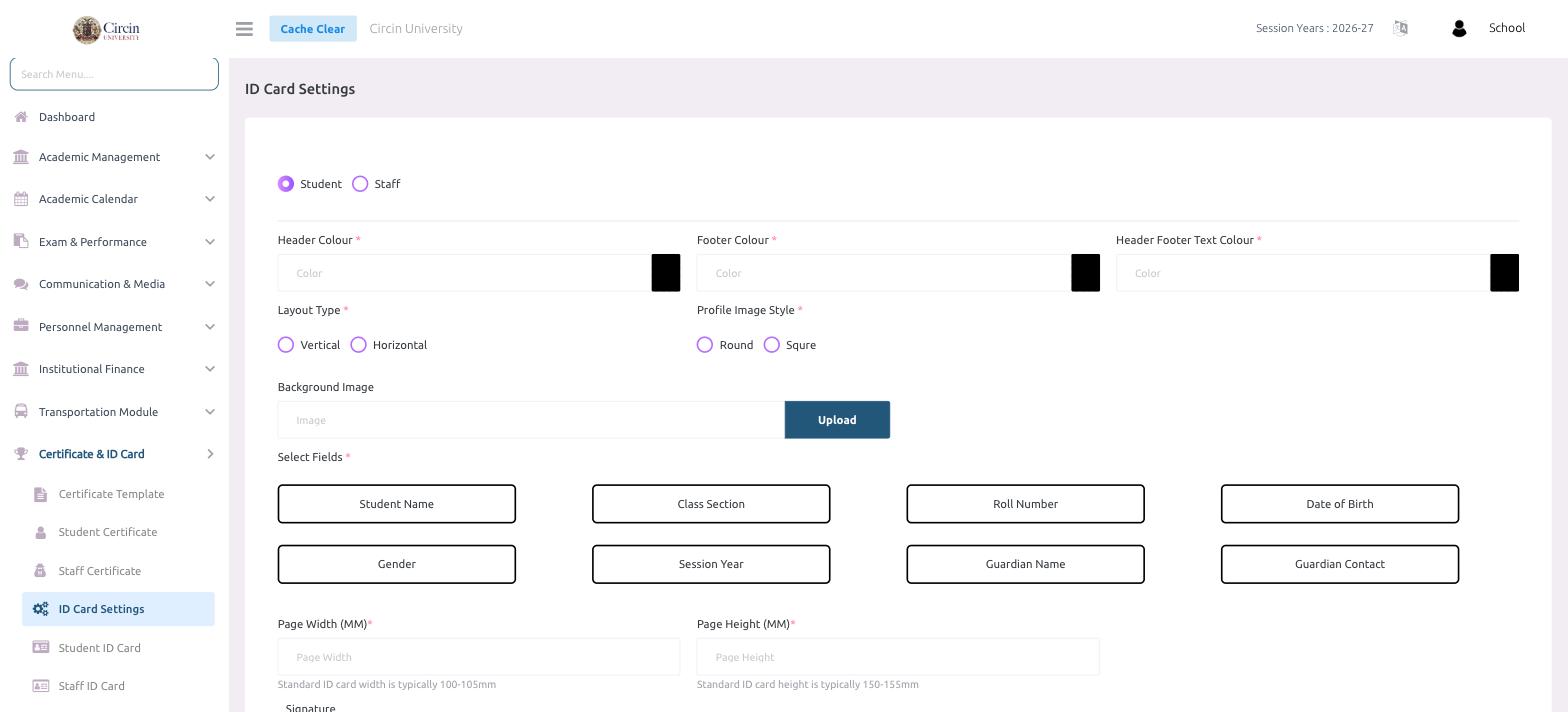
ID Card Settings is where you design the card layout before you print any. Choose the colours, orientation, which details appear, and the card size — separately for Student and Staff cards.
How do I set up an ID card design?
- In the left menu, open Certificate & ID Card → ID Card Settings.
- At the top, choose Student or Staff — each has its own design.
- Set the Header Colour, Footer Colour and Header Footer Text Colour.
- Choose the Layout Type — Vertical or Horizontal.
- Choose the Profile Image Style — Round or Squre (square).
- Optionally Upload a Background Image.
- Under Select Fields, click the details to print — for a student card these are Student Name, Class Section, Roll Number, Date of Birth, Gender, Session Year, Guardian Name and Guardian Contact.
- Set the Page Width (MM) and Page Height (MM). Circin notes that a standard ID card is typically 100–105mm wide and 150–155mm tall.
- Add the Signature, then save the settings.
Tips
- Configure the Student and Staff designs separately — switch the radio at the top before you save each one.
- The Select Fields you choose here are exactly what prints on the generated cards, so include only what your school needs.