Staff leave
Record and review staff leave in Circin — create a leave entry, then approve or reject requests filtered by month, staff and status.
Updated
Also on Circin Maestro: Approve or reject a leave request in Circin Maestro
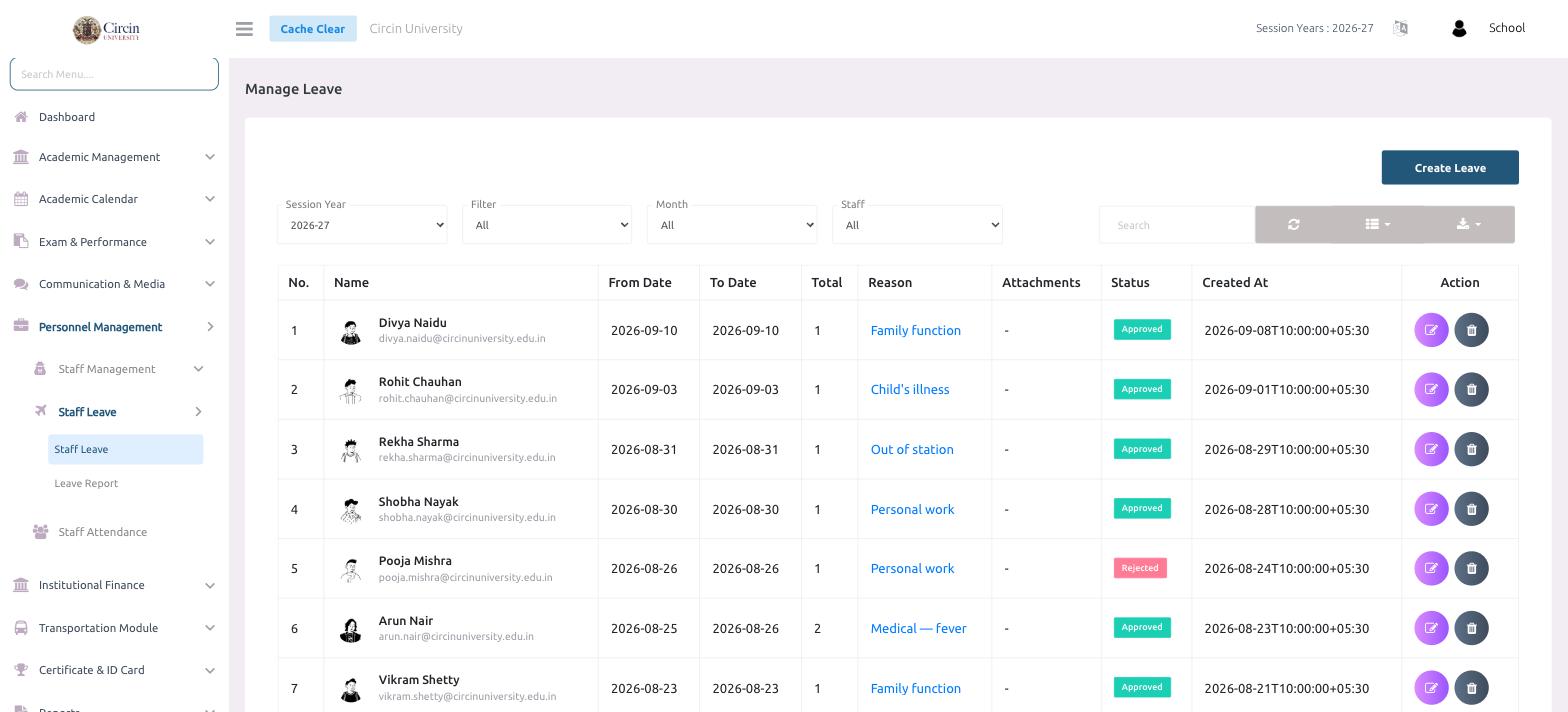
The staff leave page is where you record leave and act on requests. Each row shows who is off, the dates, the reason, and whether it's Approved or Rejected. You can create a leave entry yourself and filter the list by session year, month, staff and status.
How do I record a leave?
- In the left menu, open Personnel Management → Staff Leave → Staff Leave. This opens the Manage Leave page.
- Click Create Leave at the top right.
- Enter the staff member, the date range, and the reason, then save.
How do I review requests?
The table lists each leave by No., Name, From Date, To Date, Total (days), Reason, Attachments, Status, and Created At. Narrow it with the Session Year, Filter, Month, and Staff dropdowns, or the Search box. Use the Action icons to edit a request or approve/reject it — the Status column shows a green Approved or a red Rejected badge.