Notifications
Send a titled push notification to a role or to overdue-fee users in Circin, with an optional image, straight to their app.
Updated
School Admin
Also on Circin Maestro: Send a push notification from Circin Maestro
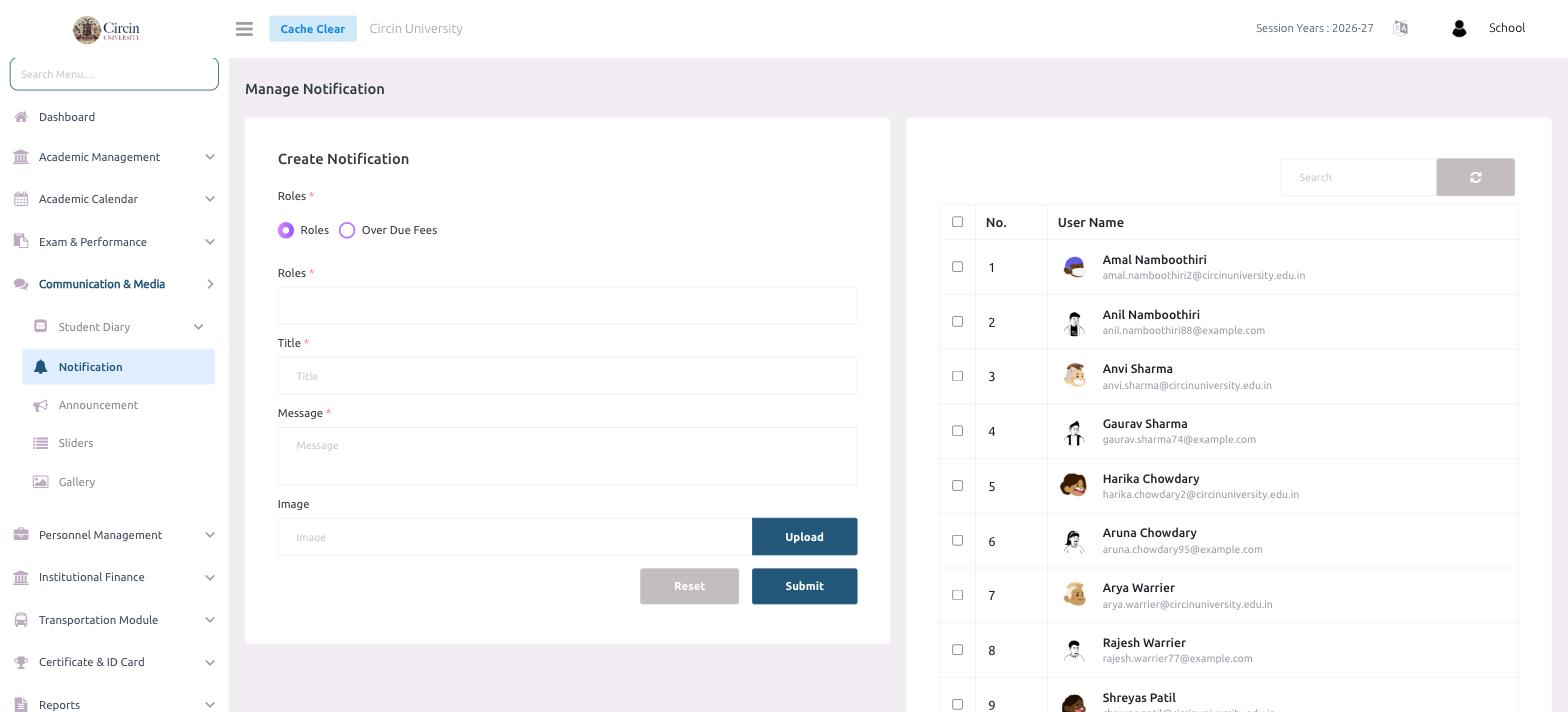
Notifications are push messages Circin delivers to users' apps. You choose an audience — a role (such as students or teachers) or everyone with Over Due Fees — write a title and message, optionally attach an image, and send.
How do I send a notification?
- In the left menu, open Communication & Media → Notification. This opens the Manage Notification page.
- Under Roles, choose the audience type — Roles or Over Due Fees.
- In the Roles field, pick which role(s) should receive it.
- Enter a Title and a Message.
- To include a picture, use the Image field and click Upload.
- Click Submit to send. Reset clears the form.
Who will receive it?
The panel on the right lists the matching users by No. and User Name (with their email), each with a checkbox and a search box, so you can confirm the audience before sending.
Tips
- Choose Over Due Fees to target only the families with a pending balance — useful for payment reminders.
- The image is optional; a title and message are all that's required.