Send a push notification from Circin Maestro
Push a titled message to everyone, to chosen roles, to named people or to overdue-fee families, straight from Circin Maestro.
Updated
Staff
Also on Admin Panel: Notifications
A notification is a push that lands on people's phones. From Circin Maestro you choose the audience — everyone, a role, named individuals, or families with overdue fees — write the message, and send.
How do I send one?
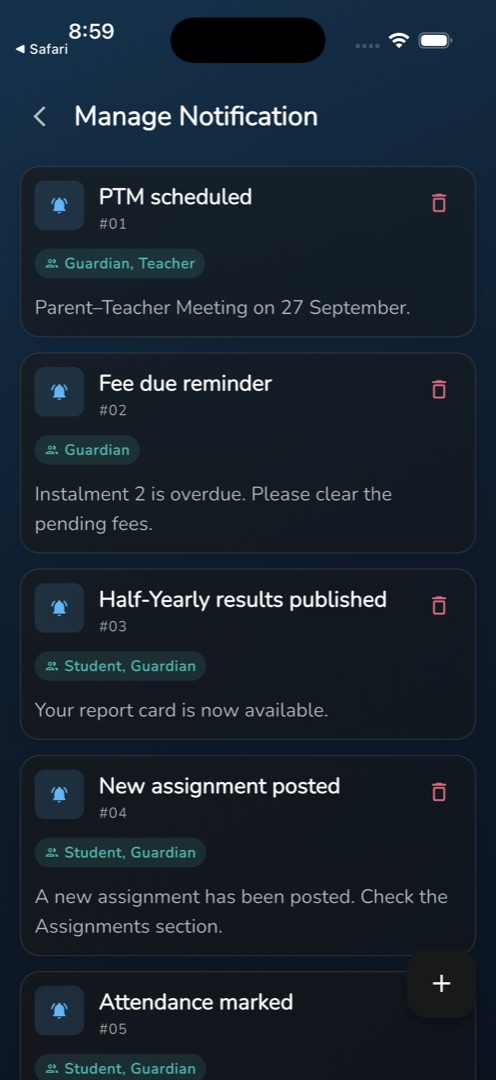
- Open Manage → People & comms → Manage Notification. Past notifications list newest first, numbered #01, #02, each showing its title, a Send to chip, the message and any image. An empty list reads No notifications found.
- Tap the + button to open Add Notification.
- Under Title, type a Title and a Message. Both are required.
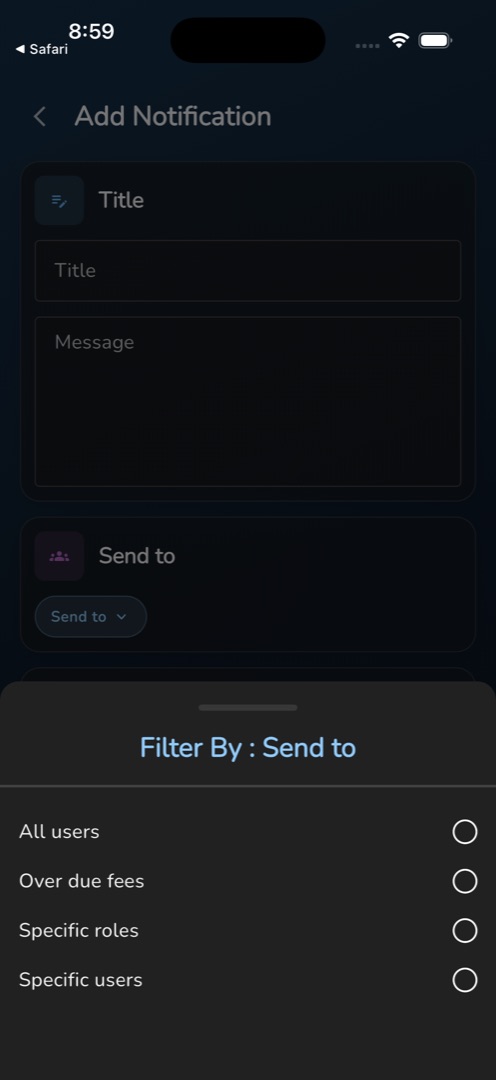
- Under Send to, tap the pill and choose one of All users, Over due fees, Specific roles or Specific users.
- Specific roles adds a Select roles row — tick Teacher, Student, Guardian or any custom role your school has. Picked roles appear as removable chips.
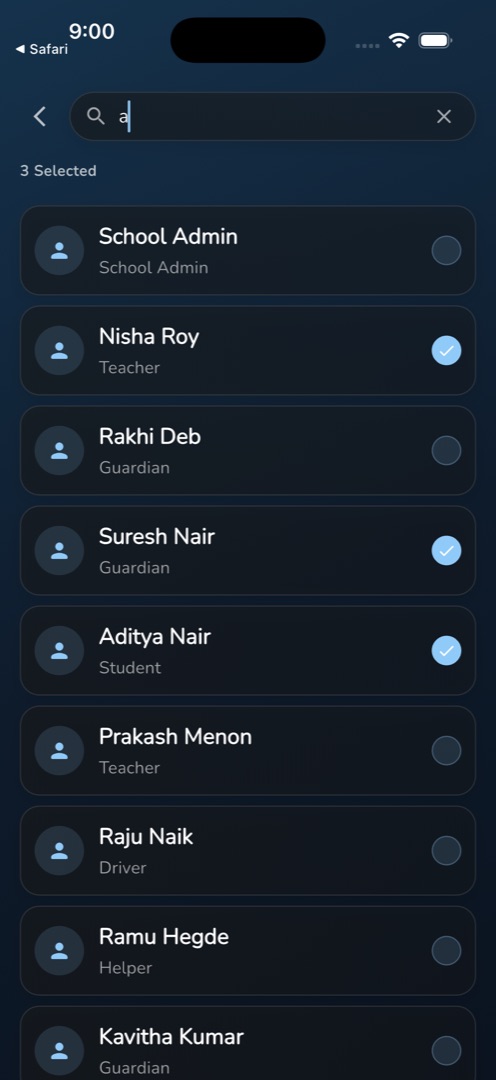
- Specific users adds a Select users row, which opens a search screen. Type a name, tap rows to tick them, watch the N Selected count, then tap back to carry the selection over.
- Under Upload image, attach one image if you want. Only one, and images only — documents cannot be attached.
- Tap Submit. You get Notification sent successfully, the form resets, and the list behind it refreshes.
Rules and gotchas
- The checks run in order: Please enter title, Please enter message, Please select send to value (also shown when you pick Specific roles and tick nothing), and Please select user.
- Changing the Send to value clears any roles you had ticked — but not the users. Set the audience first, then pick.
- User search only fires about 0.7 seconds after you stop typing, and does nothing while the box is empty.
- A sent notification cannot be edited. The only follow-up is the bin icon on its card: Are you sure to delete? → Yes → Notification deleted successfully.
- Submit only appears once the roles list has loaded, and back is blocked while the send is in flight.
- The tile needs the notification-list permission; the + needs notification-create and the bin needs notification-delete.