Check your sign-in methods in Circin Maestro
See every way your Circin Maestro account can sign in — email, Google, phone — and add Google so you never type a password again.
Updated
Teacher
Class Teacher
Staff
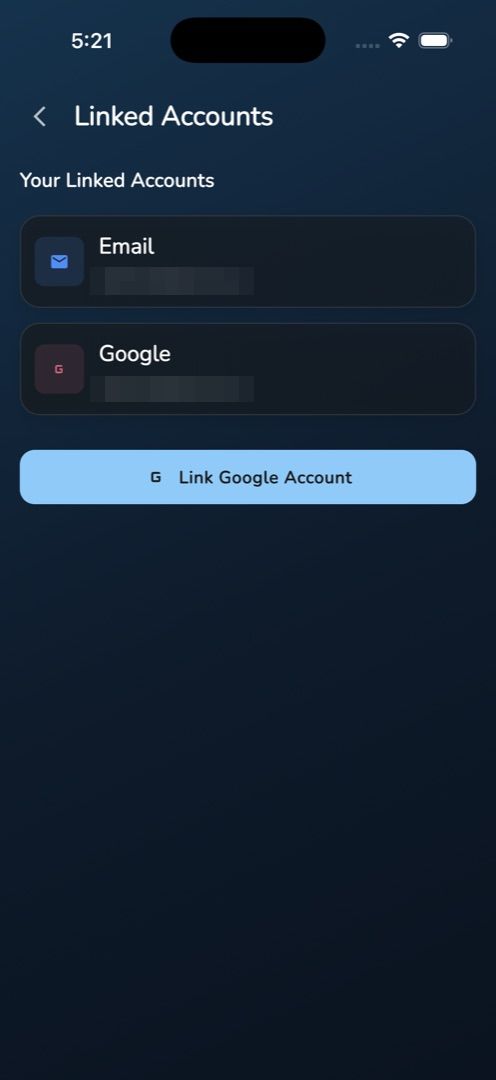
Linked Accounts lists every way your account can get into Circin Maestro, and lets you add one more: your Google account.
How do I see my sign-in methods?
- Tap the Profile tab, then Linked Accounts under Account.
- Under the heading Your Linked Accounts, each method is a card — Email with a blue envelope, Google in red, Phone in green — each showing the address or number it is bound to.
How do I add Google sign-in?
- On the same screen, tap the full-width Link Google Account button under the cards.
- Pick your account in the Google chooser.
- A message confirms Account linked successfully and a Google card joins the list.
Next time you sign in you can tap Sign in with Google instead of typing your password.

Rules and gotchas
- The screen is read-only apart from that one button. You cannot unlink Google, cannot change the email, and cannot add or remove a phone number here.
- The Profile tile still promises Google · phone sign-in, but phone linking moved to Edit Profile. Trust the screen, not the subtitle.
- Backing out of the Google chooser shows Google sign-in was cancelled.
- If that Google identity already belongs to someone else you get This account is already linked to another user. Other failures show Couldn't link this account. Please try again. or Your session has expired. Please sign in again.
- A sign-in method the app does not recognise prints its raw technical id instead of a friendly name.