Look up a teacher in Circin Maestro
Open the teacher directory from the Circin Maestro Home tab, search by name, and read a teacher's profile, qualification and contact details.
Updated
Staff
Office staff have the whole teaching roster on the Home tab: the Total Teachers tile is both a count and the way into the directory.
How do I find a teacher?
- On the Home tab, in the Overview row, tap the Total Teachers tile — its link reads View Teachers.
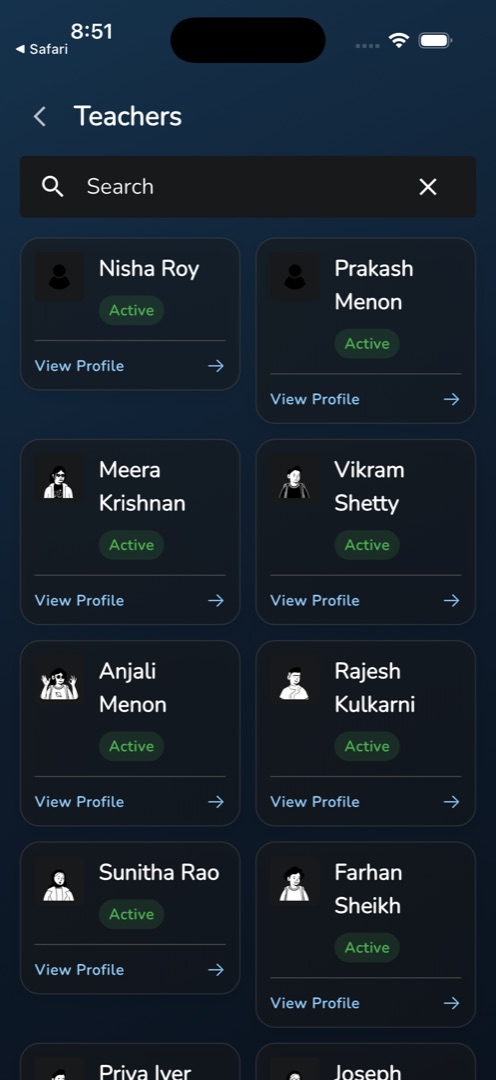
- The Teachers grid opens, two cards per row, each with a photo, the name, an Active or Inactive chip and a View Profile link.
- Type into the Search box to narrow by name. It fires about 0.7 seconds after you stop typing; the ✕ clears it and reloads the full grid.
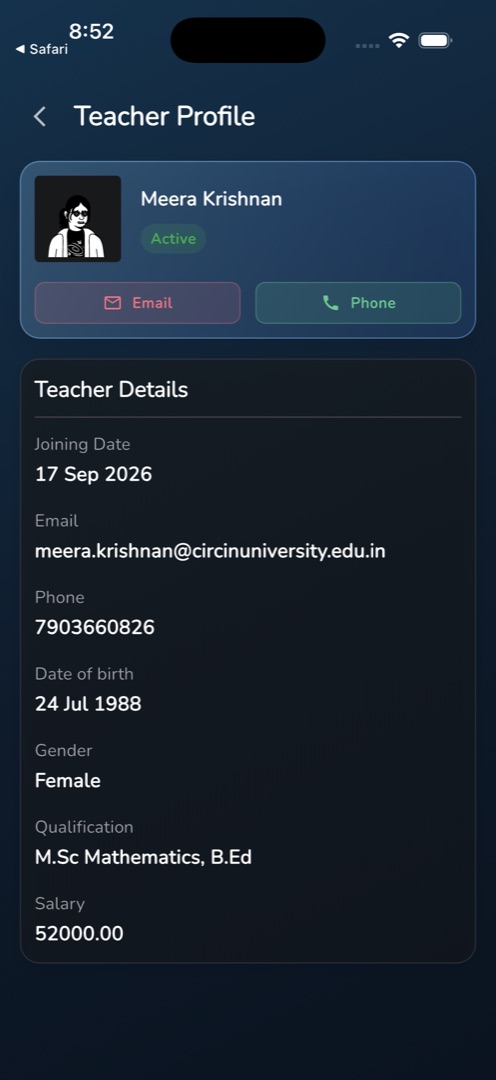
- Tap a card to open Teacher Profile: the photo, name and status chip, Email and Phone buttons, then a Teacher Details card with Joining Date, Email, Phone, Date of birth, Gender, Qualification and Salary.
Rules and gotchas
- The tile needs the teacher-list permission, and the whole Overview row disappears if none of its four tiles are permitted.
- This is a staff surface. Teachers do not get the Overview row and cannot reach the directory.
- The footer link on a card changes with how you arrived — View Profile, Timetable or View leaves — while the cards themselves look identical. Read the link before you tap.
- Blank values print as -, including Salary when it has not been set.
- The directory is read-only and does not page. Adding a teacher or correcting a record is admin-panel work — see Manage teachers.
For office staff rather than teaching staff, see Look up a staff member in Circin Maestro.