Apply for leave in Circin Maestro
Submit your own leave request from Circin Maestro — pick the dates, set each day as full or half, attach a document, and send it for approval.
Updated
Teacher
Class Teacher
Staff
Teachers and staff raise their own leave from the phone: Profile → Leaves → Apply Leave. Every request lands as Pending and waits for an approver.
How do I apply?
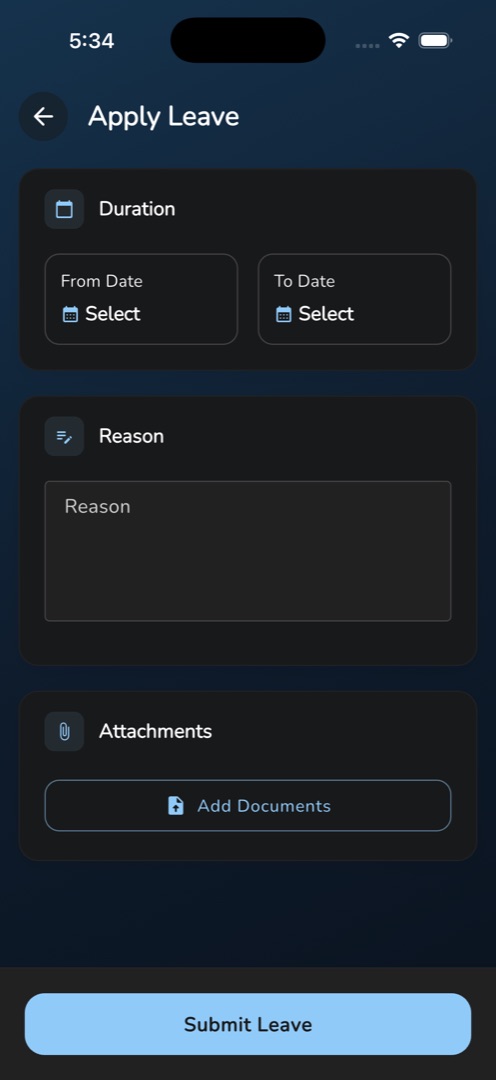
- Tap the Profile tab, then Apply Leave under Leaves. The screen loads your school's leave settings first — nothing on the form works until that succeeds, and a failure gives you an error box with a retry.
- On the Duration card, tap From Date and pick a day. The earliest you can choose is today; the latest is the end of the current session year.
- Tap To Date and pick the last day. Tapping it before a From Date shows Please select from date.
- On the Reason card, type why you are away. This is required.
- On the Attachments card, tap Add Documents to attach files — any type, as many as you need. Each appears as a row you can delete.
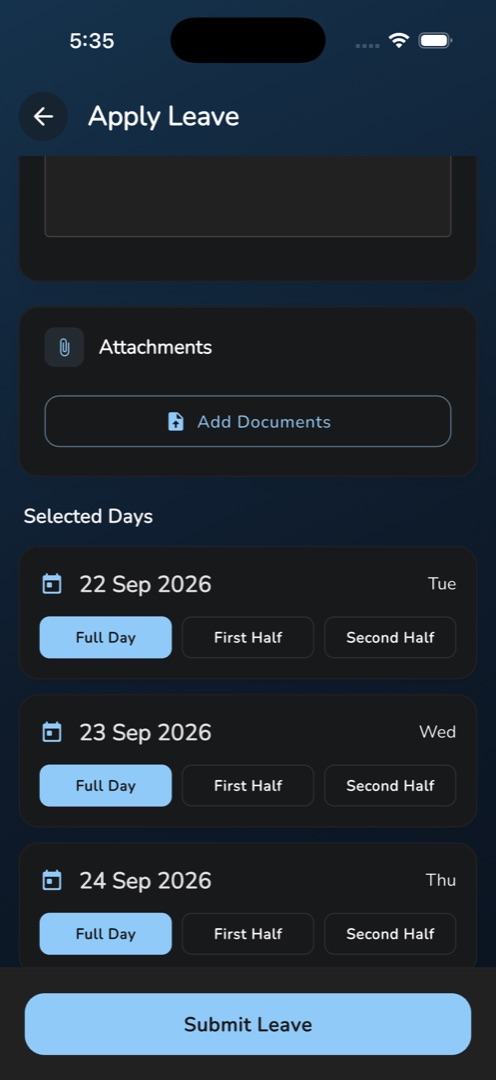
- A Selected Days list now appears, one card per day in the range. Each starts on Full Day; tap First Half or Second Half on any day you are only part-out.
- Tap Submit Leave. You get Leave applied successfully and the whole form empties in place.
Rules and gotchas
- The form does not navigate anywhere after a successful submit — it just clears. To confirm it was received, open My Leave and look for a Pending card.
- Back-dated leave is impossible from the app. If you were out yesterday, ask the office to record it.
- Your school's weekly off days are silently dropped from the Selected Days list. A Monday-to-Sunday request shows five rows when Saturday and Sunday are off, with nothing on screen to explain the missing days.
- Changing the From Date to a day after the To Date clears the To Date and empties the day list.
- The app does not check your balance. You can submit more days than you have left; only the approver catches it.
- Checks run one at a time, in this order: Please add reason, Please select from date, Please select to date.
- Nothing is queued when you are offline. A submit without a connection shows the no-internet message and is lost — try again when you have signal.
Approvers work from a different screen — see Approve or reject a leave request.