Check the session year in Circin Maestro
See which academic session your school is running, and which one Circin treats as the default, from the Manage tab in Circin Maestro.
Updated
Staff
Marks, leaves and payroll are all filed against a session year, so when a filter shows the wrong one it is worth knowing which year your school is actually running.
How do I check it?
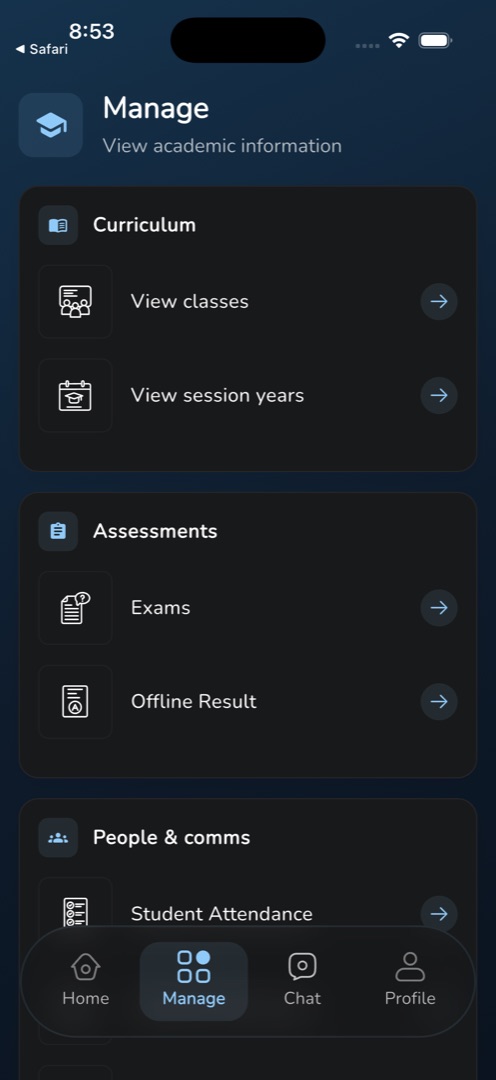
- Tap the Manage tab.
- Under the Curriculum group, tap View session years.
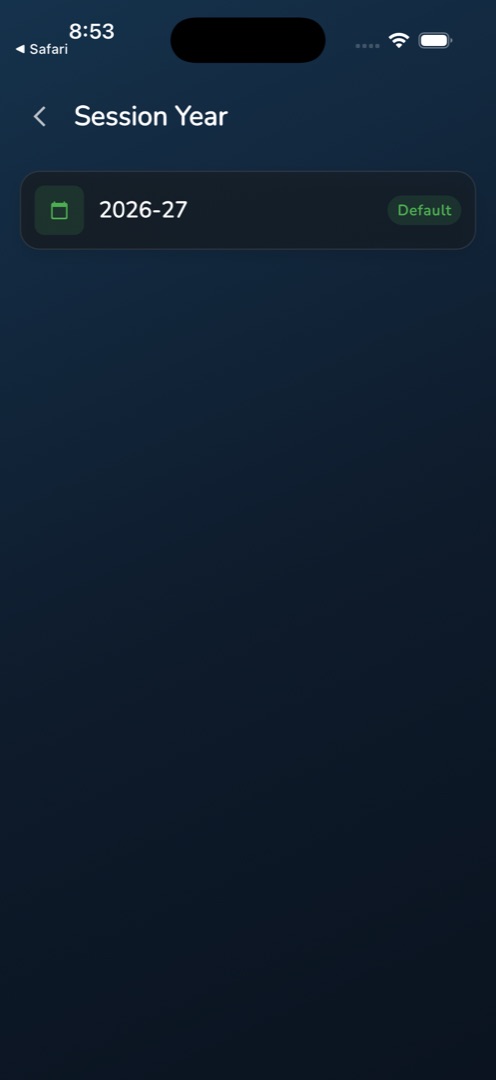
- The Session Year screen lists every session your school has, each as a card with a calendar chip and its name.
- The one Circin treats as current carries a green Default pill. That is the year every other screen's filter falls back to.
- Tap the back arrow to return.
Rules and gotchas
- The screen is read-only. The cards are not tappable, and nothing in the app adds a session year or changes which one is the default — that is admin-panel work, covered in Session year.
- The entry only appears for roles that hold the session-year-list permission, which in practice means office staff and admins. Teachers do not see it — their Manage tab is a different set of tiles.
- An empty list reads No session years found please add session years, which means the school's sessions have not been set up yet rather than that anything failed.
- A load failure shows the raw error text with a retry button.