Bulk-upload staff
Add many staff at once in Circin by downloading the dummy file, filling it in as a .csv, choosing a role and uploading it.
Updated
School Admin
Bulk upload lets you add many staff members at once from a spreadsheet instead of entering them one by one. You download Circin's template, fill it in, save it as a .csv, pick a role, and upload.
How do I bulk upload staff?
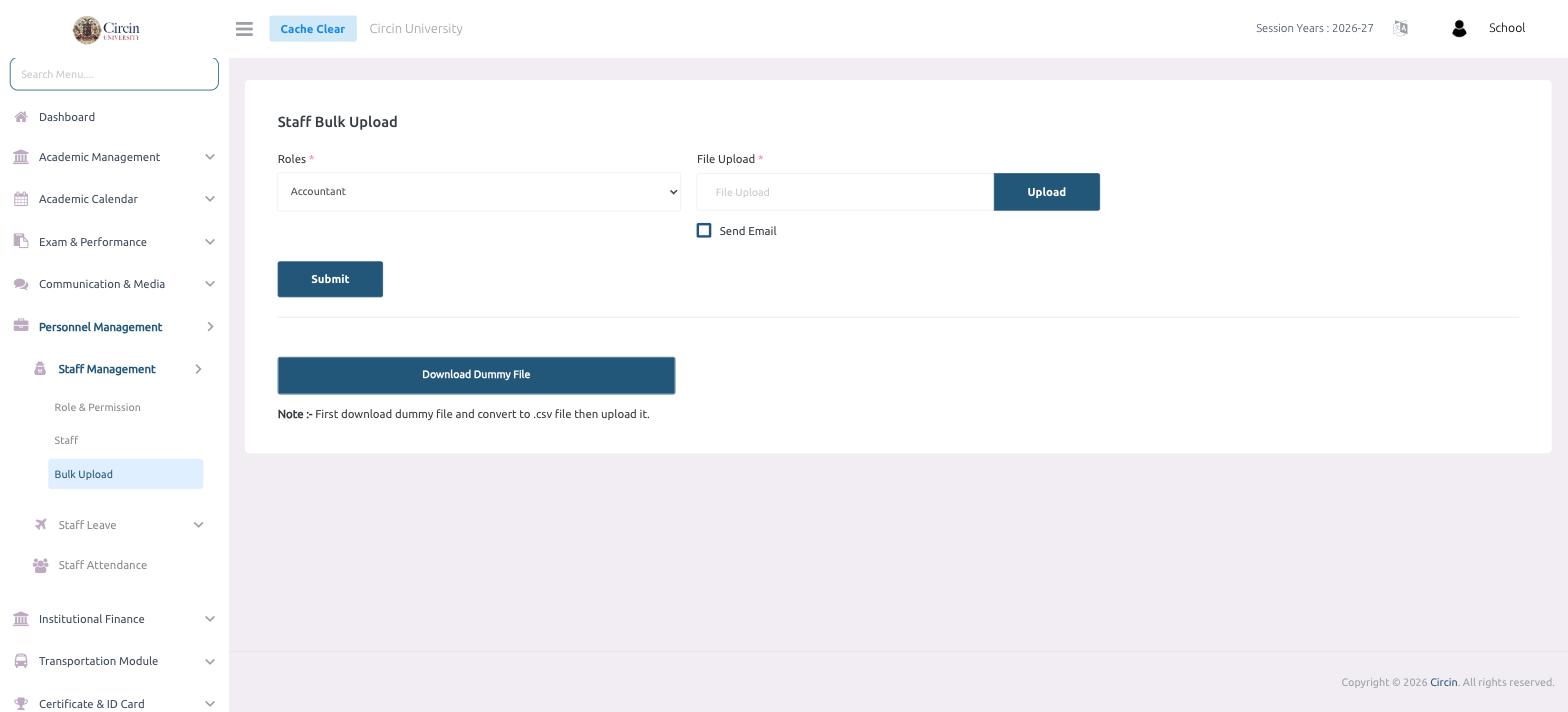
- In the left menu, open Personnel Management → Staff Management → Bulk Upload. This opens the Staff Bulk Upload page.
- Click Download Dummy File and fill it in, then convert it to a .csv file — the on-screen note reminds you: First download dummy file and convert to .csv file then upload it.
- Choose the Roles for the staff you're importing.
- Under File Upload, click Upload and select your .csv file.
- Optionally tick Send Email to notify the new staff members.
- Click Submit.
Tips
- Always start from the Download Dummy File template so your columns match what Circin expects.
- Pick the correct Roles first — every staff member in the file is imported under that role.