Take attendance
Mark daily student attendance in Circin in three steps — choose the class, pick the date, and submit. Everyone starts present, so you only flag the exceptions.
Updated
Also on Circin Canvas: Take attendance from Circin Canvas Circin Maestro: Take attendance in Circin Maestro
Taking daily student attendance in Circin has three steps: choose the class, pick the date, and submit. Every student starts marked present, so you only flag the ones who are absent or late.
How do I take attendance?
- In the left menu, open Academic Calendar → Attendance.
- Choose the Class from the dropdown. As a class teacher you'll see only your class; as an admin, start typing to find it (for example, 10-A).
- Pick the Date. Circin caps this at today, so you can't mark a future day. As soon as a class and date are set, your students load in a table with a Holiday option and a Submit button.
- Everyone is present by default. Mark only the students who are absent or late.
- Click Submit. Circin saves the day for the whole class and confirms with a success message.
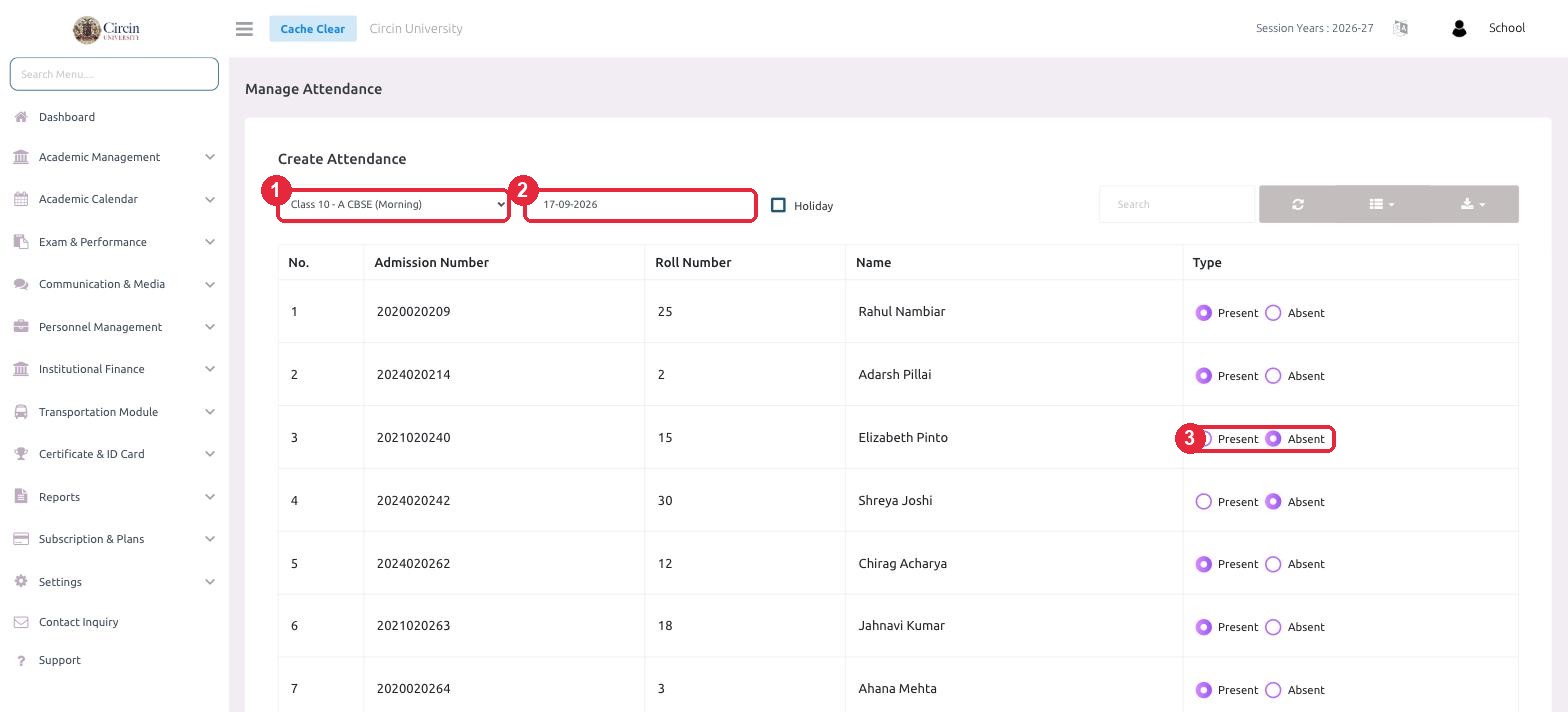
That's it — the day is recorded and instantly available in the register and in the parents' and students' apps.
How do I mark a day as a holiday?
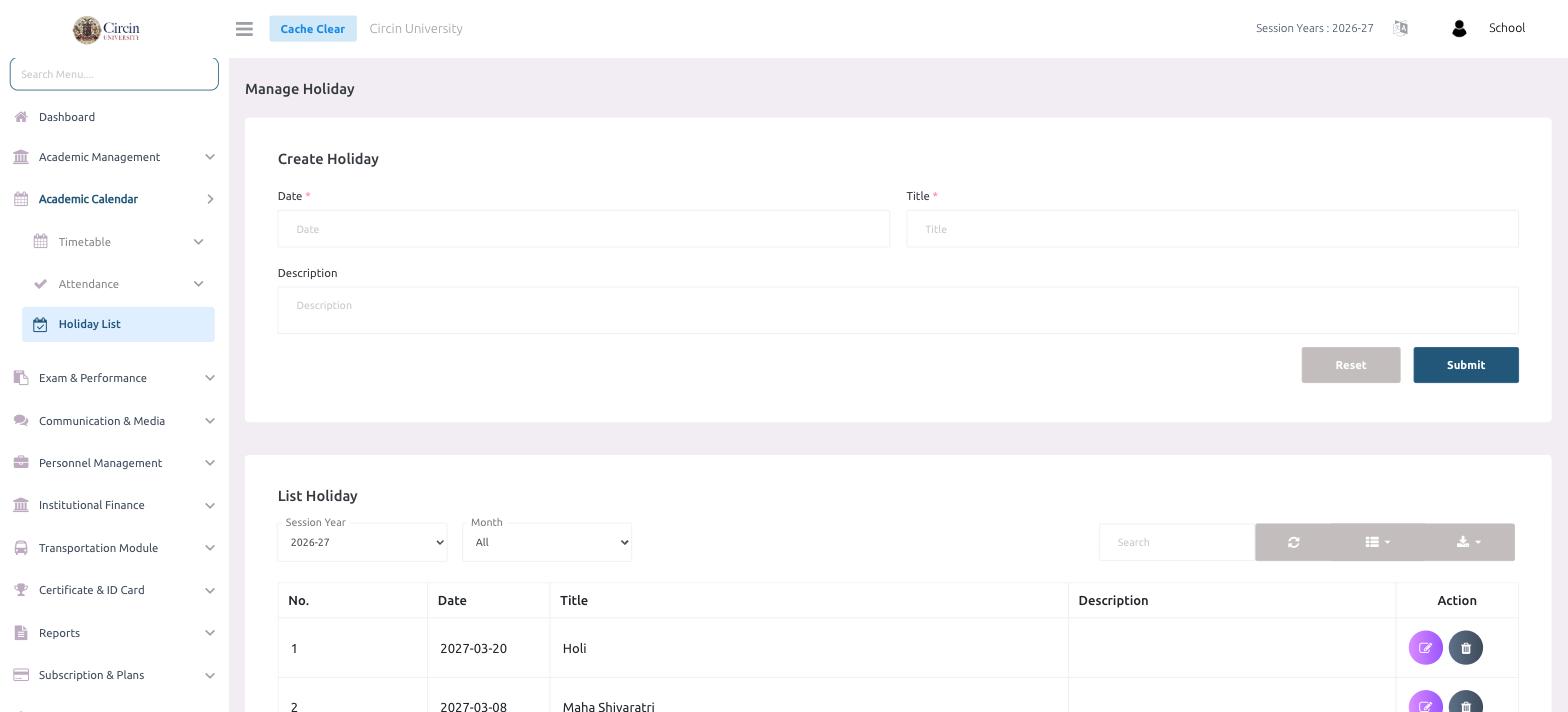
If the whole class is off, tick Holiday after choosing the class and date, then confirm. Circin marks the day as a holiday for that class instead of taking per-student attendance. You manage recurring holidays for the whole school under Academic Calendar → Holiday List.
How do I view or edit a day's attendance?
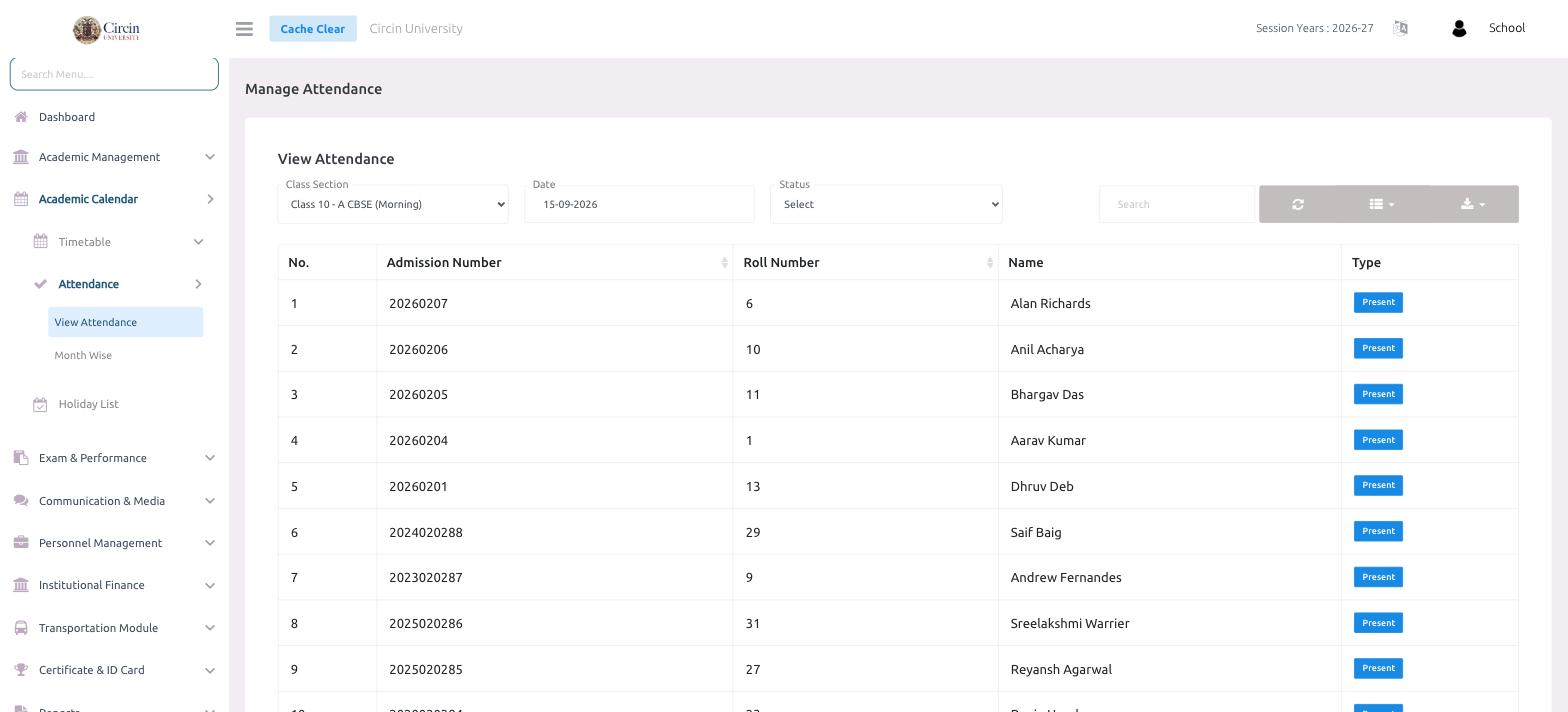
Open Academic Calendar → Attendance → View Attendance, choose the class and date, and Circin shows what was recorded. Change any student and submit again to update the day.
Where is the monthly register?
Academic Calendar → Attendance → Month-wise shows the full month as a grid — every student against every day — which you can export. Use it for a quick health check or to share with parents.