Bulk-import questions
Upload many exam questions at once in Circin — pick a class and subject, download the dummy file, fill it in as a .csv, and upload it.
Updated
School Admin
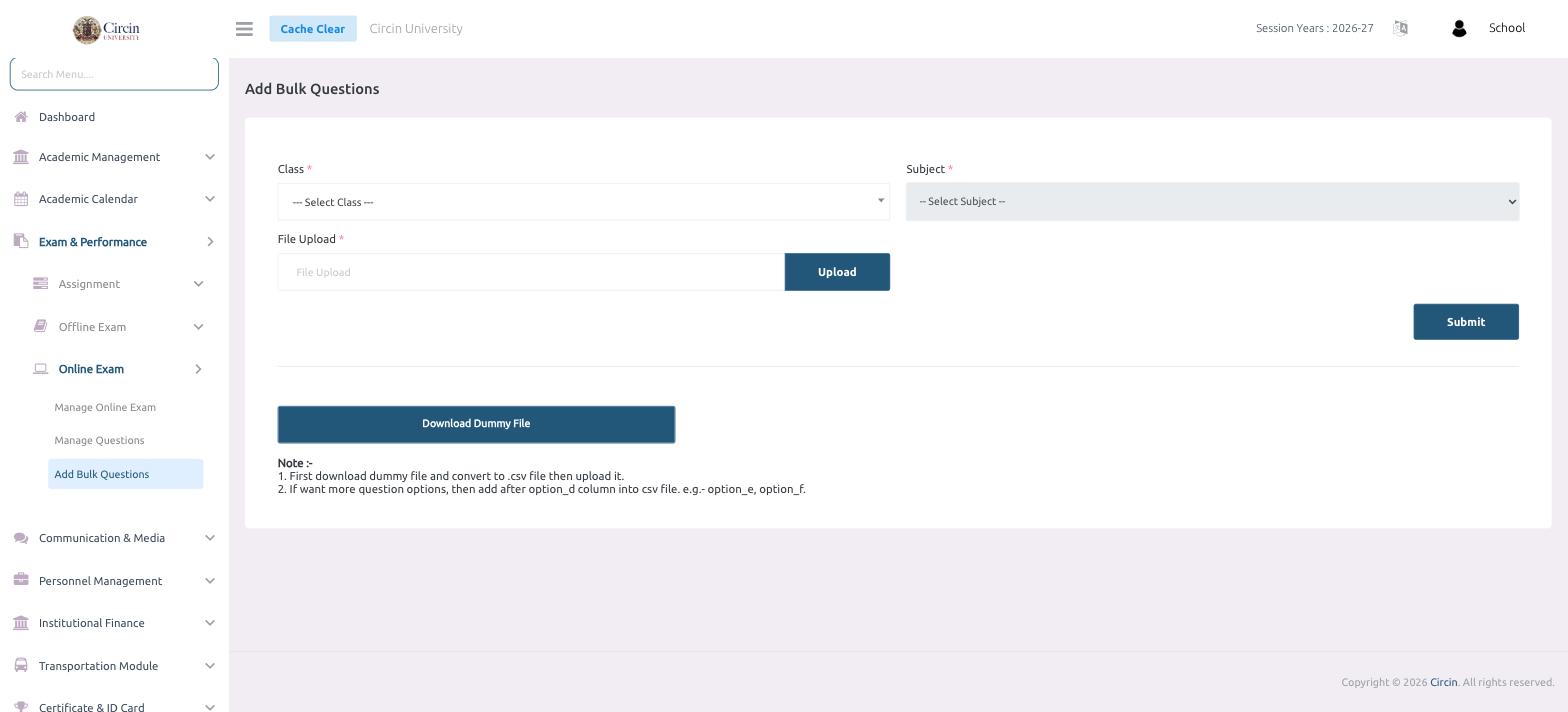
Add Bulk Questions lets you import many questions in one go instead of typing them one by one. You download a sample file, fill it in as a .csv, pick the class and subject the questions belong to, and upload it.
How do I upload questions in bulk?
- In the left menu, open Exam & Performance → Online Exam → Add Bulk Questions.
- Click Download Dummy File to get the template.
- Fill in your questions and convert the file to .csv format.
- Back on the page, choose the Class and the Subject.
- Under File Upload, click Upload and select your .csv file.
- Click Submit to import the questions.
What format does the file need?
The page's notes spell it out:
- First download the dummy file and convert it to a .csv file, then upload it.
- If you want more question options, add them after the option_d column in the csv file — for example option_e, option_f.