Class timetable
Build a class timetable in Circin by setting the start time, end time and period length, then letting Circin generate a day-by-day grid for every class section.
Updated
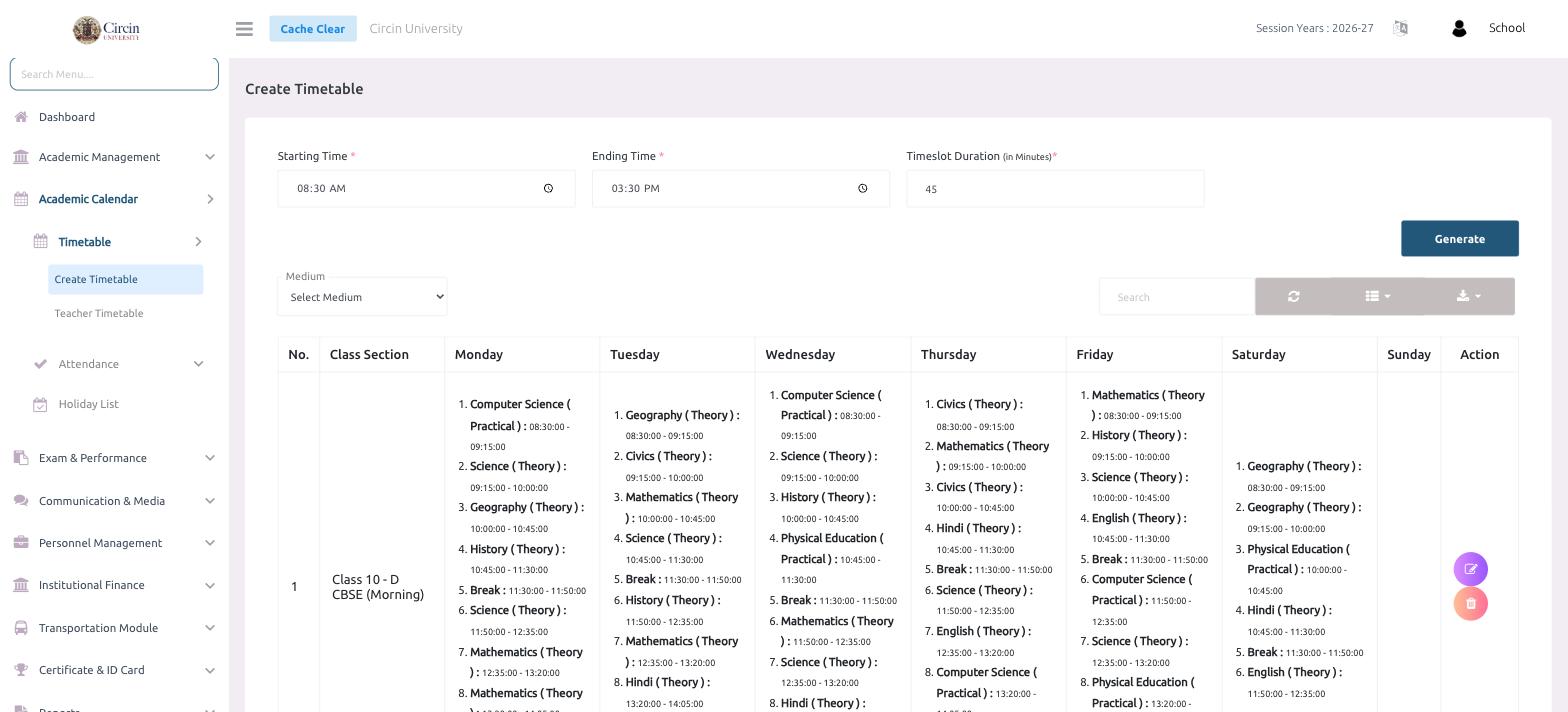
Creating a timetable in Circin takes three inputs — a Starting Time, an Ending Time, and a Timeslot Duration — and one click of Generate. Circin then lays out the periods and shows the week as a grid, with each class section on its own row and every day's subjects and time slots filled in.
How do I create a timetable?
- In the left menu, open Academic Calendar → Timetable → Create Timetable.
- Set the Starting Time — for example, 08:30 AM — the first period of the day.
- Set the Ending Time, such as 03:30 PM, when the school day finishes.
- Enter the Timeslot Duration (in Minutes) — for example, 45 — the length of one period.
- Click Generate. Circin divides the day into periods and builds the weekly grid.
- Use the Medium dropdown to filter the grid by medium if your school runs more than one.
What does the generated grid show?
The table lists each Class Section (such as Class 10 - D CBSE (Morning)) down the left, with a column for every day from Monday to Sunday plus an Action column. Each cell shows the numbered periods for that day — the subject (for example, Computer Science ( Practical ) or Mathematics ( Theory )) and its time range, like 08:30:00 - 09:15:00. Use the Action buttons on each row to edit or clear a section's schedule.
Tips
- Use the Search box above the grid to jump to a particular class section.
- The icons on the right of the toolbar let you refresh, change the column view and export the timetable.